
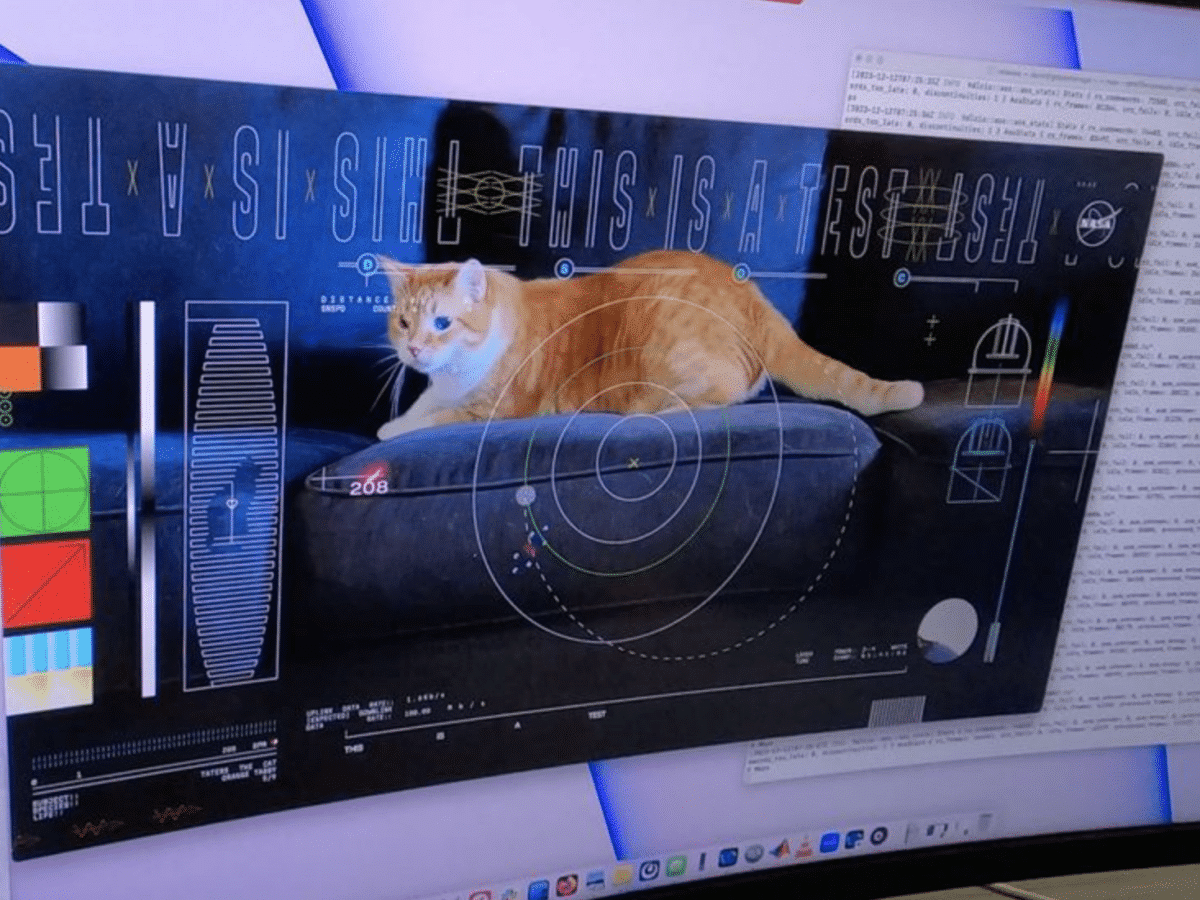

Nasa has now tested streaming video in HD format from Psyche, the spacecraft that left Earth in October and is expected to reach Psyche 16, the metal asteroid about 600 million kilometers from Earth, in 2029. The transmission from Psyche was conducted using a laser system for communication that Nasa calls Deep Space Optical Communications […]
Technology
Posted inSpace
Findings on Mars Could Overturn Everything We Know About the Universe

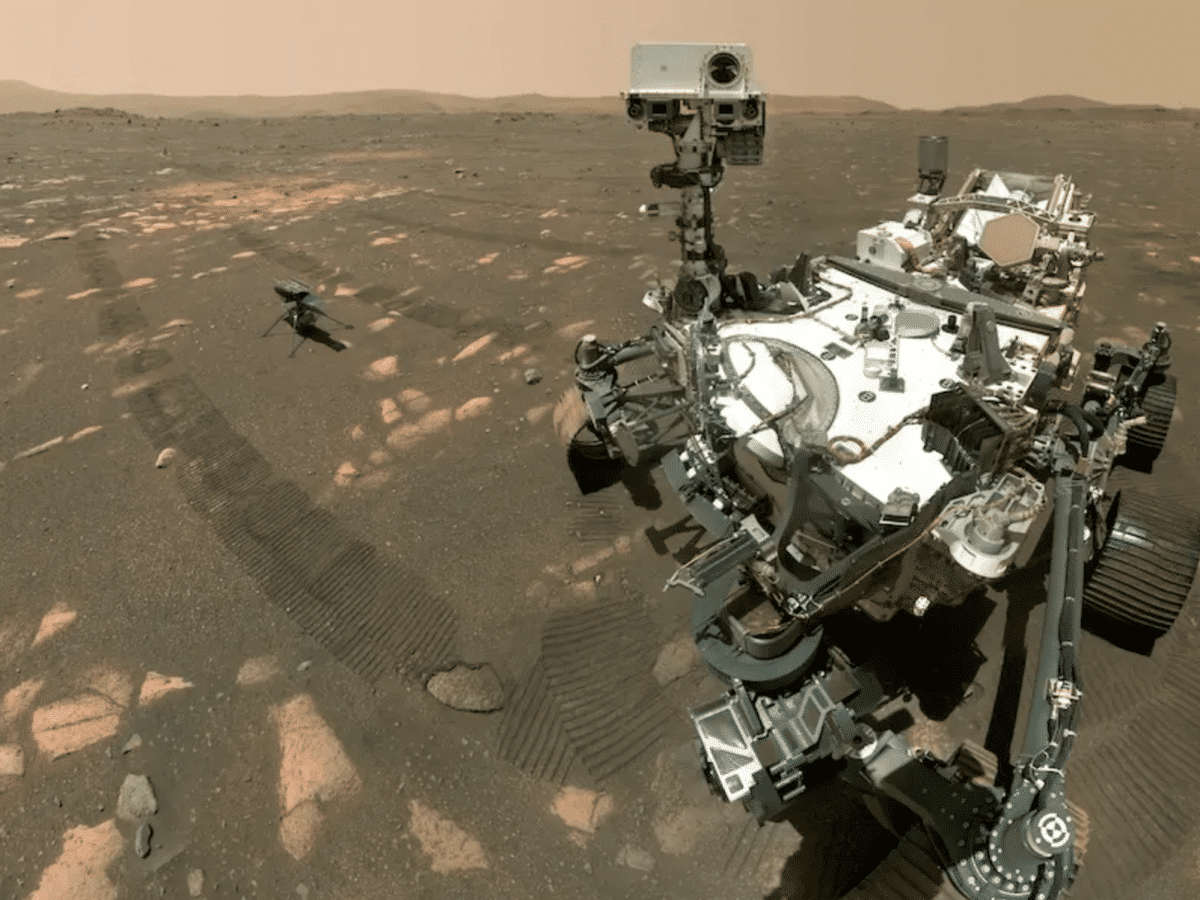
For a thousand days, the Mars rover Perseverance has been exploring Mars. Its latest expedition could provide new answers about the mysterious past of the red planet. NASA’s rover has discovered new clues in a crater on Mars that billions of years ago was both a lake and a river delta. 23 stone samples have […]
Posted inSpace
French HyPrSpace to build Baguette One
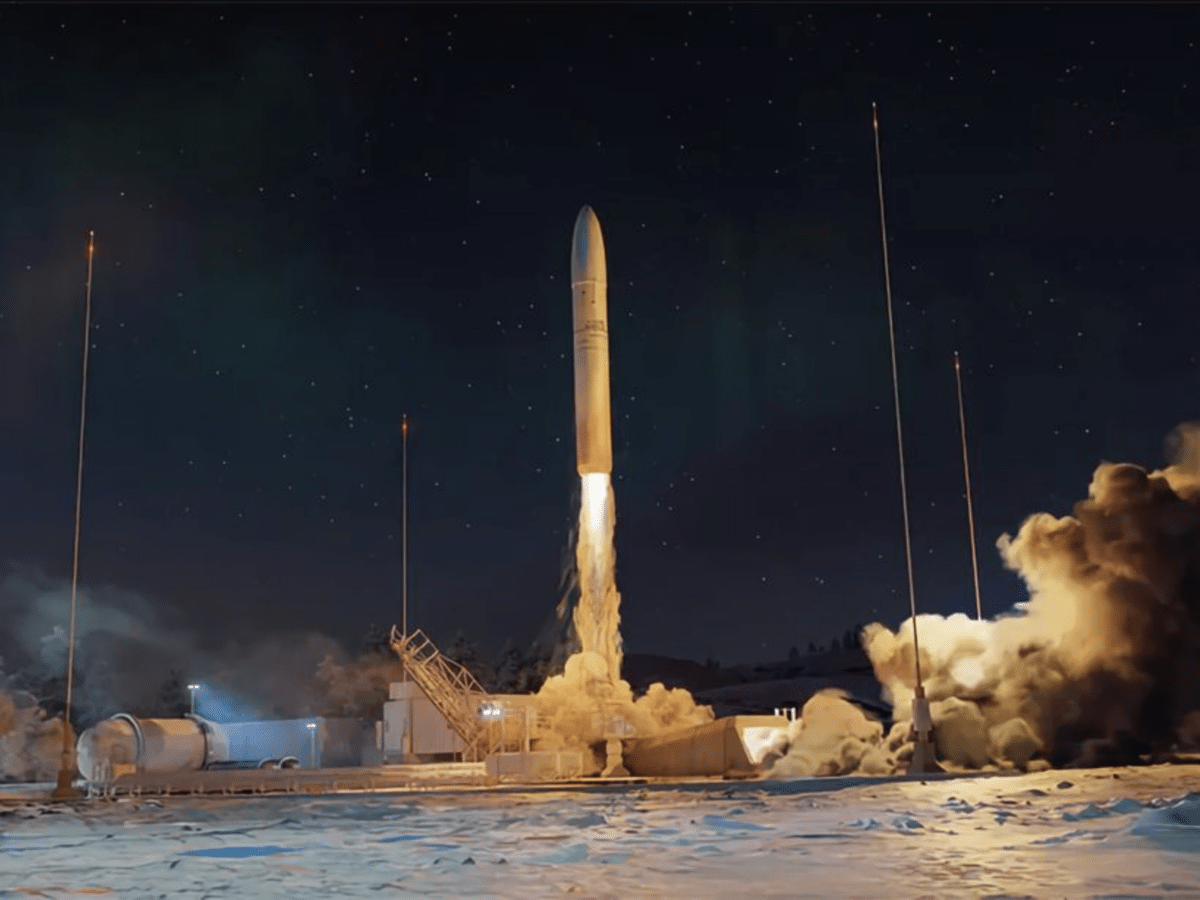
A consortium led by the French space company HyPrSpace has received a grant of 35 million euros, the majority of which comes from the French state, to develop a rocket that will be named “Baguette One”, reports European Spaceflight. Baguette One is a smaller rocket intended to deploy satellites up to 300 kg into Earth’s […]
Posted inTechnology
Now you can talk to the robot Digit

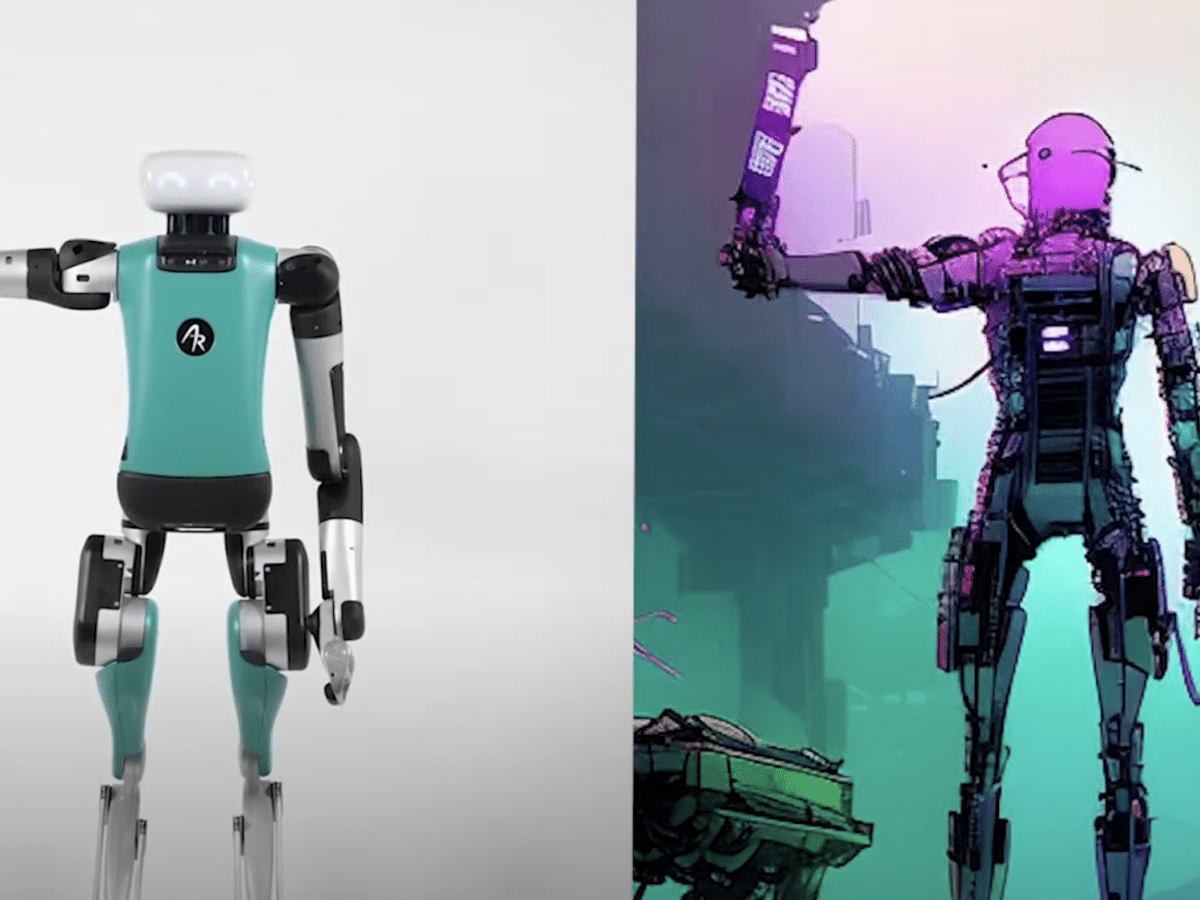
Agility Robotics has released a clip showing how a user can control their logistics robot Digit with voice commands that the robot previously could not understand. In the clip, Digit is instructed to move a box that is the same color as Darth Vader’s lightsaber, i.e., red. Thanks to Agility incorporating support for a large […]
Posted inTechnology
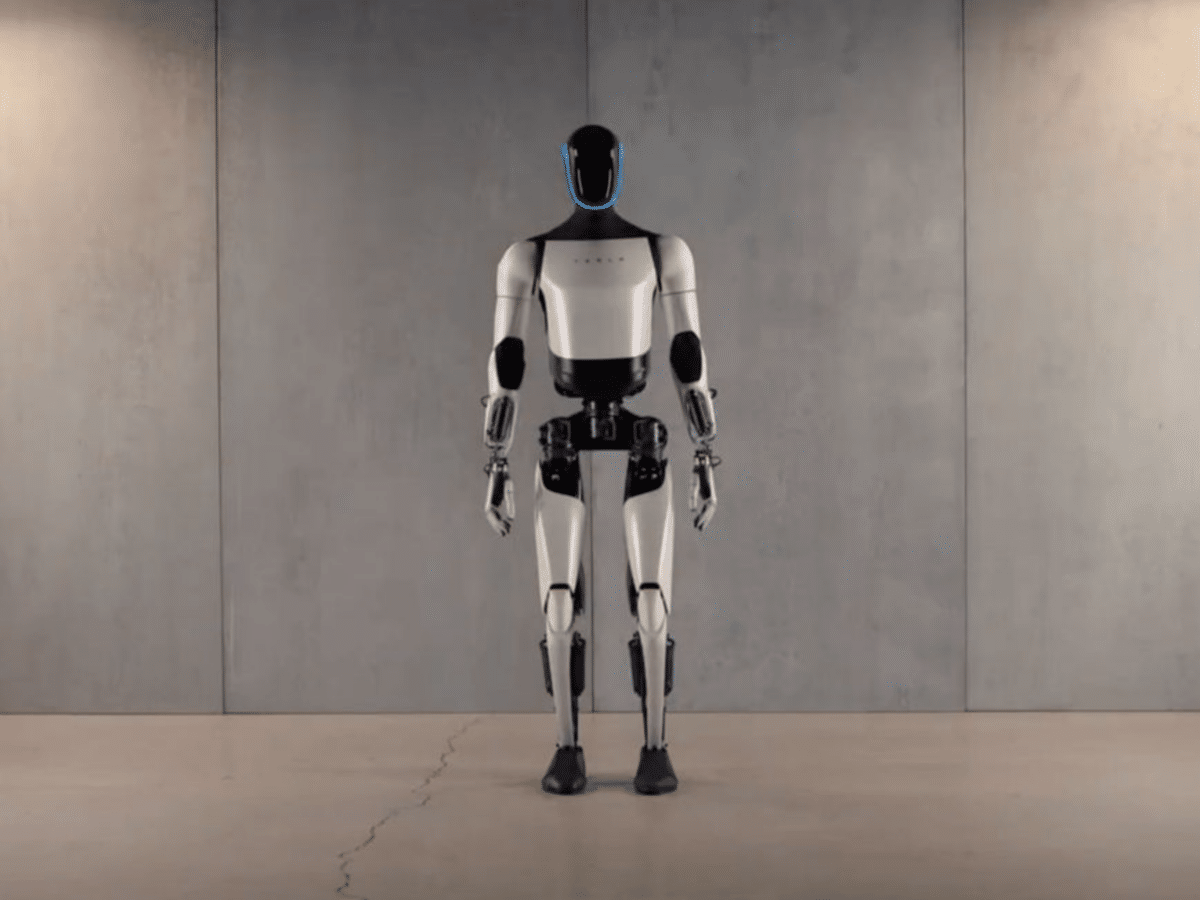
Tesla Unveils New Version of Optimus
Tesla has revealed a new version of its humanoid robot, Optimus, which is said to be faster and lighter than its predecessor. Optimus Gen 2 has also been equipped with additional sensors and a brand new pair of hands. As shown in the video below, the new version of Optimus can handle delicate items with […]
Posted inTechnology
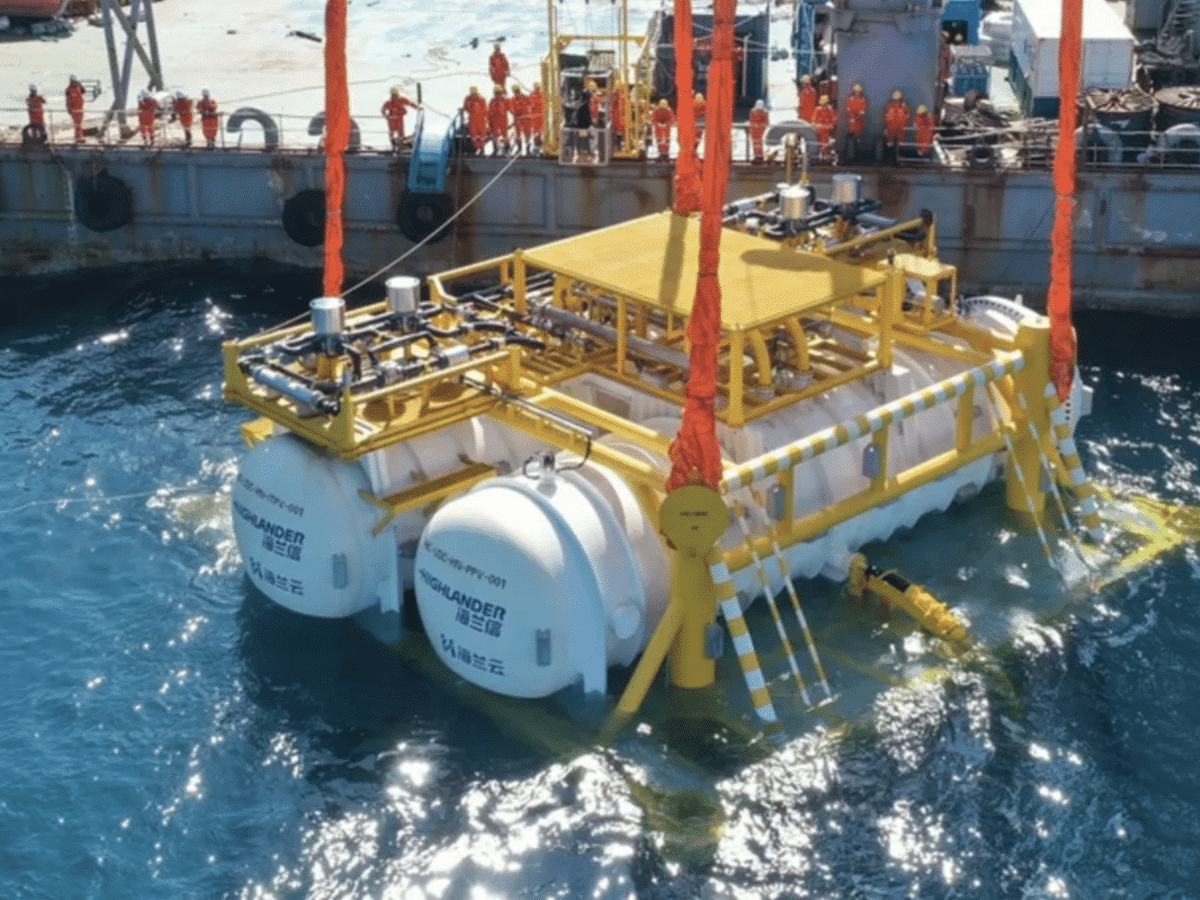
China Builds Underwater Data Center

Several Chinese companies have now begun constructing what they say will be the world’s first commercial data center submerged in the sea. The idea behind this is that the water surrounding the data center will cool down the computers inside, instead of them being cooled in other ways. This is a huge project consisting of […]
Posted inSpace
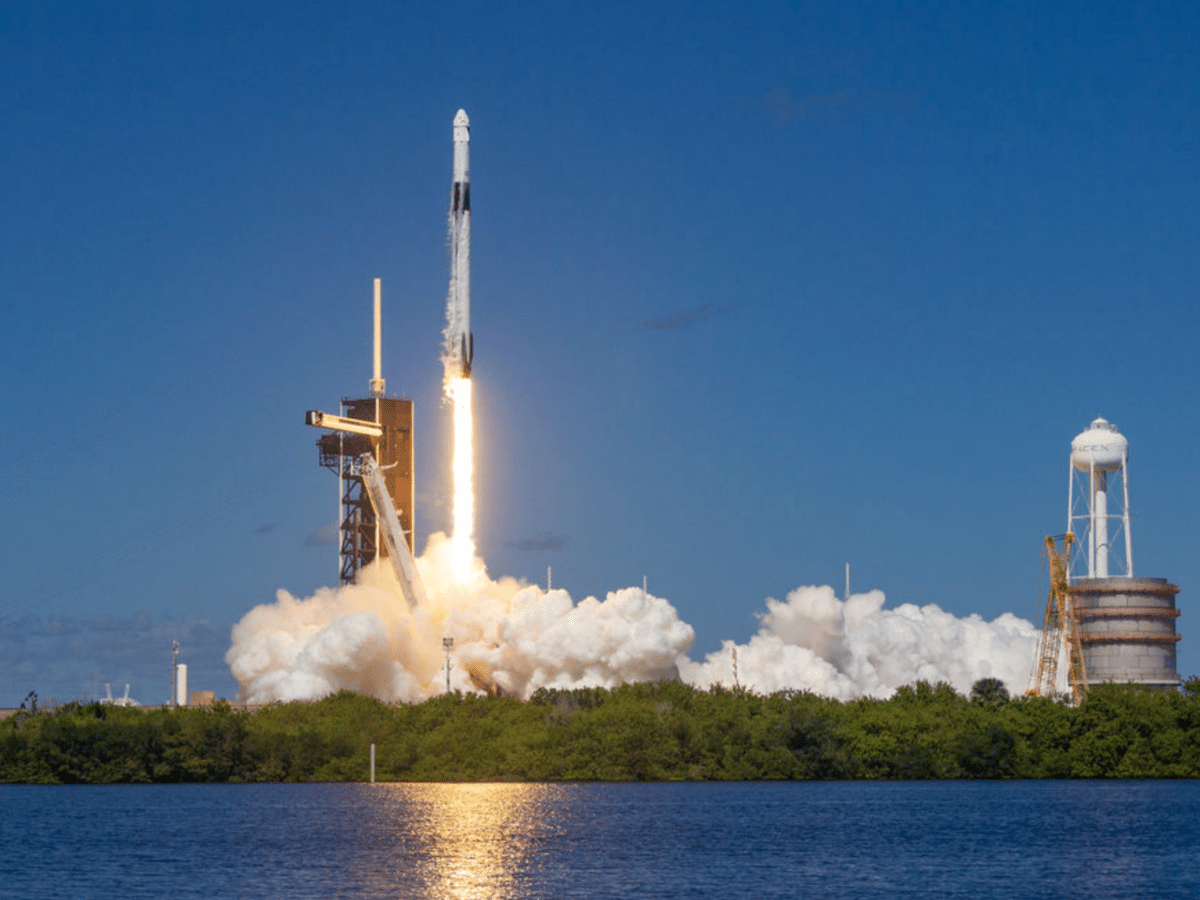
SpaceX is set to launch satellites for Amazon’s space internet
Amazon has now signed a contract with SpaceX, which means that SpaceX will begin launching satellites for Amazon’s space internet network, Kuiper. It likely wasn’t easy for Amazon to ask for SpaceX’s help, as SpaceX has already built the fully operational space internet network Starlink. Moreover, SpaceX is a competitor to Amazon founder Jeff Bezos’ […]
Posted inSpace
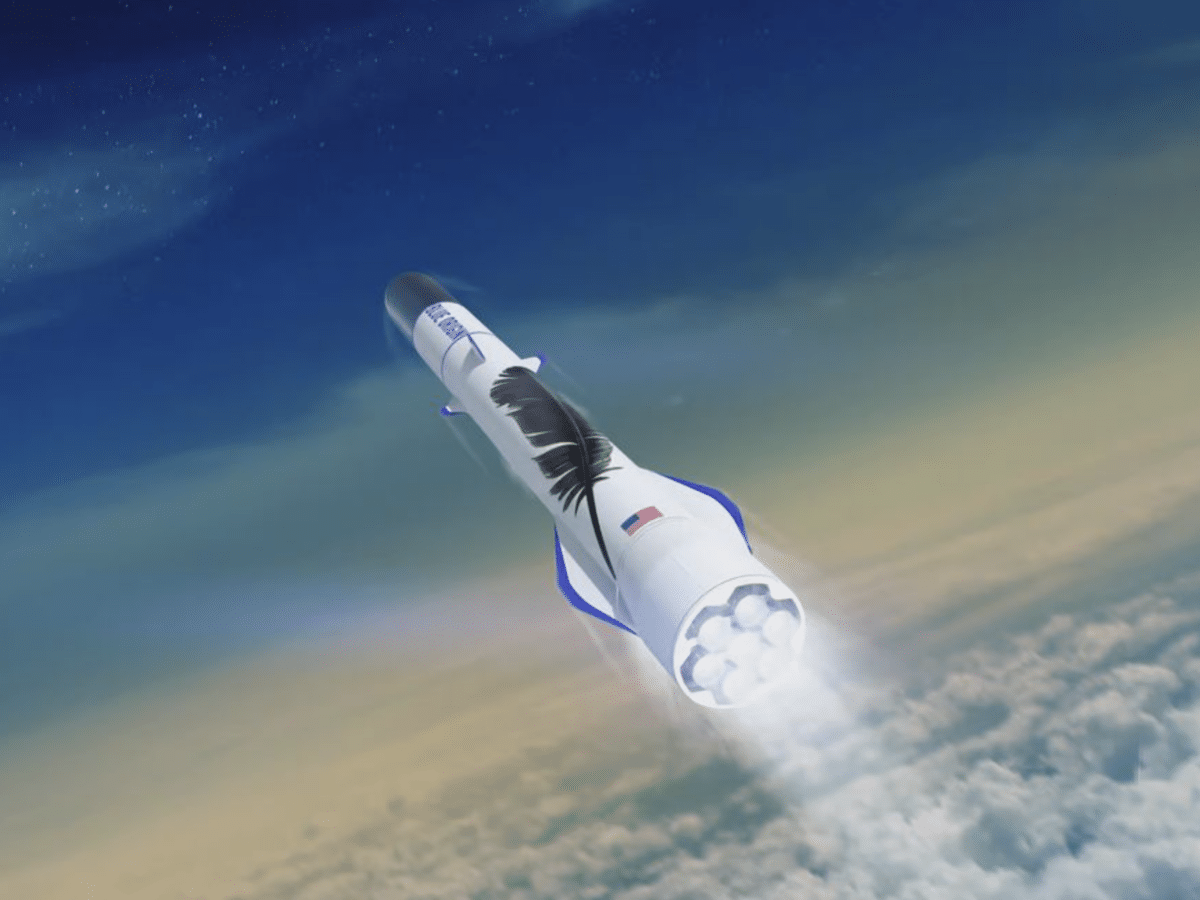
Blue Origin’s New Glenn rocket is set to go to Mars
It appears that the first commercial launch of Blue Origin’s upcoming giant rocket, New Glenn, will be headed to Mars. The American space agency NASA stated this week that it will likely be their Mars satellites “Escapade” that will be the payload for New Glenn’s first launch. Escapade (Escape and Plasma Acceleration and Dynamics Explorers) […]
Posted inSpace
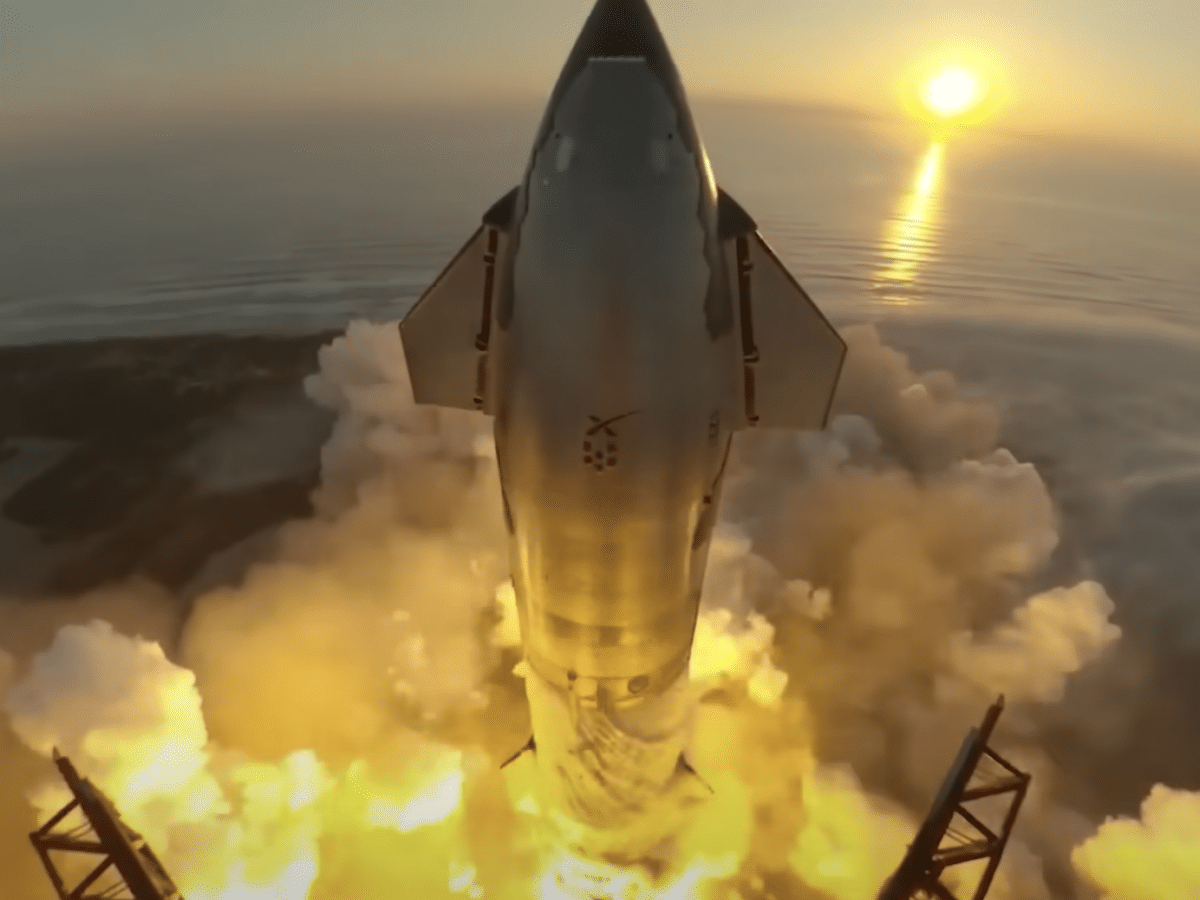
Check out a replay of Starship’s launch

This past weekend, SpaceX tested launching its spacecraft Starship with the accompanying Super Heavy booster for the second time. If you missed how it looked, you can check out a clip showing the launch from some new angles below. The launch did not go entirely as SpaceX had hoped. The separation between Starship and Super […]

Posted inTechnology
The Tech Package Needed for Achieving Optimum Logistics
In the modern business landscape, logistics is the backbone that keeps the market pulse steady. Achieving optimum logistics is not just about moving goods from point A to B; it’s about precision, efficiency, and the smart integration of technology. From enhancing tracking capabilities to streamlining supply chains, technology plays a pivotal role. The following will […]
Posted inSpace
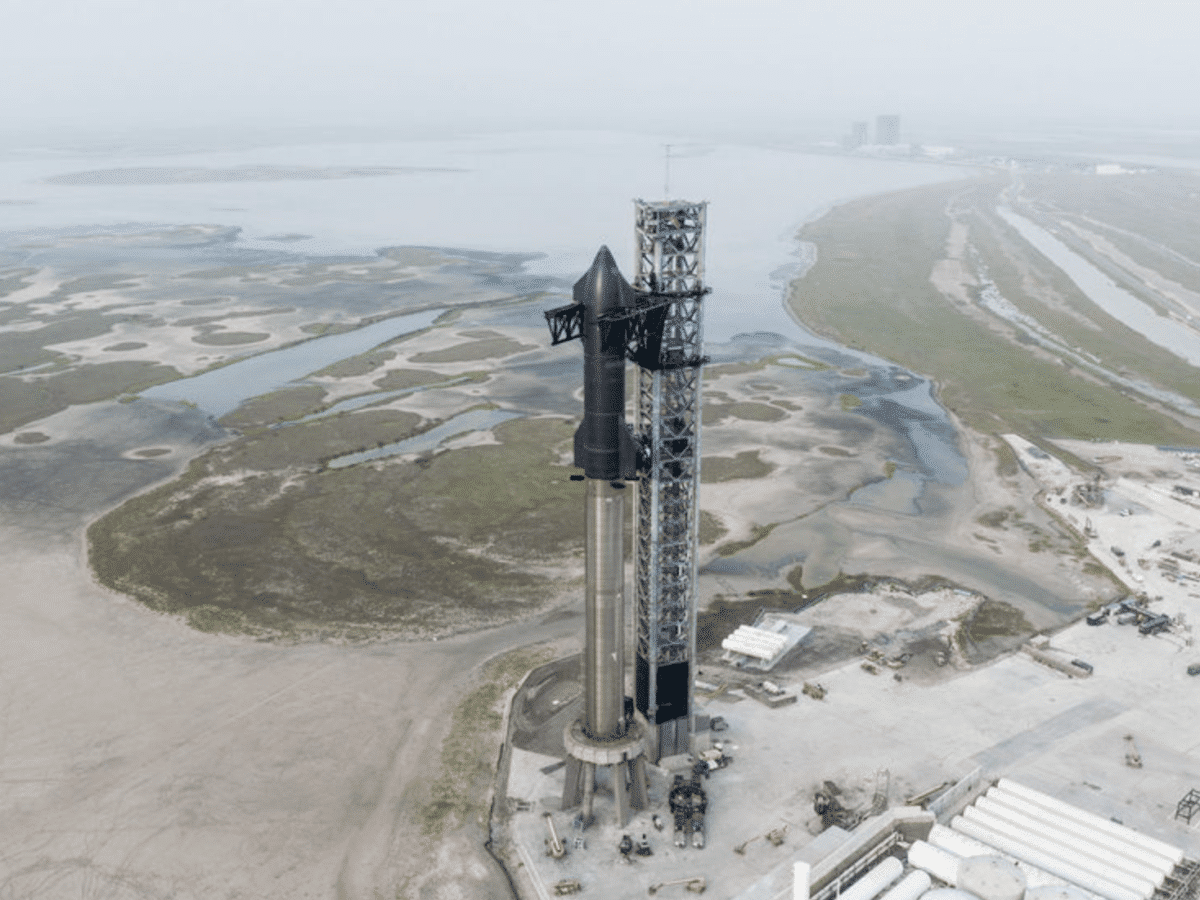
SpaceX plans to test Starship tomorrow
SpaceX has now received permission to launch its spacecraft Starship into space again. This will be the second time SpaceX tries to get Starship into space after they failed to do so in the first test conducted in April this year. After the first test of Starship, the American Federal Aviation Administration (FAA) considered that […]
Posted inSpace
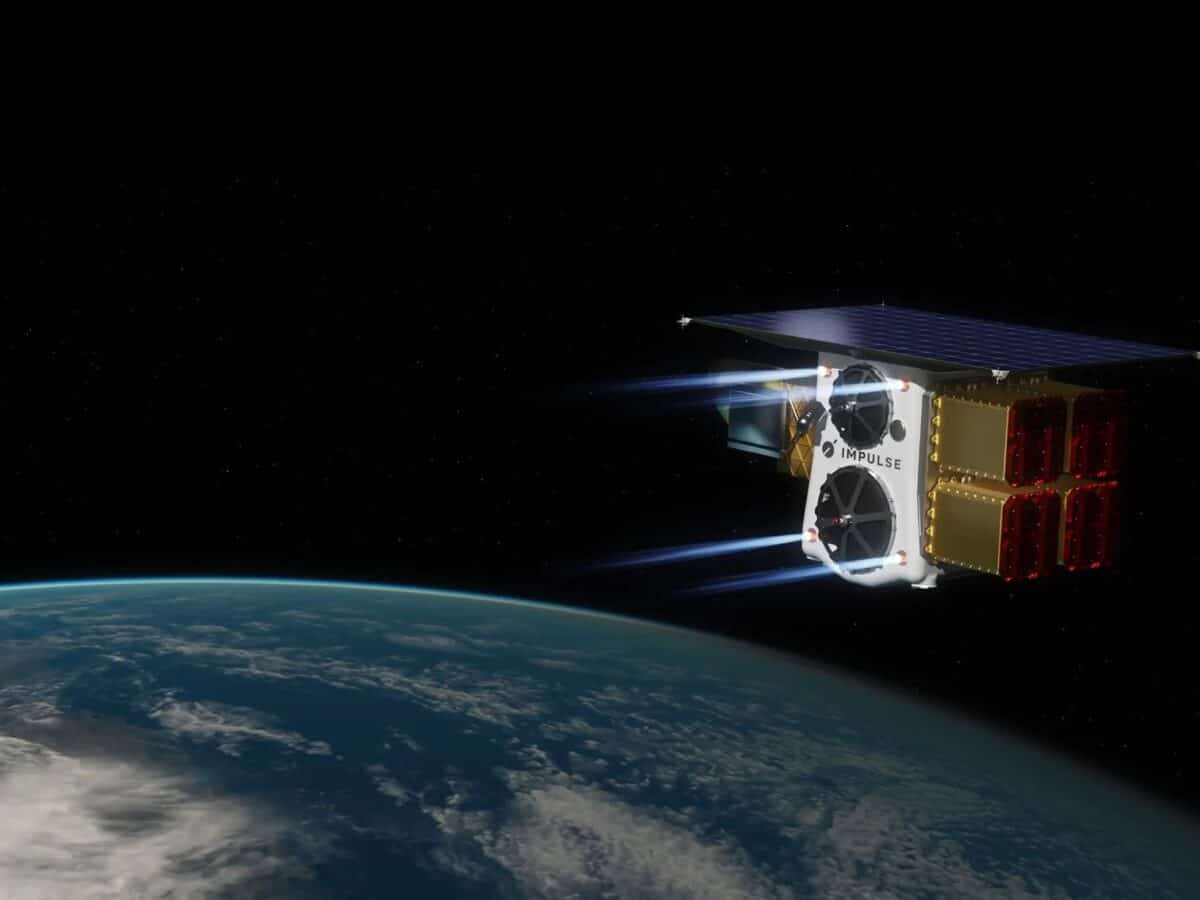
Impulse Space Launches Satellite with Engine into Space

SpaceX has carried out another so-called Transporter mission, an offering that allows companies to send smaller satellites into space in a kind of carpool program. On board SpaceX’s latest Transporter mission was a satellite from the American company Impulse Space Propulsion, a company that develops engines for satellites so that they can reach their desired […]
Posted inSpace
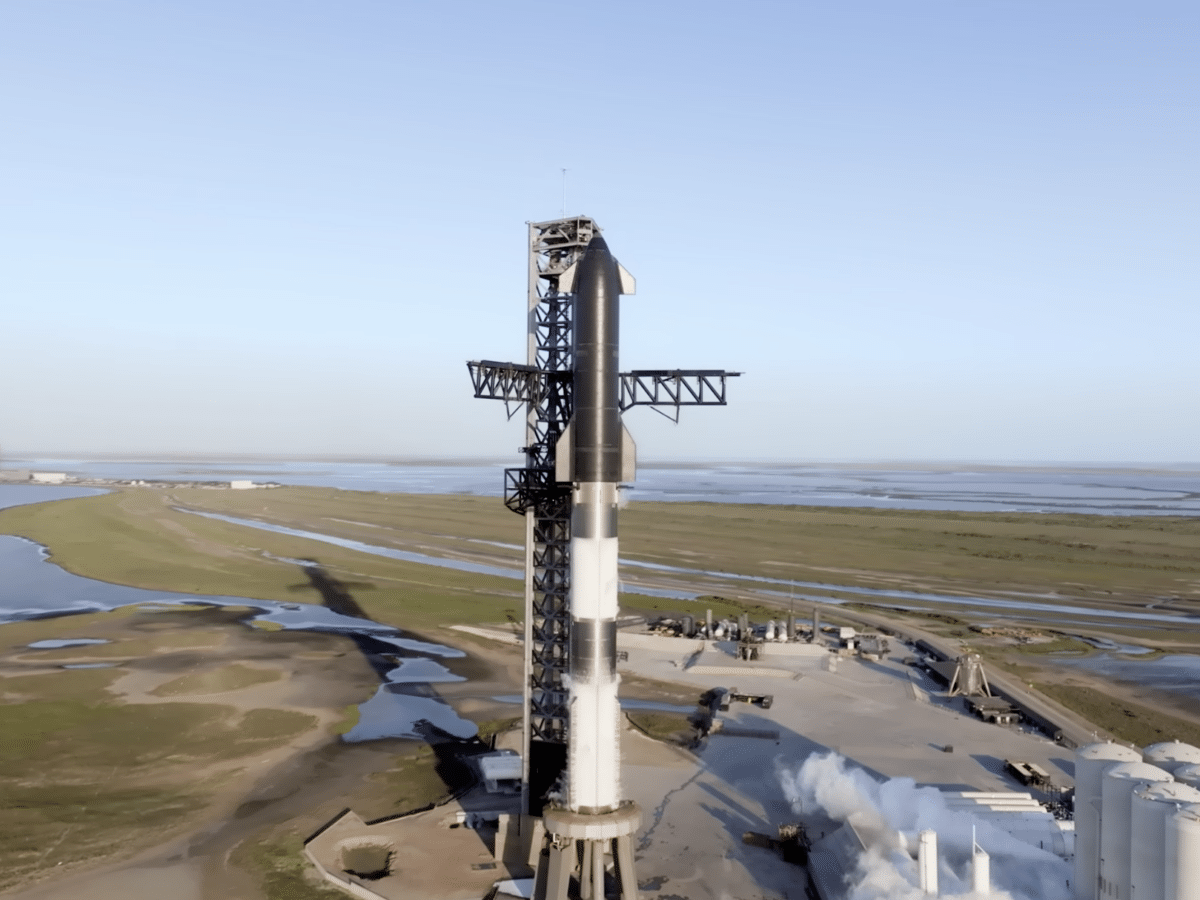
It’s almost time for a second test of Starship

SpaceX has announced that a second test to send their spacecraft Starship to space could take place as soon as the end of this week. On their website, SpaceX writes that they might conduct a new test with Starship on Friday, November 17, if they receive permission from the U.S. Federal Aviation Administration (FAA) to […]
Posted inSpace
NASA plans to build houses on the moon by around 2040

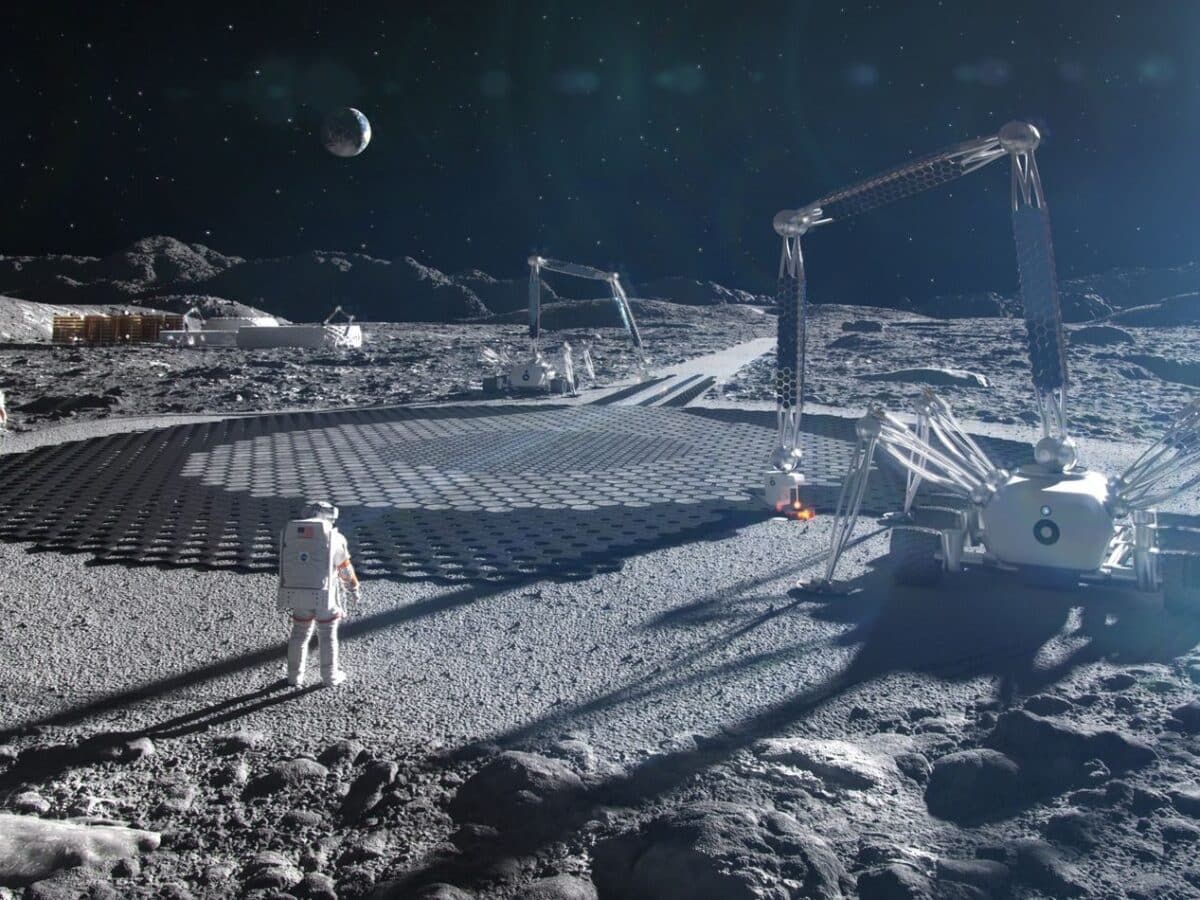
NASA’s moon landing program, Artemis, is seen by many as a step toward building humanity’s first space colonies, something that seems to be becoming a reality in a decade or so. NASA has told The New York Times that it has already begun planning to construct houses on the moon sometime around 2040. NASA’s project […]
Posted inSpace
Astronaut Frank Rubio back on Earth

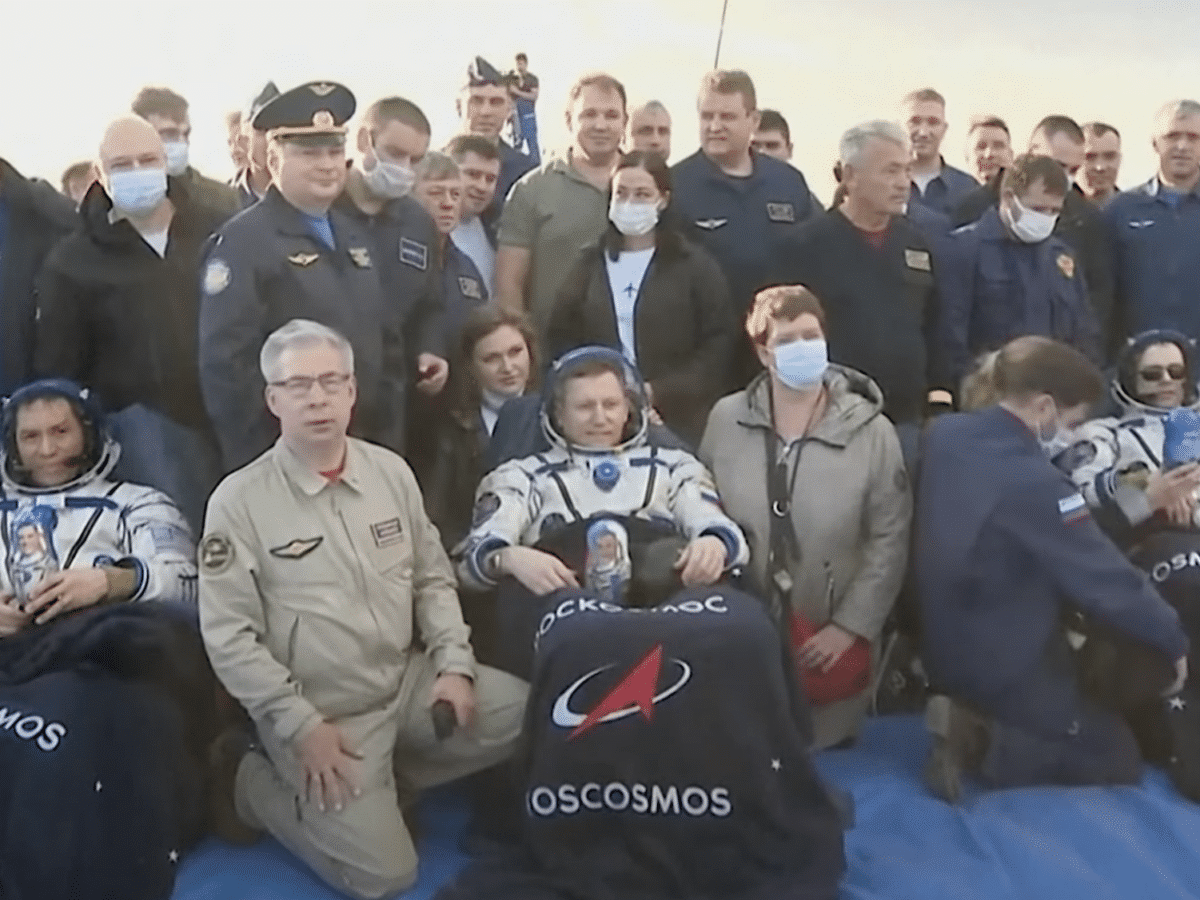
Yesterday, American astronaut Frank Rubio, along with the two cosmonauts Sergey Prokopyev and Dmitri Petelin, landed after spending a record-breaking amount of time aboard the International Space Station (ISS). The three departed from Earth on September 21, 2022, and spent 371 days in space before returning to Earth. This makes Frank Rubio the American astronaut […]
Posted inSpace
Capsule with asteroid samples has landed on Earth
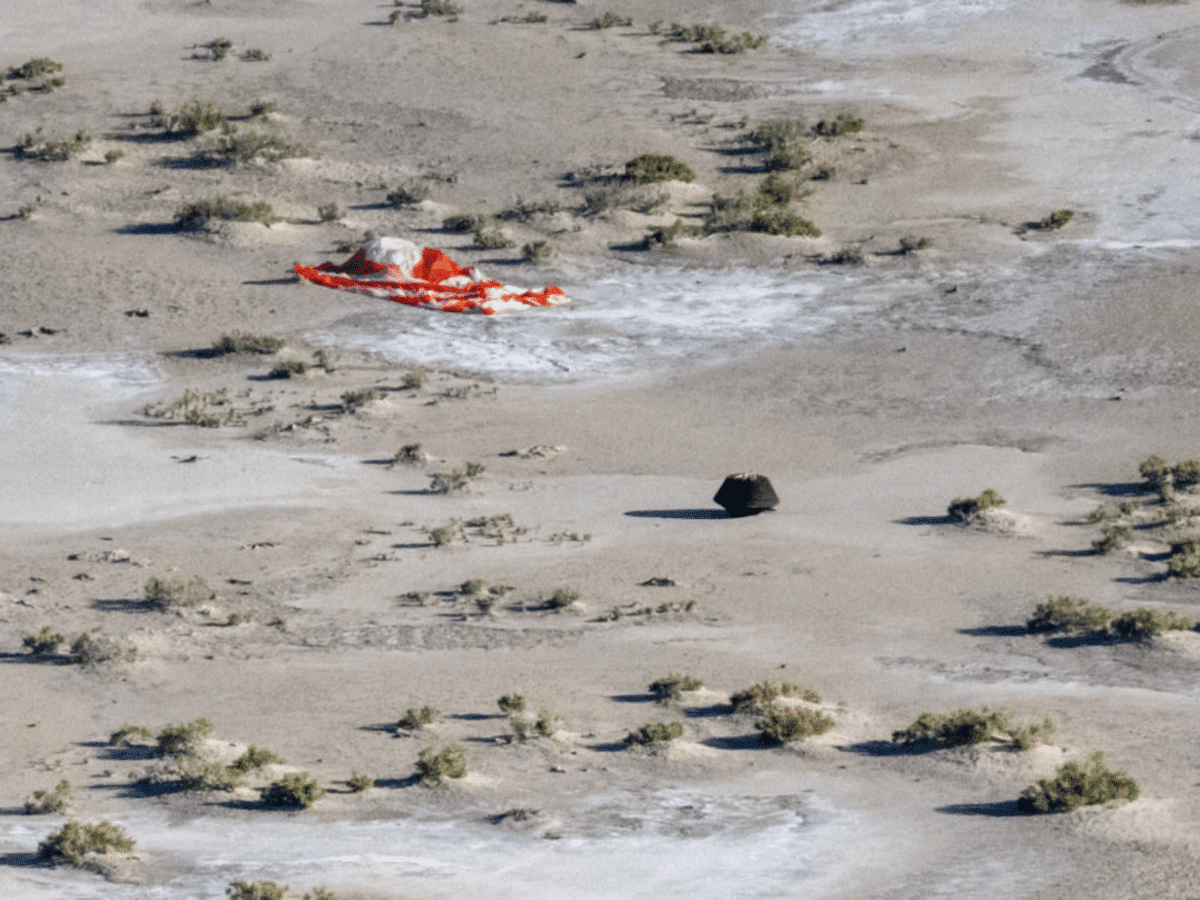
Yesterday, the asteroid hunter OSIRIS-REx (Origins, Spectral Interpretation, Resource Identification, Security, Regolith Explorer) returned to Earth after spending seven years in space. During these years, the spacecraft traveled to the asteroid Bennu, collected a sample from it, and then returned to Earth. In total, OSIRIS-REx traveled about 6.2 million kilometers on its round trip journey […]
Posted inSpace
NASA Seeks Help in Decommissioning ISS
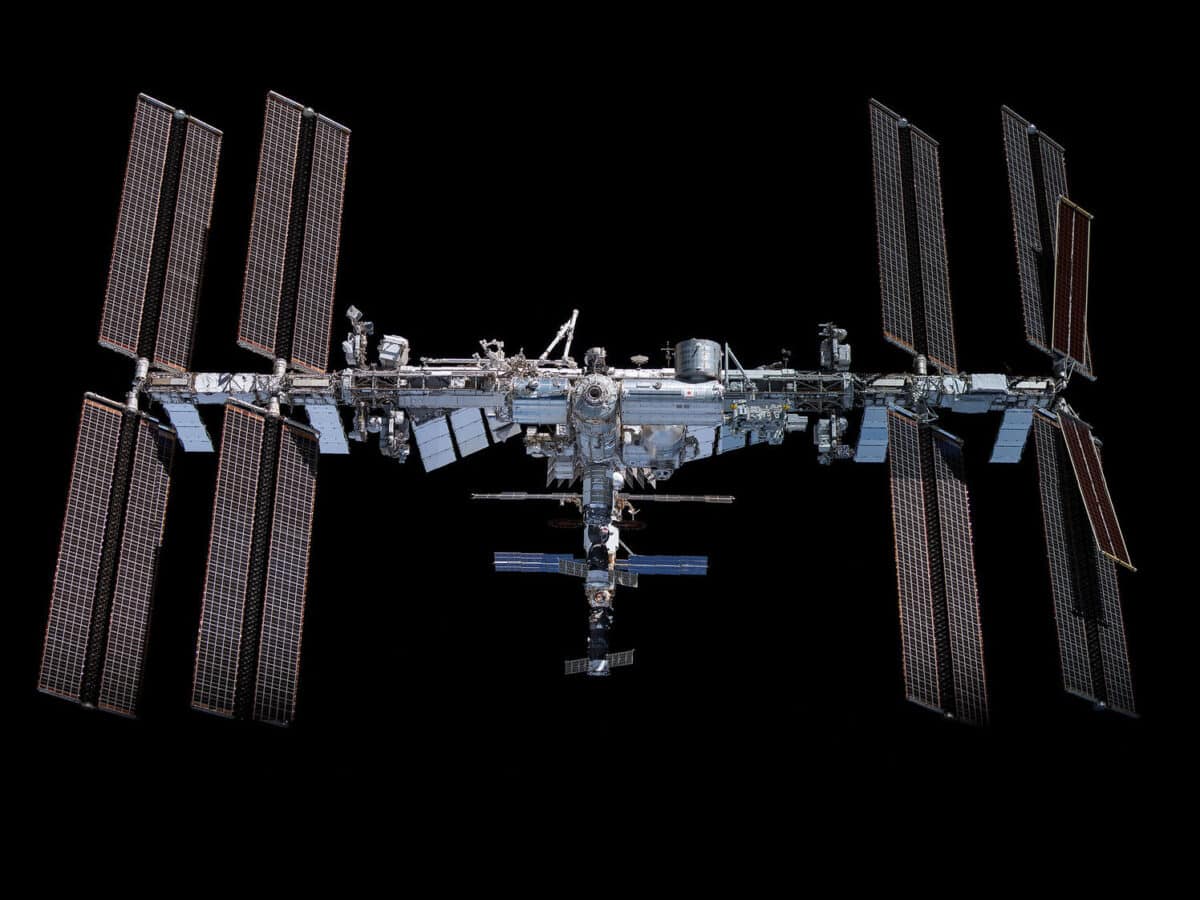
In a few years, the International Space Station (ISS) will be retired, and NASA is currently working on a plan for its decommissioning. NASA is seeking assistance from the private space sector, among other things, to develop a spacecraft capable of moving the ISS out of its orbit around Earth so that it can re-enter […]
Posted inSpace
AST Mobile makes 5G calls via satellite
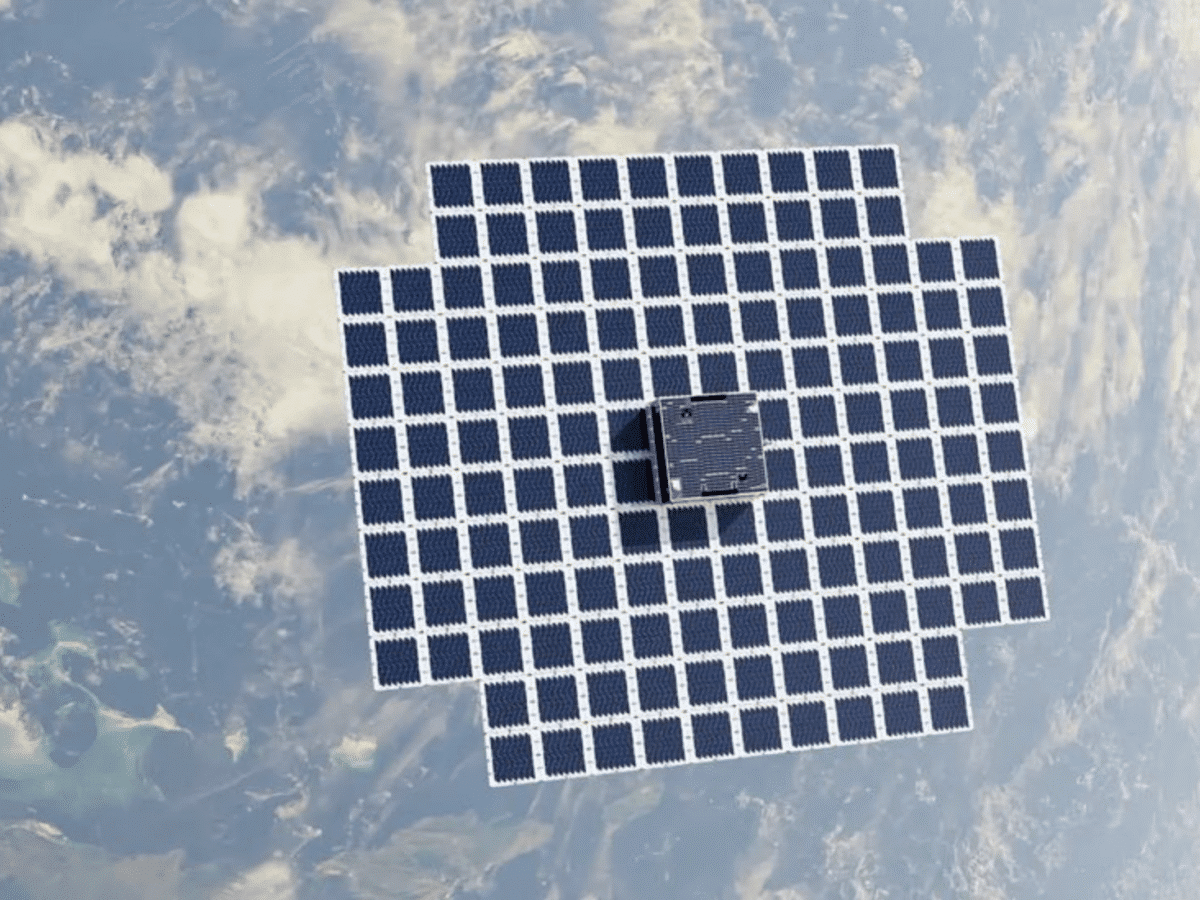
AST SpaceMobile, the company aiming to establish a space-based mobile network, announced today that it has successfully made a 5G call for the first time using its massive test satellite, BlueWalker 3. The 5G call was conducted on September 8th between a standard model of the Samsung Galaxy S22 in Hawaii and one of Vodafone’s […]
Posted inSpace
Varda Space capsule cannot return to Earth

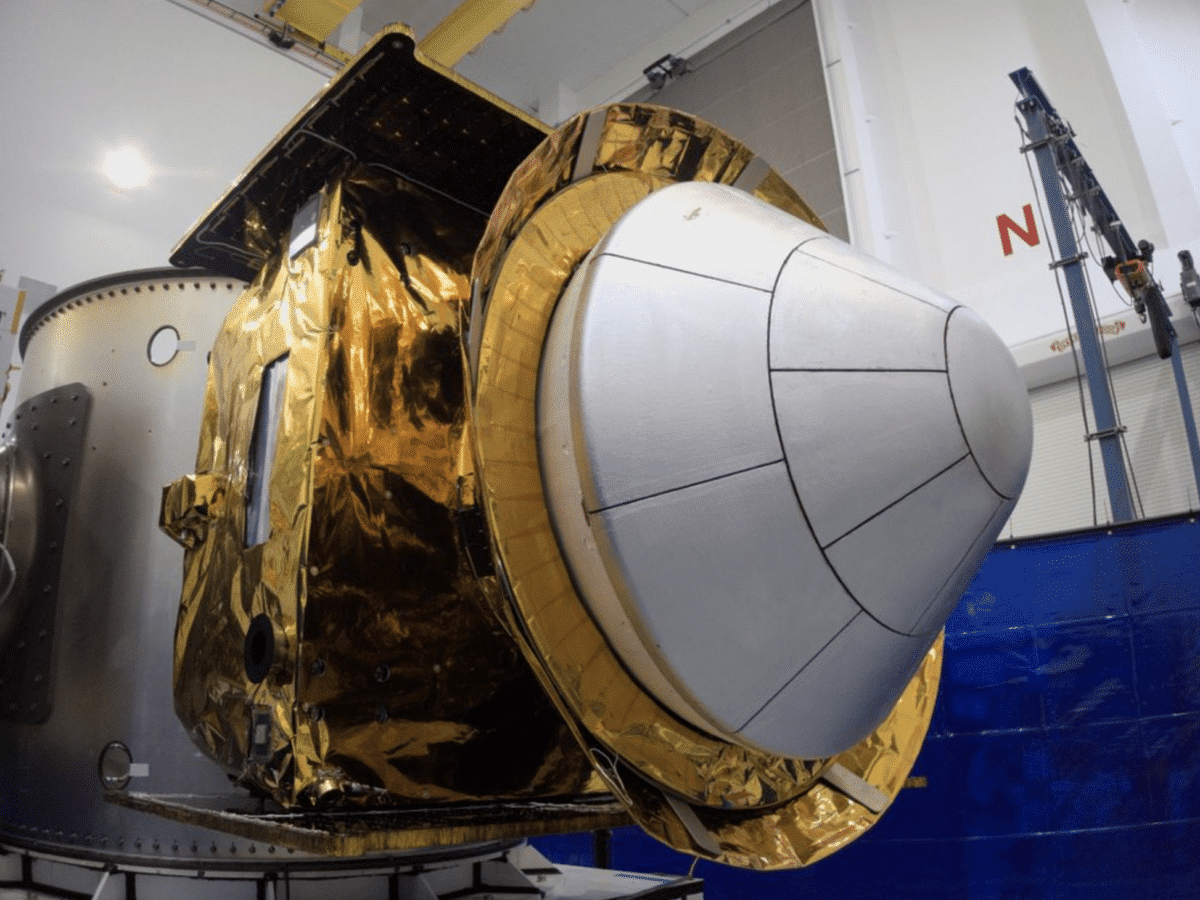
The American space company Varda Space Industries has encountered some issues with the space capsule they launched into space earlier this year. The plan was for the capsule to return to Earth after testing the production of various drugs in a weightless state in space. Apparently, Varda had not obtained permission from the U.S. Federal […]

Posted inTechnology
Neuralink ready to test brain chip on humans
Neuralink, Elon Musk’s biotech company aiming to implant chips in people’s brains, has begun seeking patients willing to participate in the company’s first clinical study on humans. The study is called the PRIME Study, which stands for ‘Precise Robotically Implanted Brain-Computer Interface.’ Neuralink is looking for individuals who have been paralyzed due to spinal cord […]
Posted inSpace
Venezuela’s president announces plans to travel to the moon

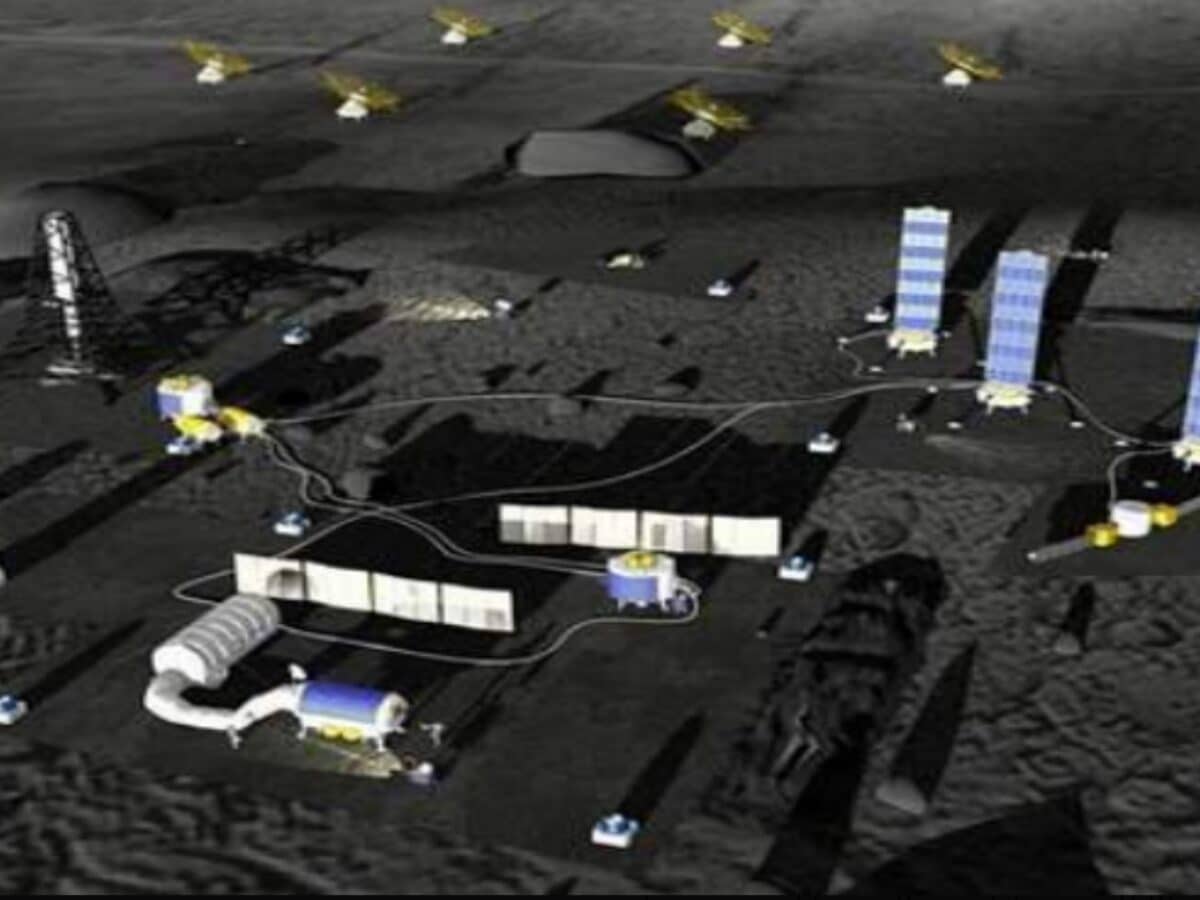
Venezuelan President Nicolas Maduro stated in an announcement that Venezuela intends to send astronauts to the moon in a Chinese spacecraft. This statement follows Venezuela’s participation in the International Lunar Research Station (ILRS) collaboration. ILRS is initiated by Russia and China as a response to the U.S.-led Artemis moon program. In addition to China, Russia, […]
Posted inSpace
Stoke Space Takes a Small Leap Toward Space

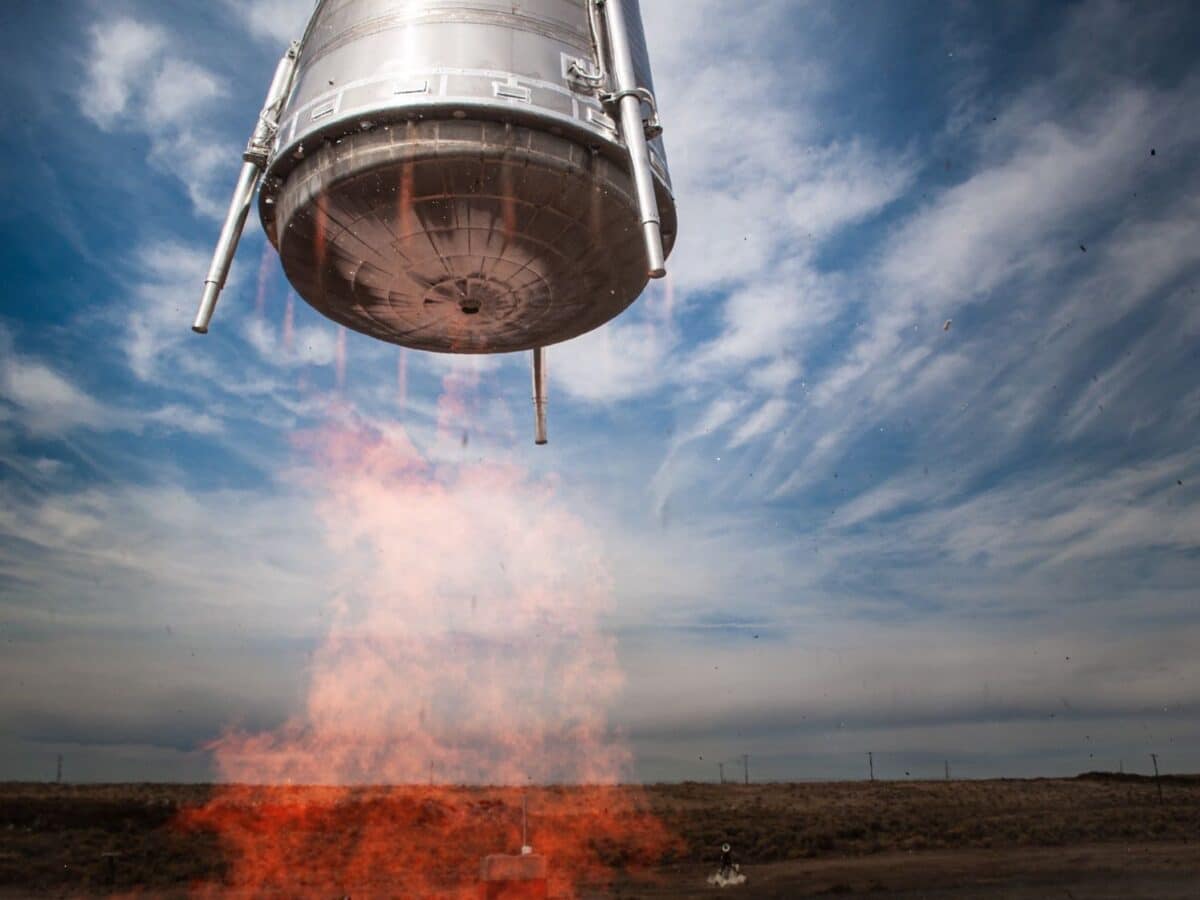
The American space company Stoke Space, which is developing a fully reusable rocket model, conducted a test of the upper rocket stage of its future rocket for the first time yesterday. The prototype of the rocket stage is called Hopper 2, and in the video below, you can see how it lifted about four meters […]

Posted inSpace
Nasa to study UFO observations
The American space agency NASA has decided to scientifically investigate observations of UFOs, or UAPs (Unidentified Anomalous Phenomena), as NASA and other US agencies prefer to call them. In recent years, UFO sightings have once again become a debated topic in the USA, with some claiming they have extraterrestrial origins. However, there is no evidence […]
Posted inEntertainment
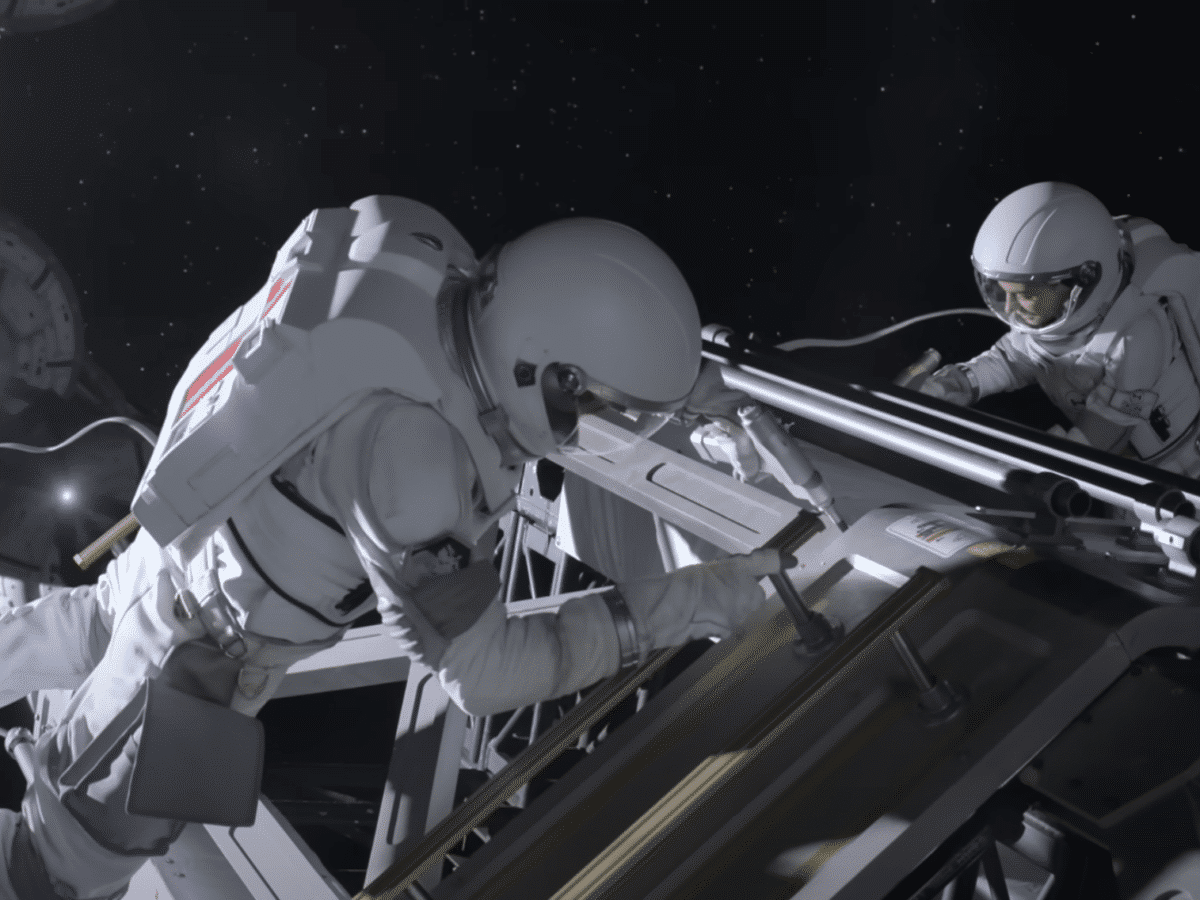
Fourth season of For All Mankind on the way

Apple has just released a teaser trailer for the fourth season of For All Mankind, the TV series that follows an alternate history of the US and Soviet space programs. The trailer is designed as a recruitment advertisement for the space company Helios and is voiced by the aged Edward Baldwin (Joel Kinnaman), who also […]
Posted inTechnology
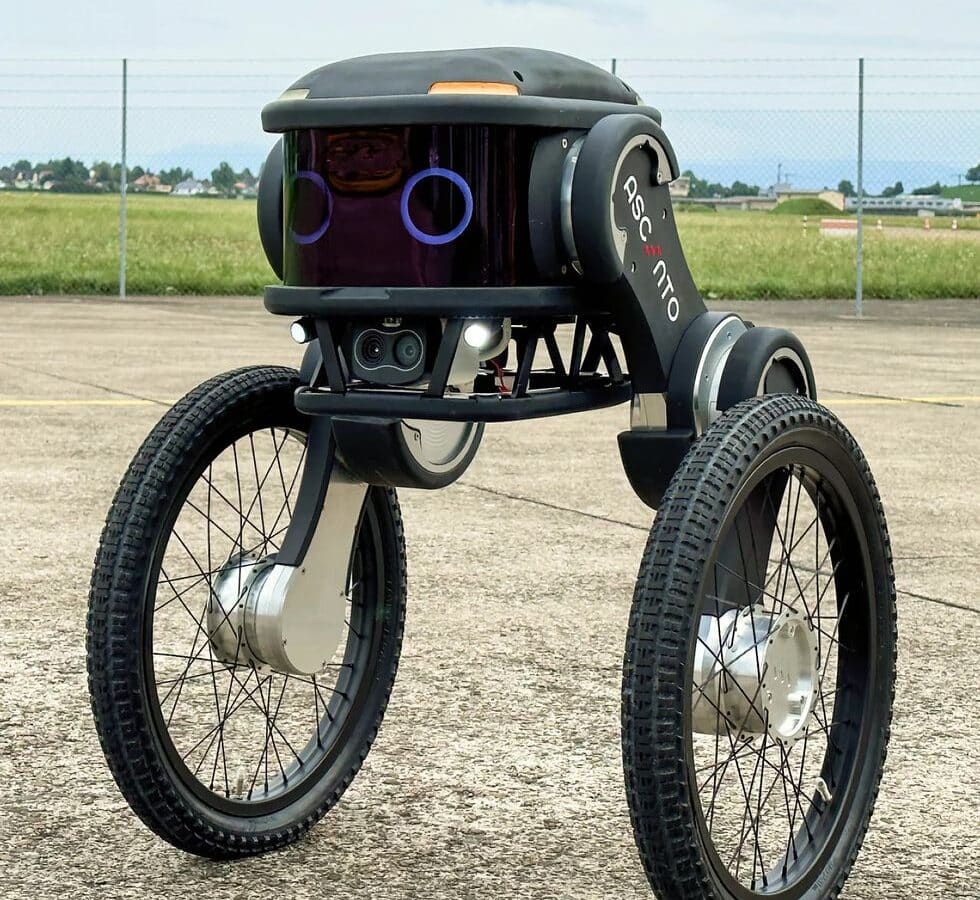
Ascento Guard is a rolling security robot
The Swiss startup company Ascento has unveiled its first product, which is a security robot called Ascento Guard. As seen in the image above, it is a rolling robot designed to patrol restricted areas and monitor them using its cameras and thermal sensors. The robot could, among other things, check parking lots, detect unauthorized individuals […]

Posted inTechnology
Tech Tools to Skyrocket Your Company’s Success
Technology, in general, is the application of knowledge to create things that make tasks easier. This is true of everything from the hammer to the computer microchip. Every piece of technology was the result of innovation and someone who has an idea of how to make life more convenient. In the business world, technology plays […]
Posted inSpace
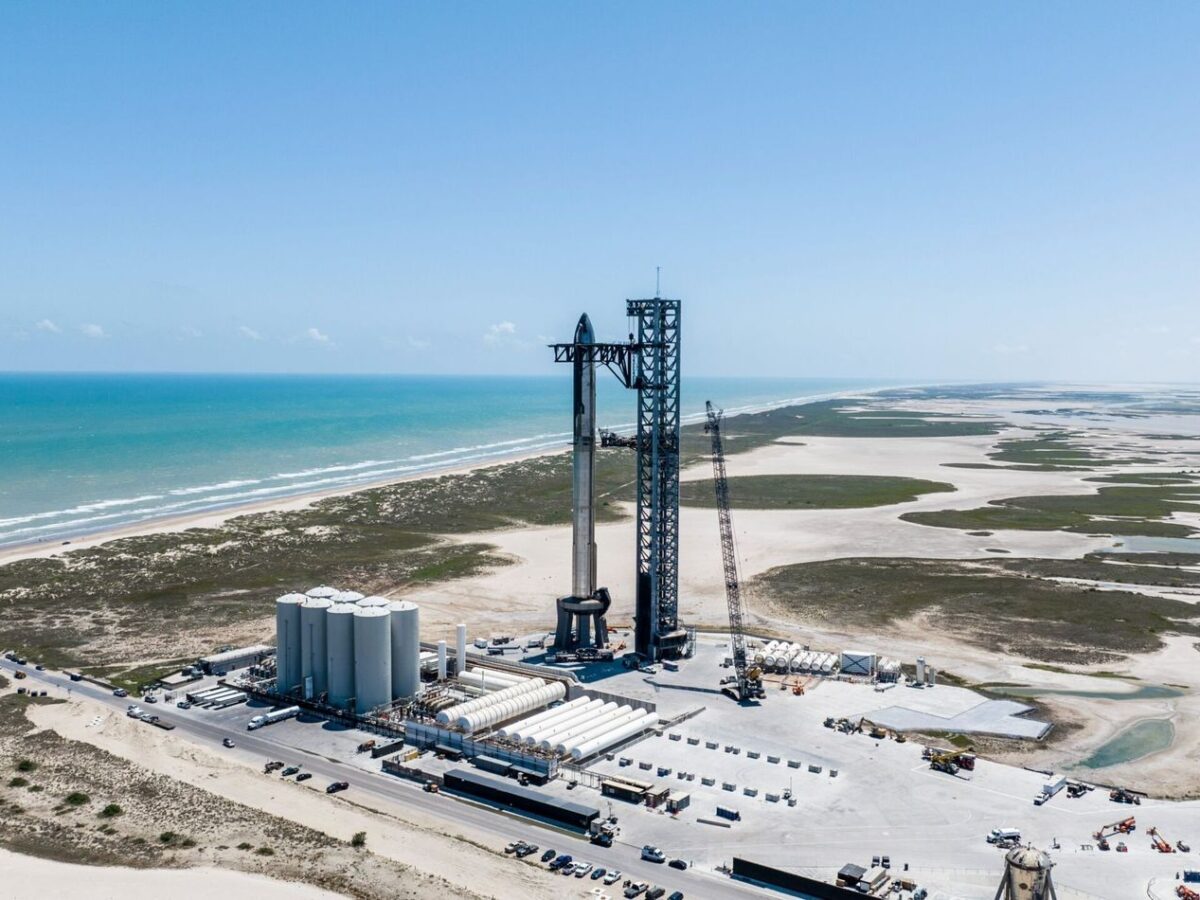
SpaceX must address issues with Starship before the next flight
Last week, SpaceX announced that they were once again ready to attempt the launch of their spacecraft, Starship, into space and were awaiting approval from the U.S. Federal Aviation Administration (FAA) to do so. However, at the end of last week, the FAA announced that it would take some time before SpaceX receives approval to […]
Posted inSpace
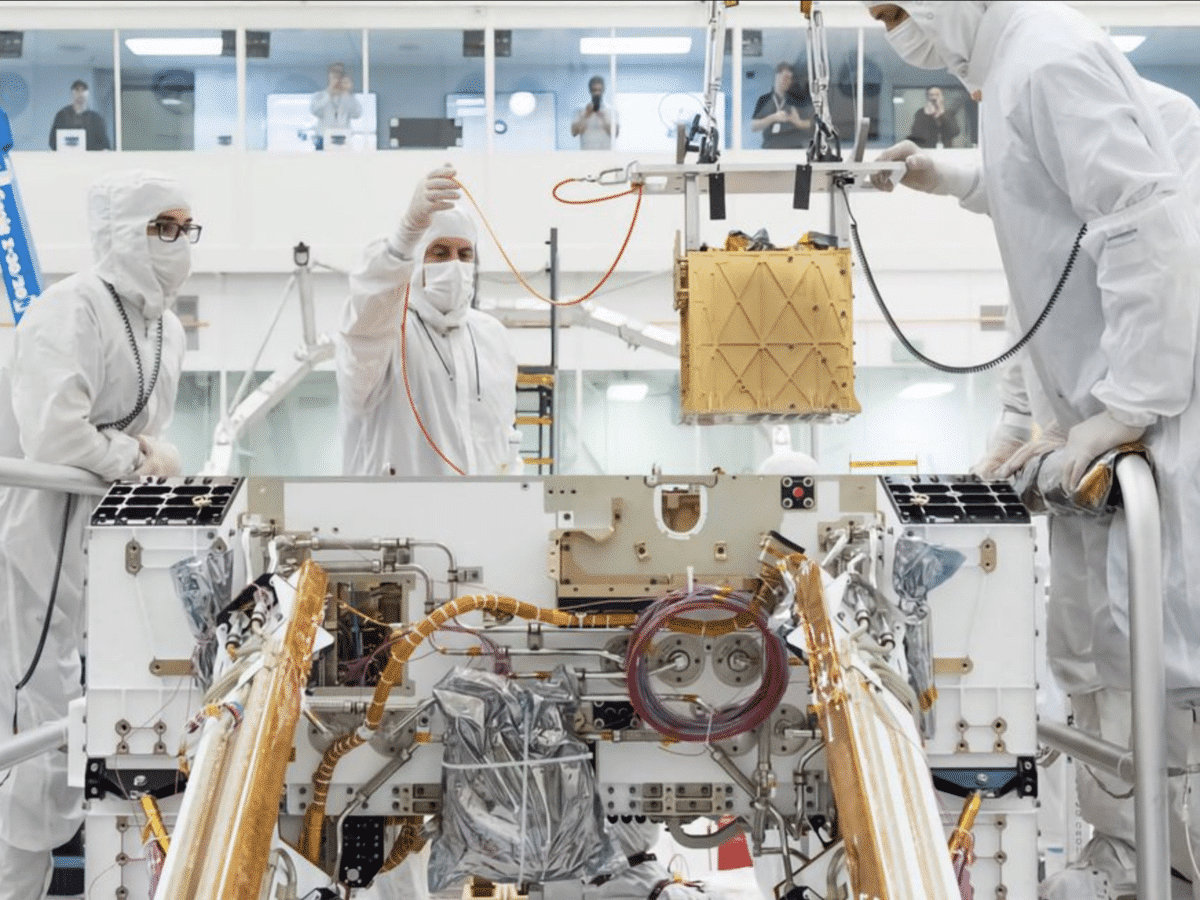
NASA concludes its oxygen experiment on Mars
NASA announced at the end of last week that it has now concluded its Moxie project, an experiment to generate oxygen that was sent to Mars along with NASA’s Perseverance rover, which landed on Mars in 2021. Moxie (Mars Oxygen In-Situ Resource Utilization Experiment) has been tested to generate oxygen on Mars 16 times over […]

Posted inTechnology
Google Opens Visitor Center

Google is celebrating its 25th anniversary by opening the Google Visitor Experience in Mountain View next month. The visitor center will include a cafe, a Google store, event spaces, and a pop-up shop featuring local businesses. The center will open to the public on October 12, 2023.
Posted inTechnology
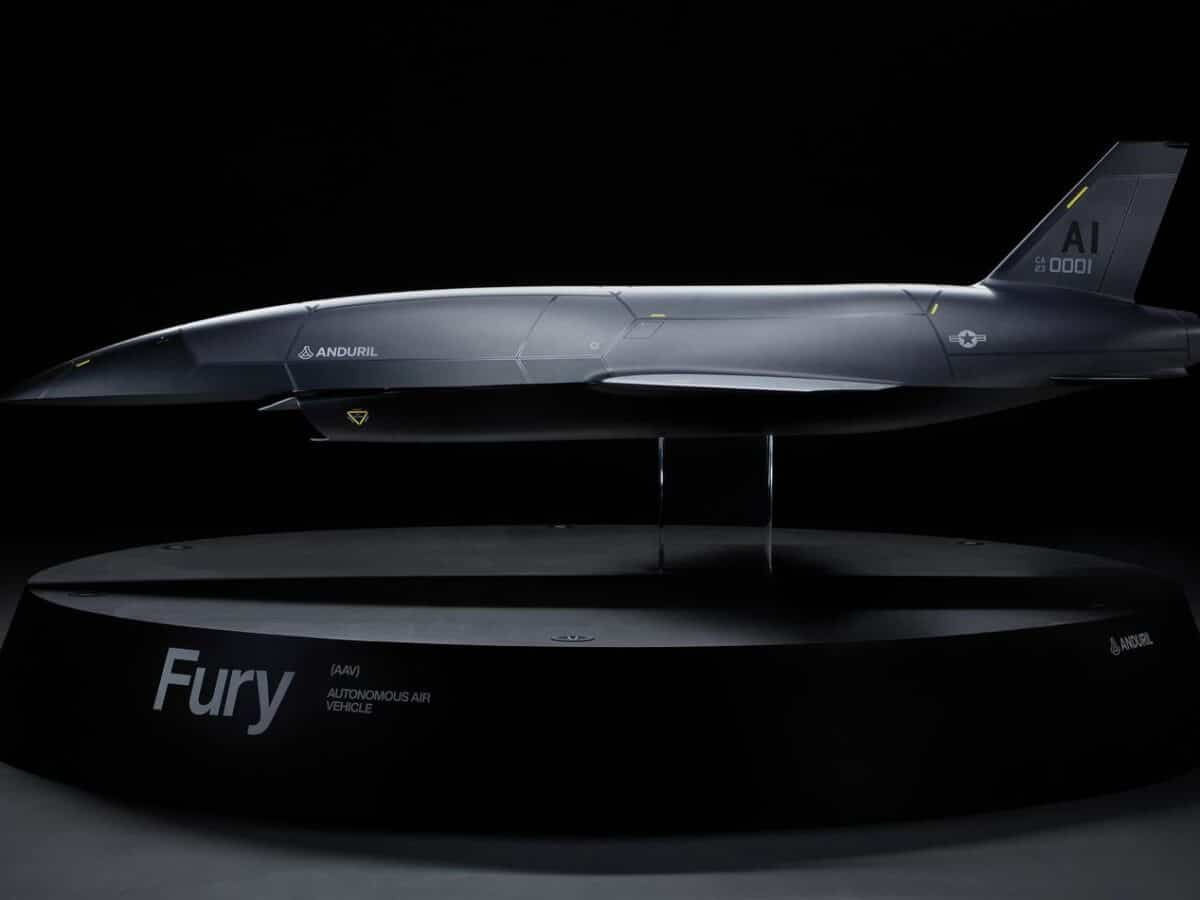
Oculus Founder to Build Unmanned Combat Aircraft

Anduril, the defense company founded by Palmer Luckey, the founder of VR company Oculus, is planning to develop an autonomous combat aircraft called “Fury.” Fury was originally in development in 2019 by the company Blue Force Technologies, which Anduril has now acquired. Fury is described as an aircraft with the highest level of autonomy (Level […]