


Several methods exist to store files online or share them with others. Popular services like Google Drive and Dropbox offer convenient options, particularly for sharing large files that might exceed email size limits. If you want to know which one may be better for your use then all you have to do is read through […]
Computer Software
Gadget Advisor presents the best in computer software news, including multimedia, utilities, communications, graphics, web development, productivity, etc.
Posted inComputer Software
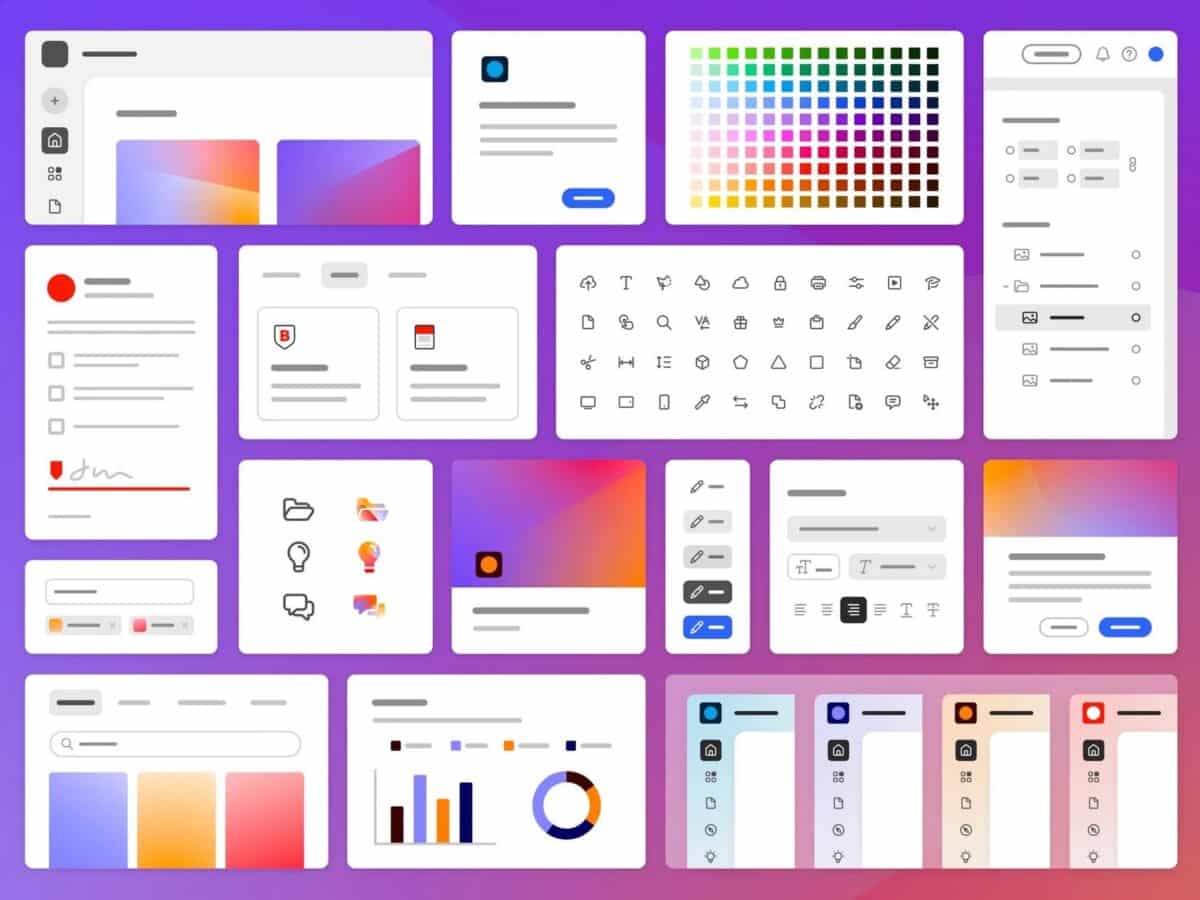
Adobe Showcases Spectrum 2

Adobe’s interface foundation in their products is known as Spectrum. Created over ten years ago, Spectrum has seen significant changes since its inception. At that time, the concept of a design system was barely known, Adobe products were not used on mobile devices, and the target audience for Adobe’s products was much narrower. Users used […]

Posted inAI
Microsoft Upgrades Copilot

It has been a year since Microsoft began implementing AI technology from OpenAI into its products, something Microsoft has marked by presenting some news about what is today called Microsoft Copilot. In a blog post, Microsoft writes that Copilot will soon be supported by OpenAI’s language model GPT-4 Turbo. This means that users can ask […]

Posted inApple
Apple Rolls Out Final Cut Pro 10.7 for macOS and Version 1.3 for iPad

Apple, as promised, has released major new versions of Final Cut Pro before the end of the month. Final Cut Pro 10.7 is now available for Mac and version 1.3 for iPad. Both platforms have received new features such as automatic scrolling for the timeline with real-time waveform updates. If you already own Final Cut […]

Posted inComputer Software
Most Popular Desktop Operating Systems Since 2010

Just like we need brains to function, the operating system is the brain of your computer, making it run smoothly. Let’s make a twist out of this. Sometimes our brains get a little forgetful when they get overworked, the computer’s operating system never forgets. Also, while humans need a good night’s sleep to reset – […]
Posted inComputer Software
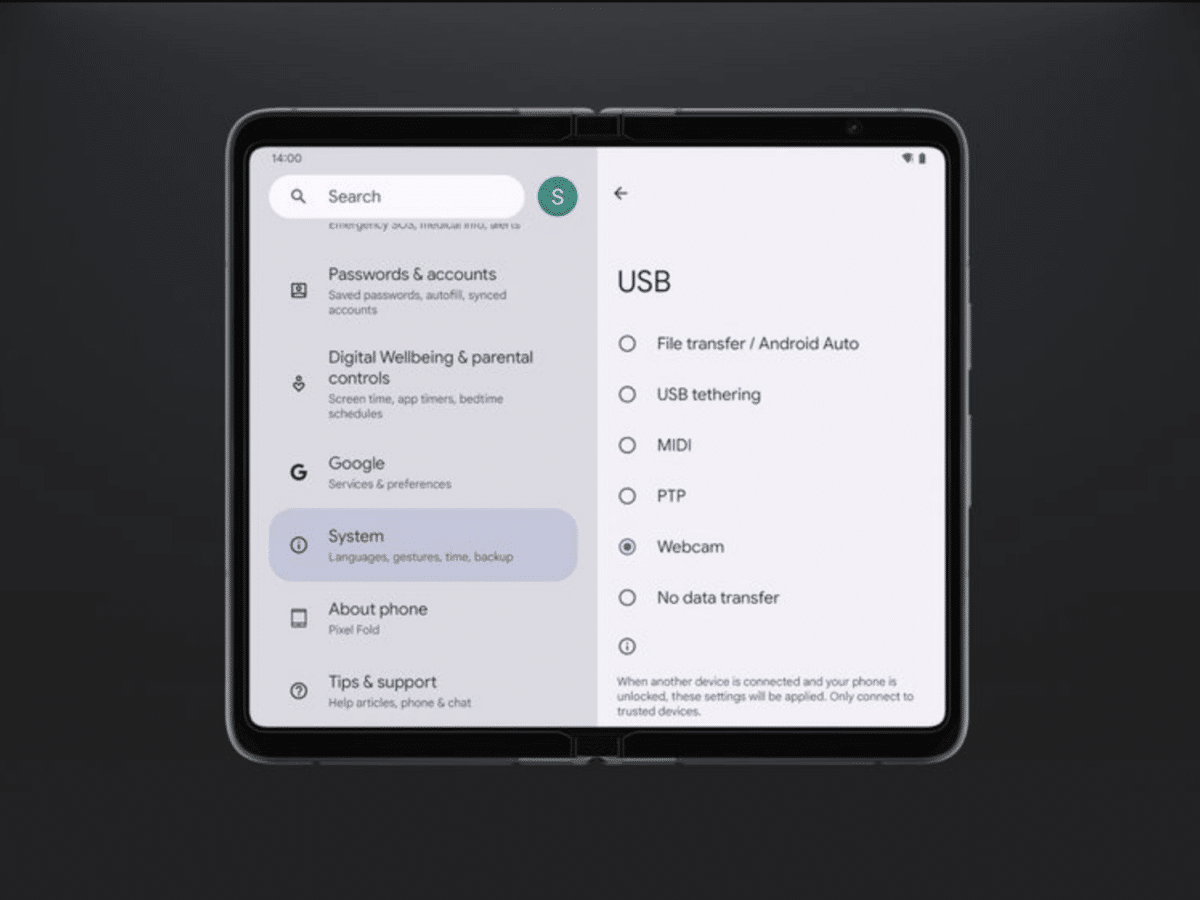
Google releases beta for Android 14 QPR1

Google continues to release new beta versions of Android 14, and in the latest update, we get a glimpse of the features that will be coming in the next ‘quarterly platform release.’ Some of the new features include the ability to view the number of battery cycles directly in settings, a new clock for the […]
Posted inComputer Software
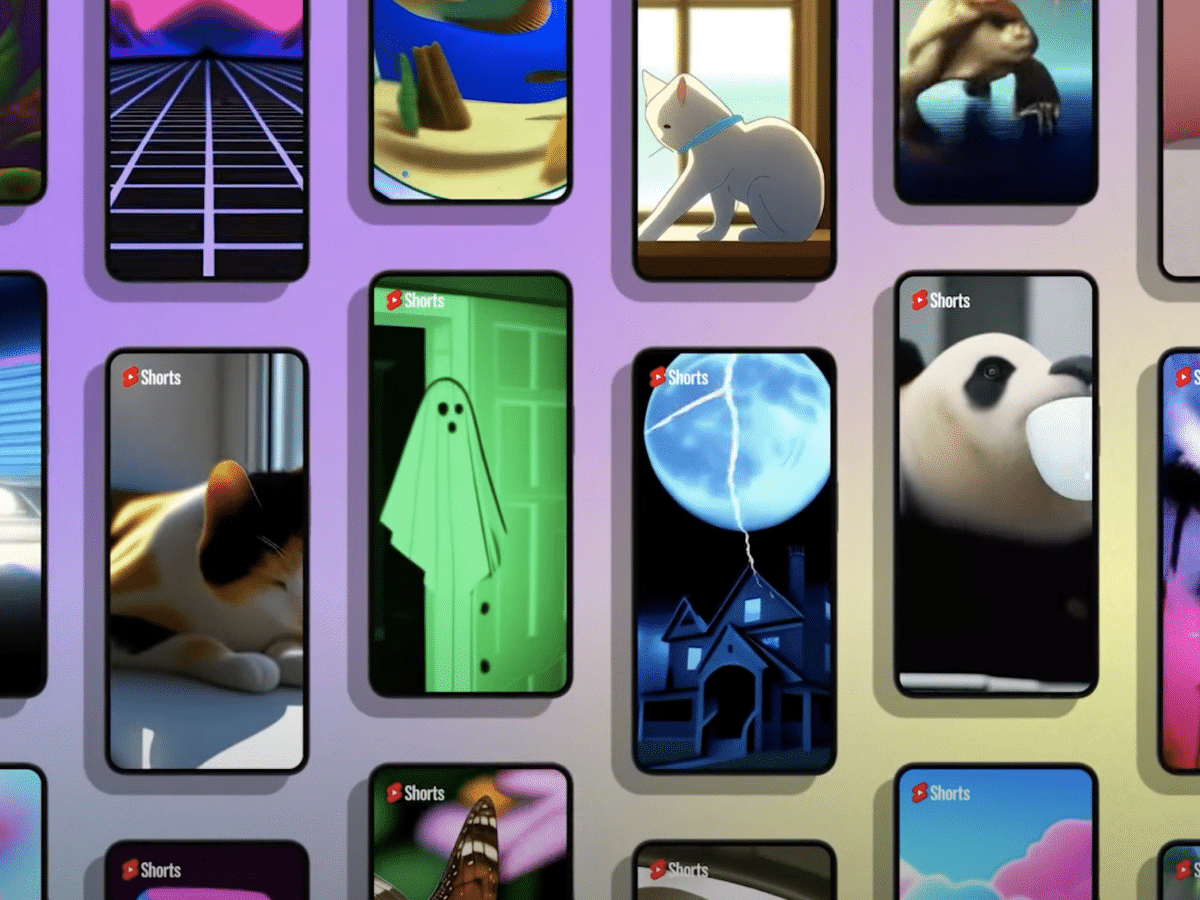
YouTube introduces new tools for creators
Earlier today, YouTube hosted an event where they showcased some new tools aimed at making it easier and more enjoyable for creators to produce YouTube videos and Shorts, YouTube’s answer to TikTok. DreamScreen is a new feature that allows creators to generate backgrounds for Shorts using a generative AI function. Creators can input what kind […]

Posted inComputer Software
Google wants help expanding Google Maps

Google is looking for more volunteers willing to help enhance their mapping service, Google Maps. In a blog post, Google is inviting users to join Road Mapper, a mapping tool for Google Maps that allows users to add roads that are not currently covered by Google Maps. Since 2021, Google users have added 1.5 million […]
Posted inComputer Software
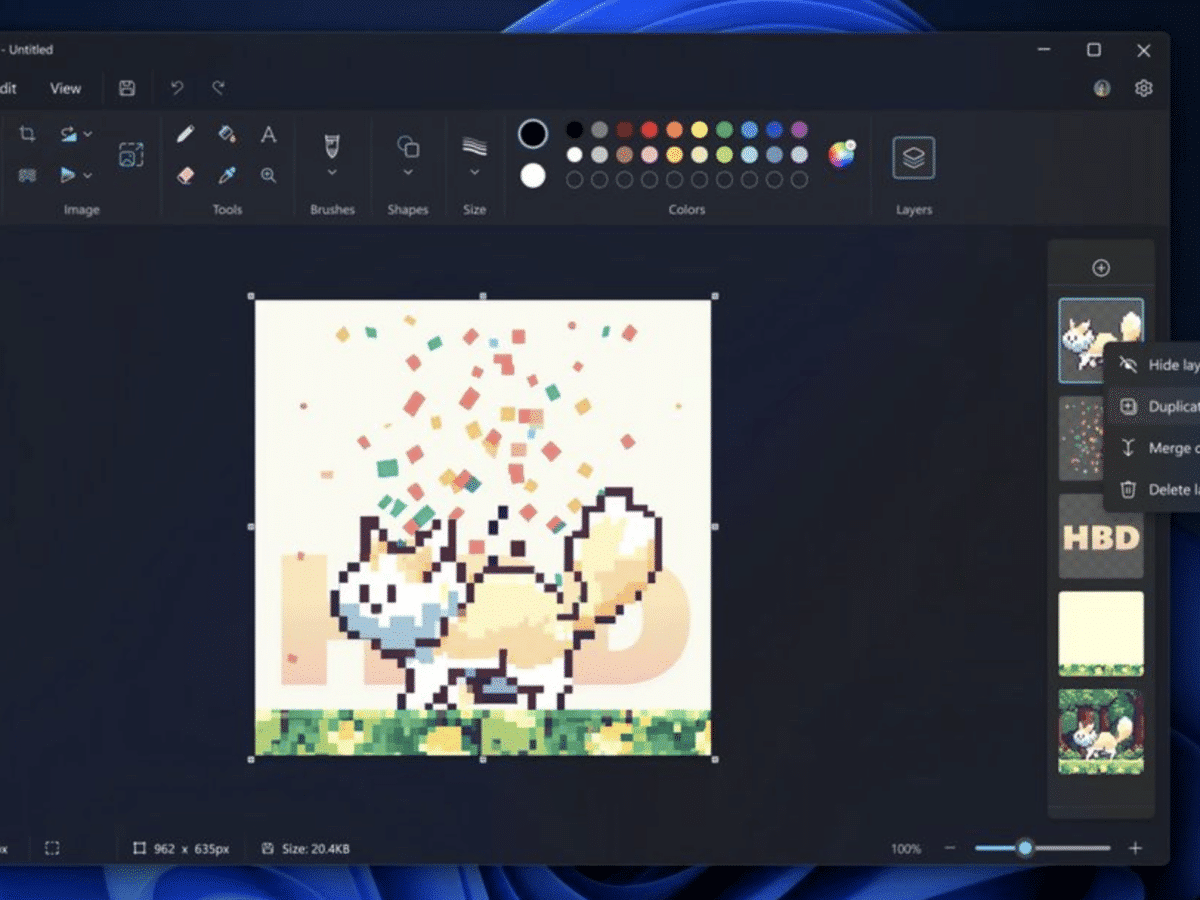
Microsoft Paint gets support for layers and transparency
A new update for the Paint app is now rolling out to Windows Insiders in the Canary and Dev channels (version 11.2308.18.0 or higher). With this update, the classic Windows app gains support for layers and transparency. Layers allow you to stack shapes, text, and other image objects on top of each other. To get […]
Posted inComputer Software
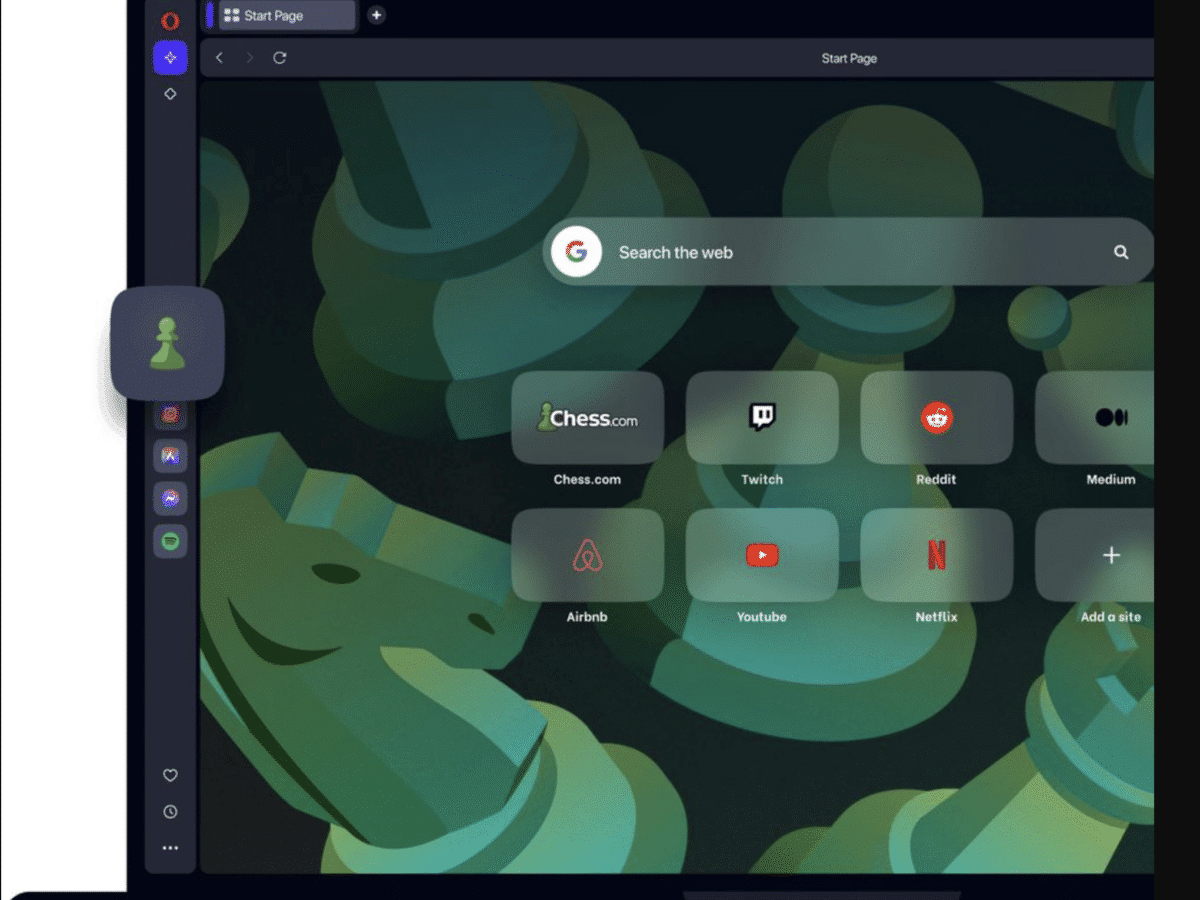
The Opera web browser integrates chess
The Opera web browser has now added a feature that allows users to quickly start playing chess in the browser. It’s a shortcut in the browser’s sidebar that takes the user directly to their Chess.com account. This is not the first time Opera has partnered with various services to give them a more prominent place […]
Posted inComputer Software
Google promises ten years of updates for Chromebooks

Google announced yesterday that it will guarantee updates for ten years for Chromebooks running Chrome OS. The ten-year updates will primarily apply to Chromebooks sold from 2021 onwards but will also be available for Chromebooks purchased earlier. In a blog post, Google writes: Starting in 2024, if you have Chromebooks that were released from 2021 […]
Posted inComputer Software
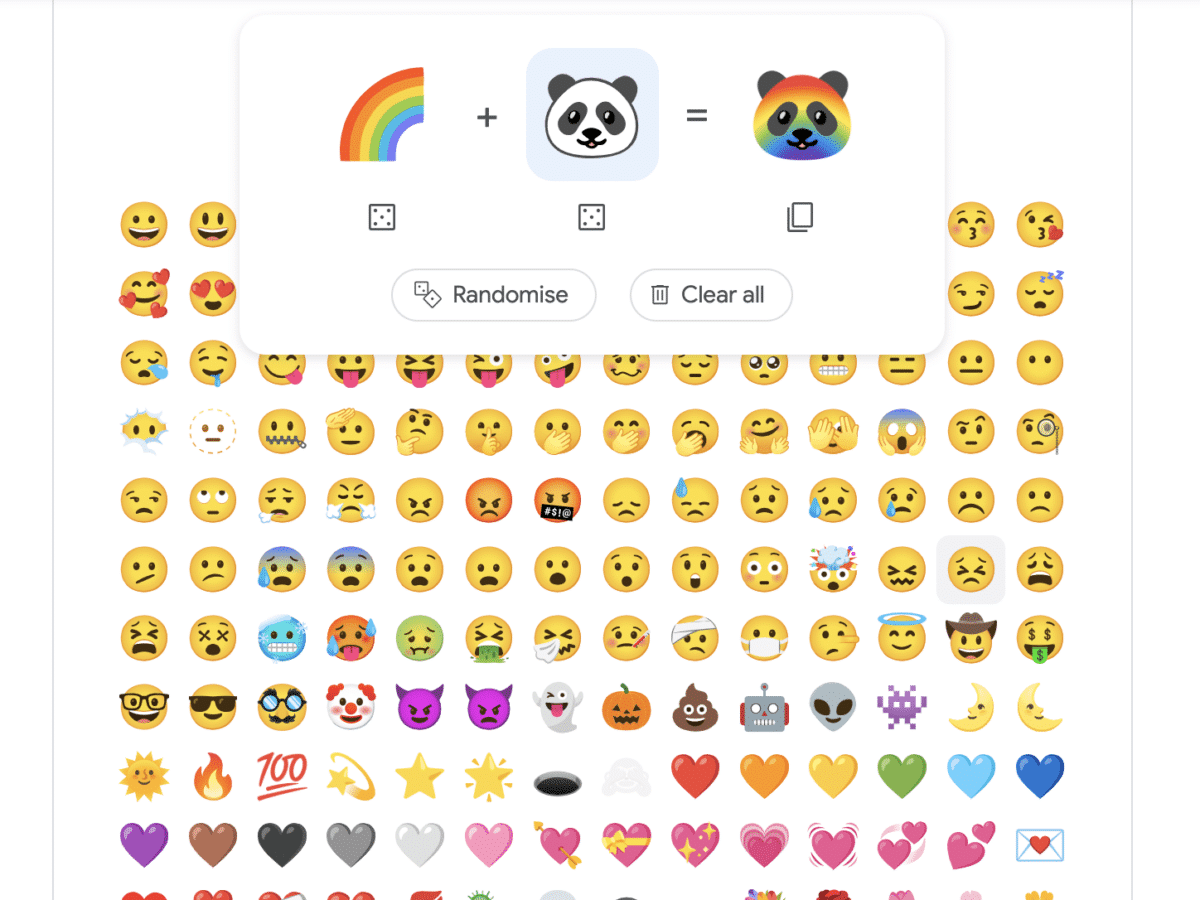
Google releases a service for emoji mashups in its search engine

Google has now released its “Emoji Mashup” service, which can be accessed directly from their web search engine or via the mobile app. The service was originally launched in 2020 but was only available on Gboard, Google’s Android keyboard, until now. With Emoji Kitchen, you can create new emojis by combining two existing emojis, which […]
Posted inApple
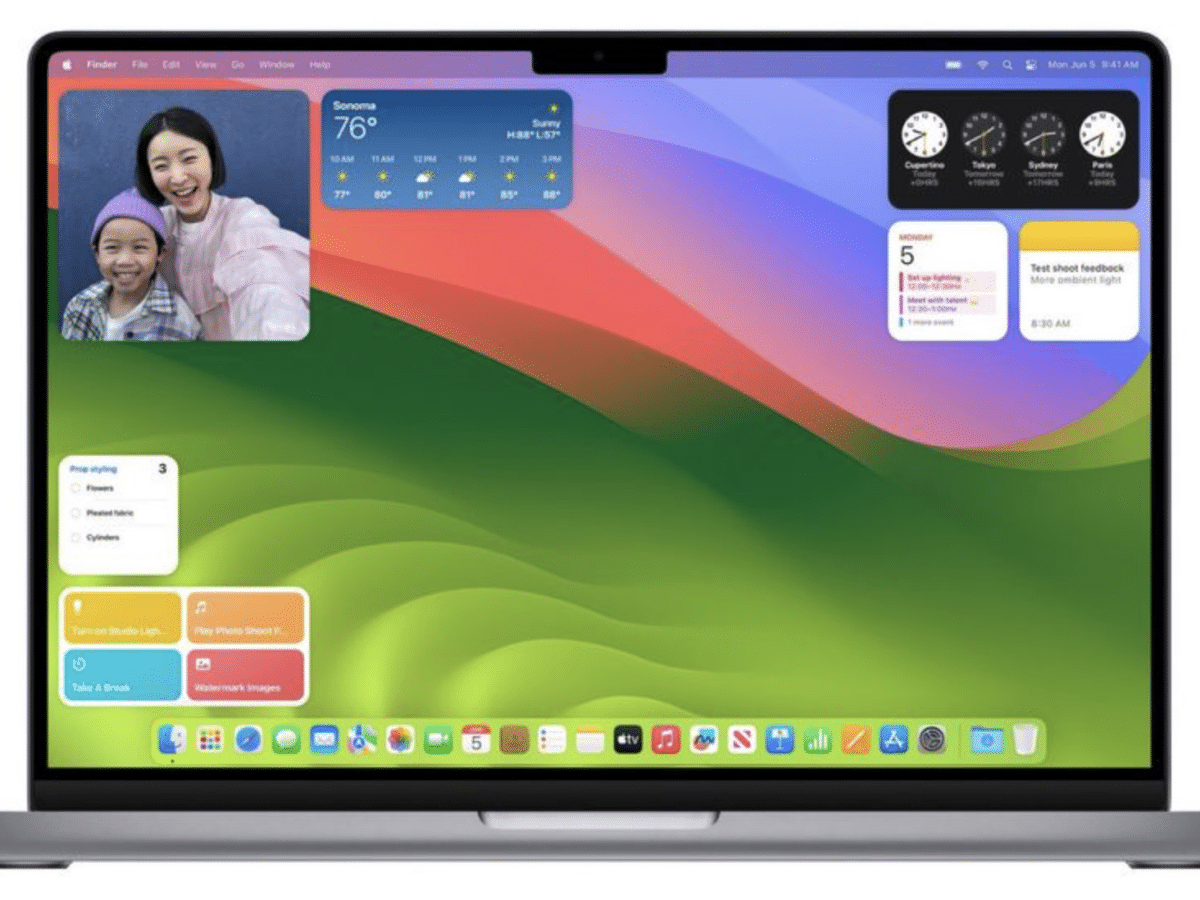
macOS Sonoma will be released on September 26th

On September 26th, you will be able to update your Mac to the new macOS Sonoma, provided you have a compatible Mac. In macOS Sonoma, widgets can now be placed directly on the desktop. We also have improved video conferencing features, including Presenter Overlay, which allows users to present themselves in front of the content […]
Posted inComputer Software
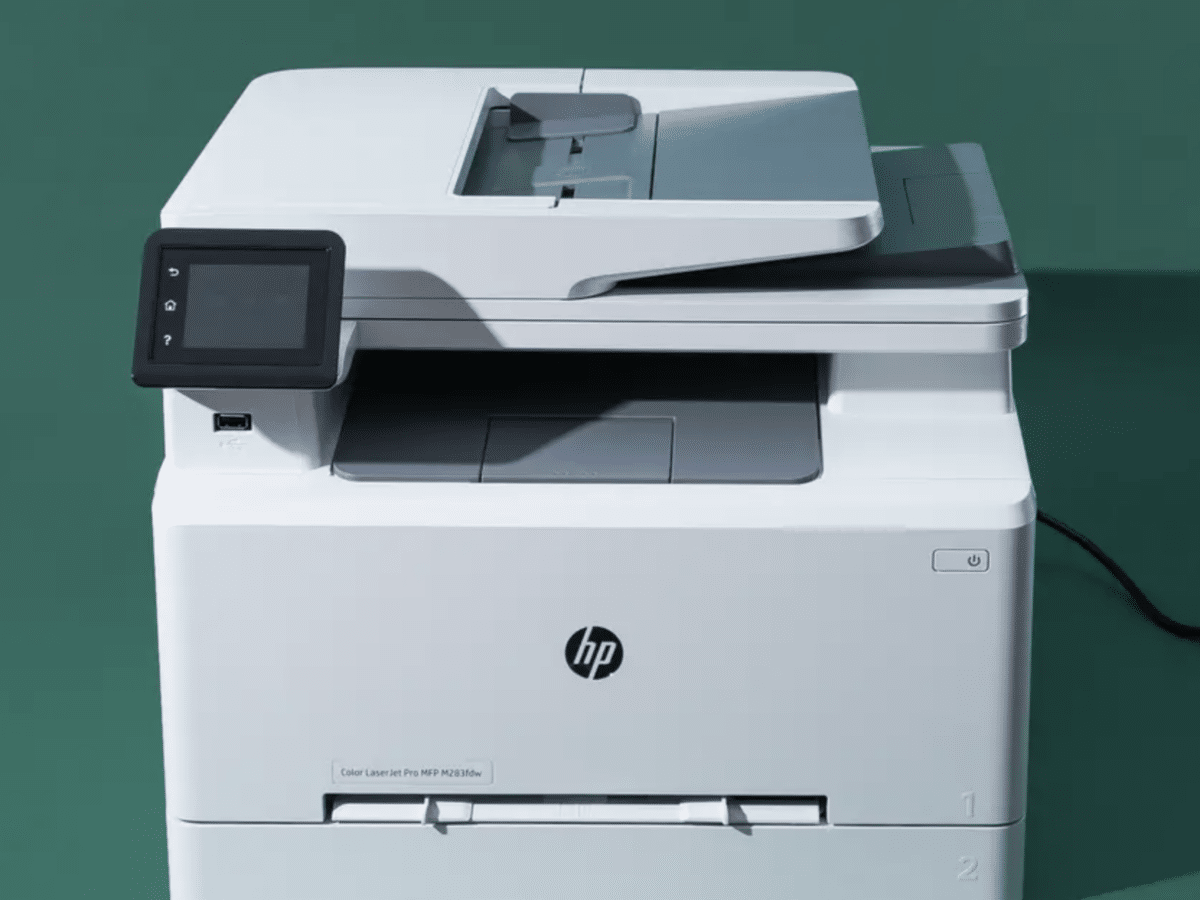
Microsoft is planning to remove support for third-party printer drivers in Windows

This process will continue until 2027, although the dates may be subject to change. The decision is partly based on the integration of Mopria support in Windows 10 since 21H2. Mopria is an alliance formed in 2013 by Canon, HP, Samsung, and Xerox to create universal standards for printing and scanning, meaning manufacturers no longer […]

Posted inComputer Software
Procreate Dreams is a new animation app for iPad

Procreate is almost a must-have app for those with an iPad and an Apple Pencil, and now the company behind that app is launching a new one – Procreate Dreams. The new app is designed for creating various 2D animations and offers iCloud syncing and all the other features you’d expect from a company associated […]
Posted inComputer Software
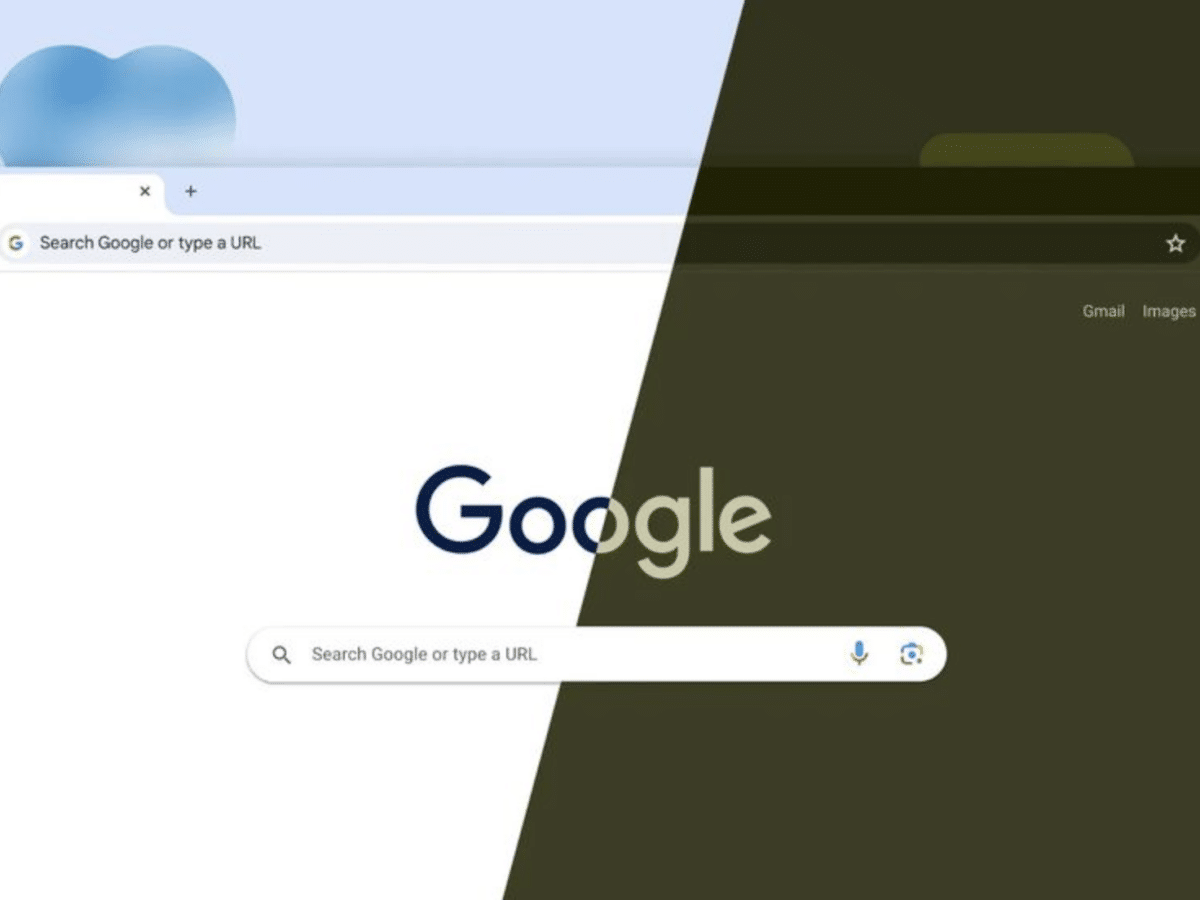
Google Chrome gets a new look
In celebration of its 15th anniversary, Google Chrome is getting a new design based on Google’s Material You design language. The update will include updated icons with a focus on readability and new color palettes that better complement the tabs and toolbar. The Chrome Web Store interface is also getting an update with Material You […]
Posted inComputer Software
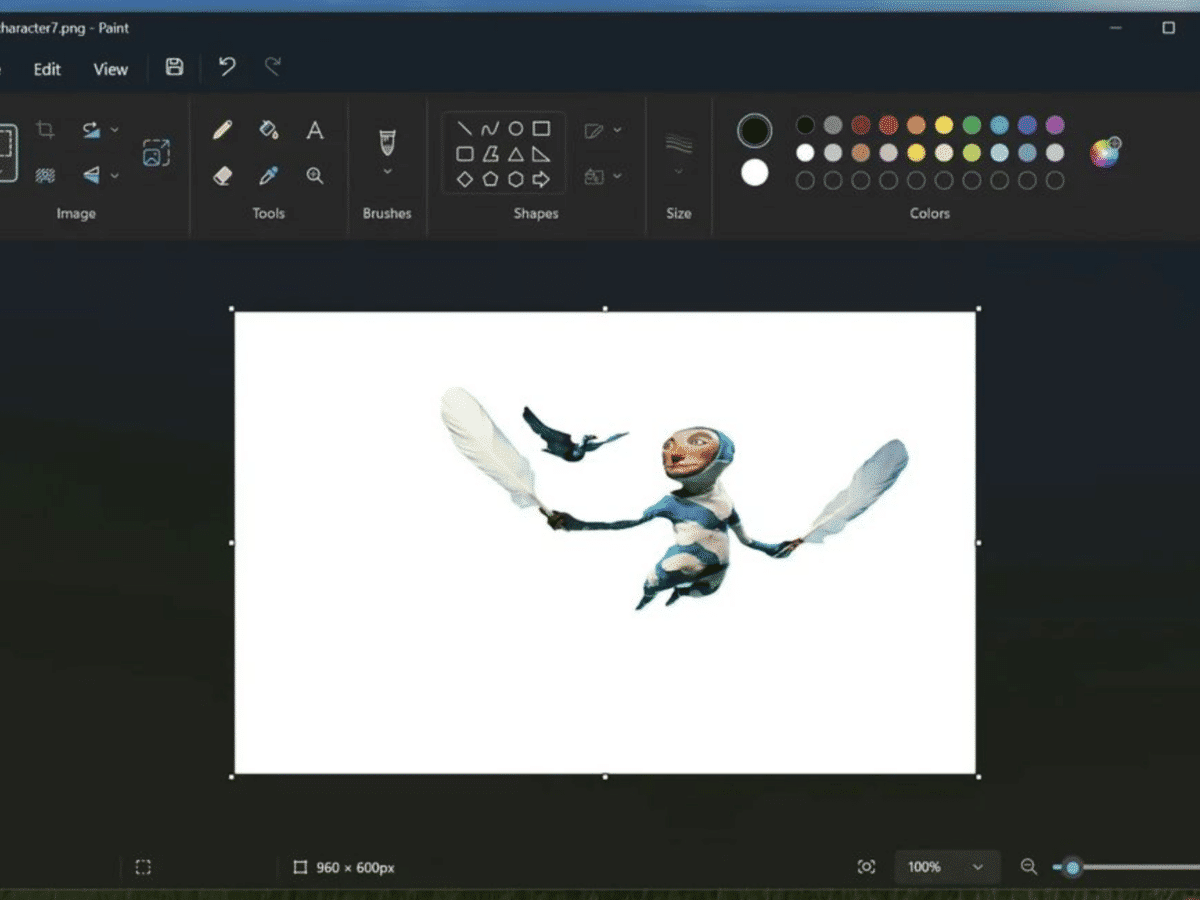
Microsoft is testing a tool to remove backgrounds in Paint

Microsoft has started rolling out a tool to easily remove backgrounds from images with just one click in the Paint app. The update is currently being rolled out to Windows Insiders in the Canary and Dev Channels. To use the feature, simply paste or import content into Paint and click on the new ‘remove background’ […]

Posted inComputer Software
Microsoft separates Teams from the Office suite

Today, Microsoft announced that their collaboration tool, Teams, will no longer be included in their Microsoft 365 and Office 365 services in the European market. This decision stems from Teams’ competitor, Slack, lodging a complaint against Microsoft with the EU Commission in 2020 for anti-competitive practices related to bundling Teams with Office. As a result, […]
Posted inComputer Software
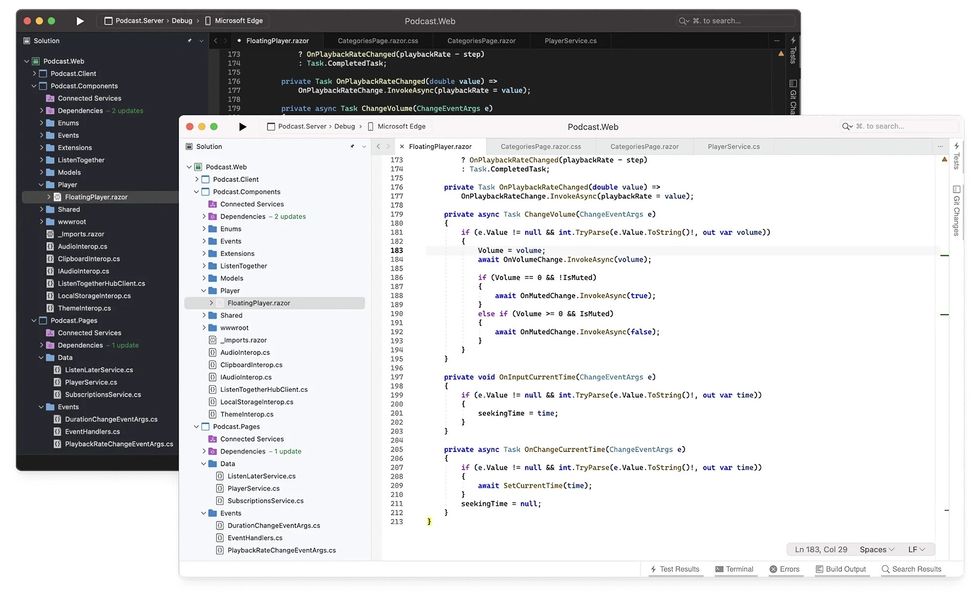
Microsoft bids farewell to Visual Studio for Mac
Microsoft has announced that it will be discontinuing the macOS version of its Integrated Development Environment (IDE), Visual Studio. The latest version of Visual Studio for macOS will be available until August 31, 2024, but will no longer receive any new features. Microsoft stated in a post: With today’s announcement, we’re redirecting our resources and […]

Posted inComputer Software
YouTube is testing a Shazam-like search feature

Google’s video platform, YouTube, has started testing an experimental feature where users can hum or sing a few seconds of a song, which hopefully allows the new feature to recognize it and find the song the user is humming. This is somewhat reminiscent of a similar feature in the Shazam service, and Google introduced a […]
Posted inComputer Software
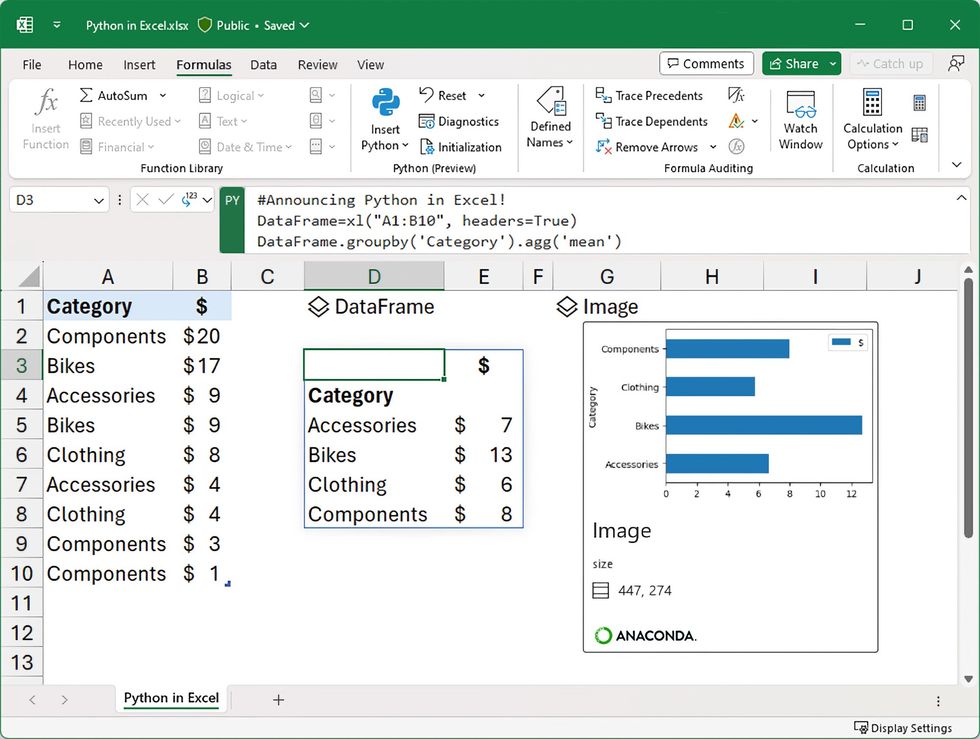
Python is coming to Excel

The popular programming language Python is now being integrated into Microsoft’s spreadsheet application Excel, allowing Excel users to use Python code to handle and manipulate data in their worksheets. Stefan Kinnestrand from Microsoft says: You can manipulate and explore data in Excel using Python plots and libraries, and then use Excel’s formulas, charts and PivotTables […]
Posted inComputer Software
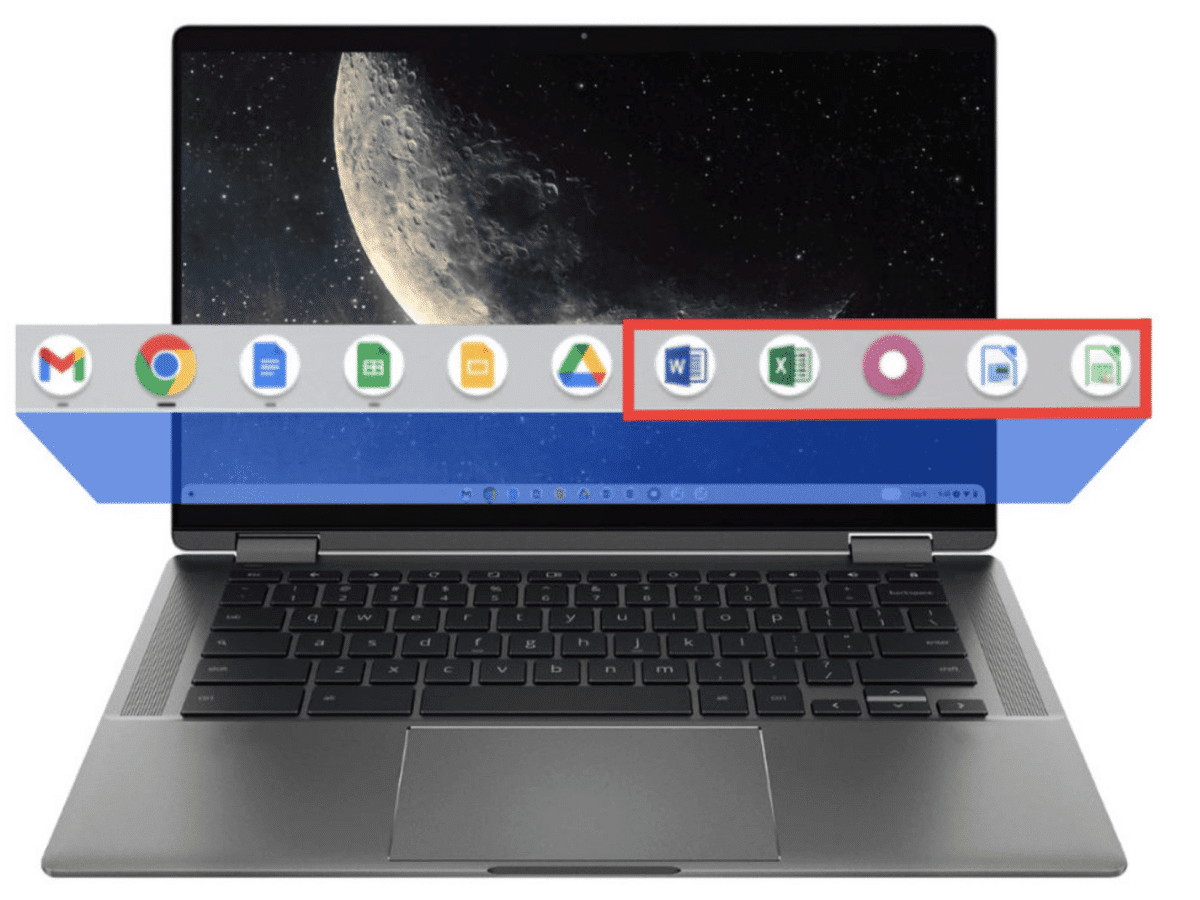
Run Windows apps on Chromebooks with Cameyo
The company Cameyo has released a new service that allows you to run Windows apps on Chromebooks without needing to use a virtual desktop or other tricks. “ChromeOS Virtual App Delivery with Cameyo” relies on Windows apps being run directly through Cameyo’s or the customer’s servers in the cloud, even though it appears to the […]

Posted inComputer Software
Samsung releases new One UI for older devices
Samsung is now rolling out selected features from the latest One UI update to previous generations of its devices through a new update. The update includes many of the innovations we’ve seen in the Galaxy Z Fold 5, Z Flip 5, Tab S9 series, and Watch6 series. The One UI 5.1.1 update will be available […]

Posted inComputer Software
Microsoft Office’s new default font will be rolled out in September

Microsoft is set to introduce the new default font, Aptos, for all Microsoft 365 users next month. Additionally, Office will also receive a new set of themes and a new color palette. This means that applications like Word, Outlook, PowerPoint, and Excel will replace Calibri, which has been the default font for over 15 years. […]
Posted inComputer Software
Microsoft is rolling out an update that disables Cortana
Microsoft has now started to send out an update that simply removes the Cortana app from Windows 11. It was as long as three years ago that Microsoft also removed its Cortana apps for iOS and Android. If you try to launch Cortana on Windows 11, you will now be greeted with a message stating […]

Posted inComputer Software
Google’s search engine gets a spelling correction feature
Google has implemented a new feature that can correct users’ spelling and grammar mistakes in texts. The feature is sometimes activated automatically, but if you want to ensure its use, you can add ‘grammar check’ after the entered text, as reported by Google9to5. The function utilizes artificial intelligence and appears to resemble the spell-check features […]

Posted inComputer Software
Chromebooks are set to get a standalone web browser
Google appears to be moving towards separating the Chrome browser from its ChromeOS, the operating system that powers Chromebooks. Until now, the Chrome browser has been integrated into ChromeOS’s source code, but Google has been experimenting with something called Lacros (Linux And ChRome OS), a project aimed at making the browser independent of the operating […]
Posted inComputer Software
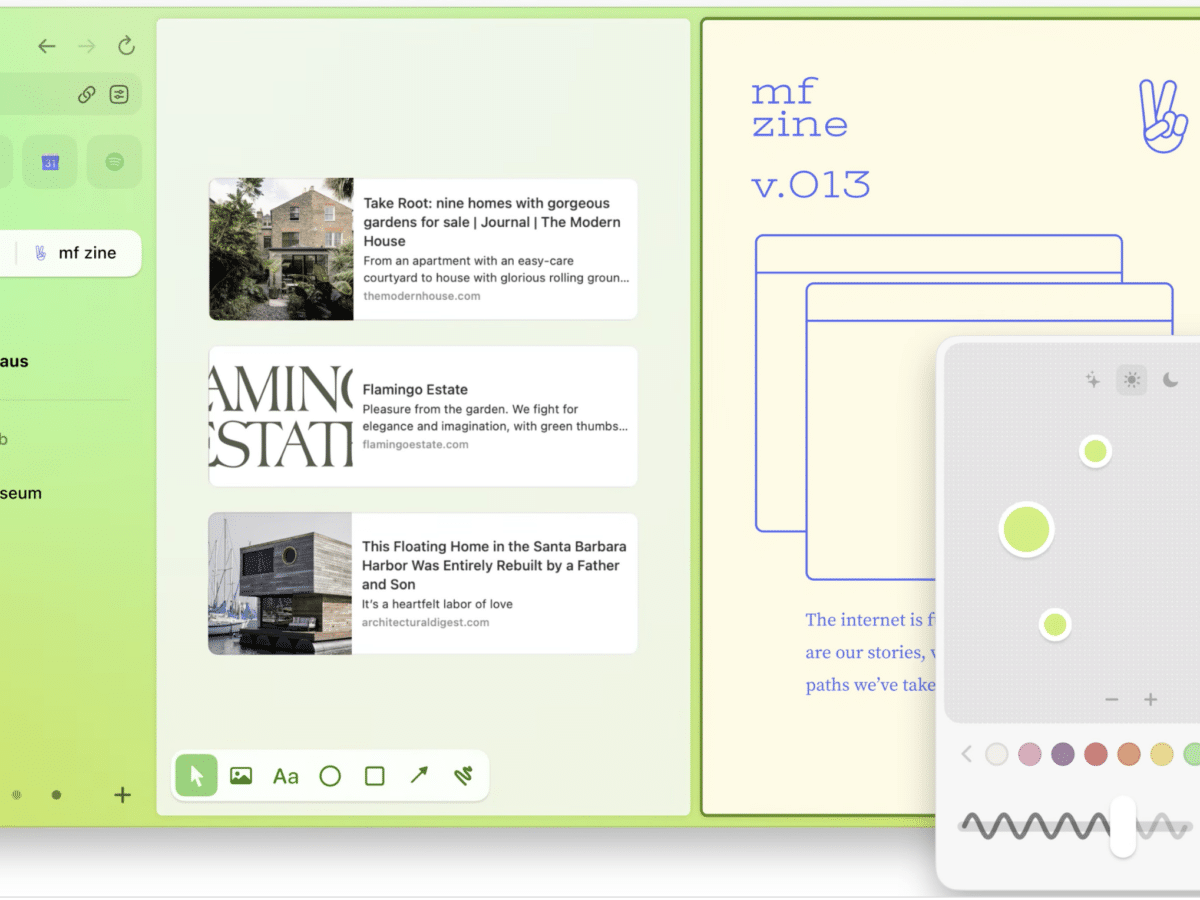
Now, the web browser Arc is released
If you’re interested in a new web browser, The Browser Company is now releasing the browser Arc in a 1.0 version after being in beta since last year. The idea behind Arc is that it should be more than just a web browser. The Browser Company has tried to achieve this by incorporating various types […]

Posted inComputer Software
China releases its first open-source operating system
Now, OpenKylin 1.0 has been released, China’s first operating system released under an open-source license. OpenKylin is based on Linux and is said to resemble the Linux distribution Ubuntu according to some who have tested the operating system. On top of OpenKylin, there is the UKUI desktop environment, which is also developed as open source. […]
Posted inAI
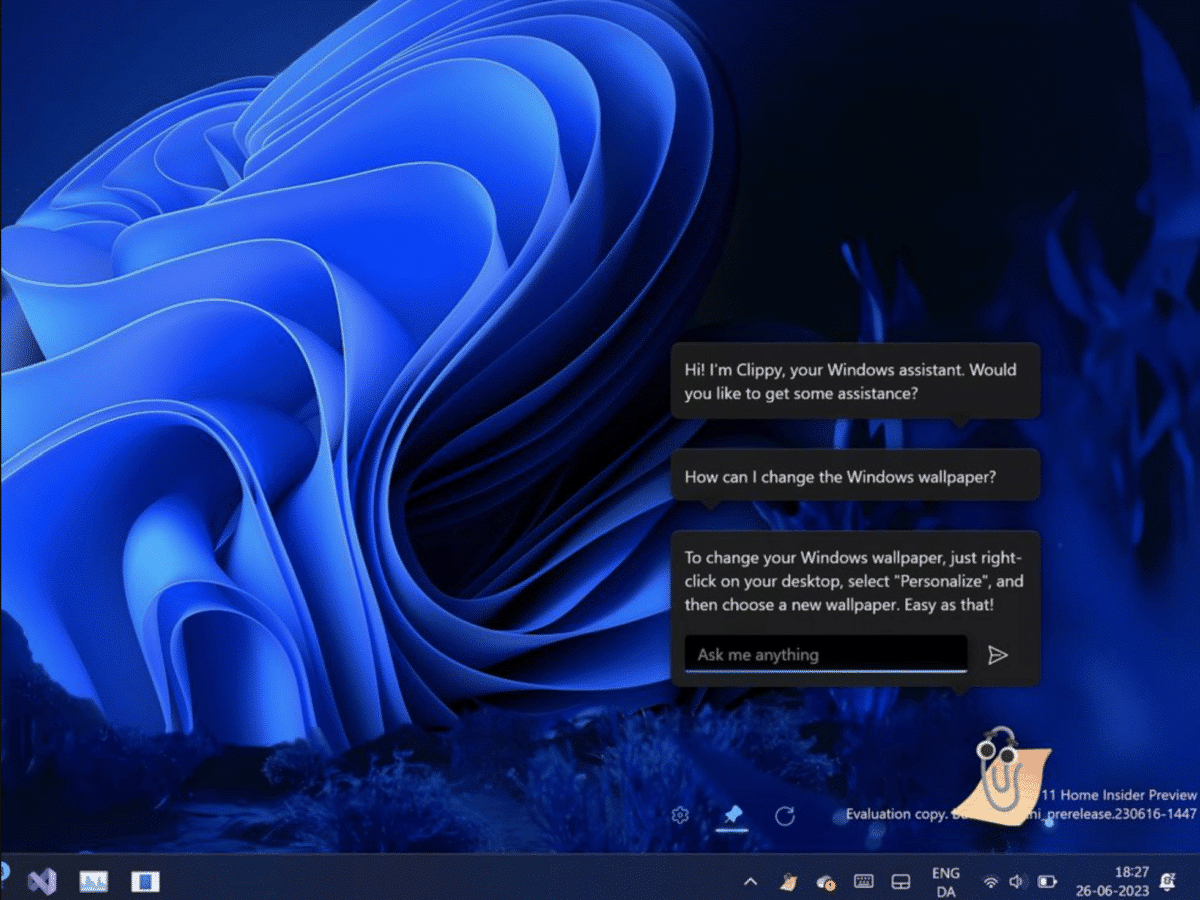
Clippy makes a comeback as a smart assistant on Windows

If you miss the old Office assistant Clippy (Clippit), there is now an unofficial chat assistant for Windows 10 and Windows 11 that looks like Clippy. The Clippy assistant for Windows is not developed by Microsoft themselves, but rather by a company called FireCube Studios. The new version has borrowed its intelligence from OpenAI: ChatGPT […]