
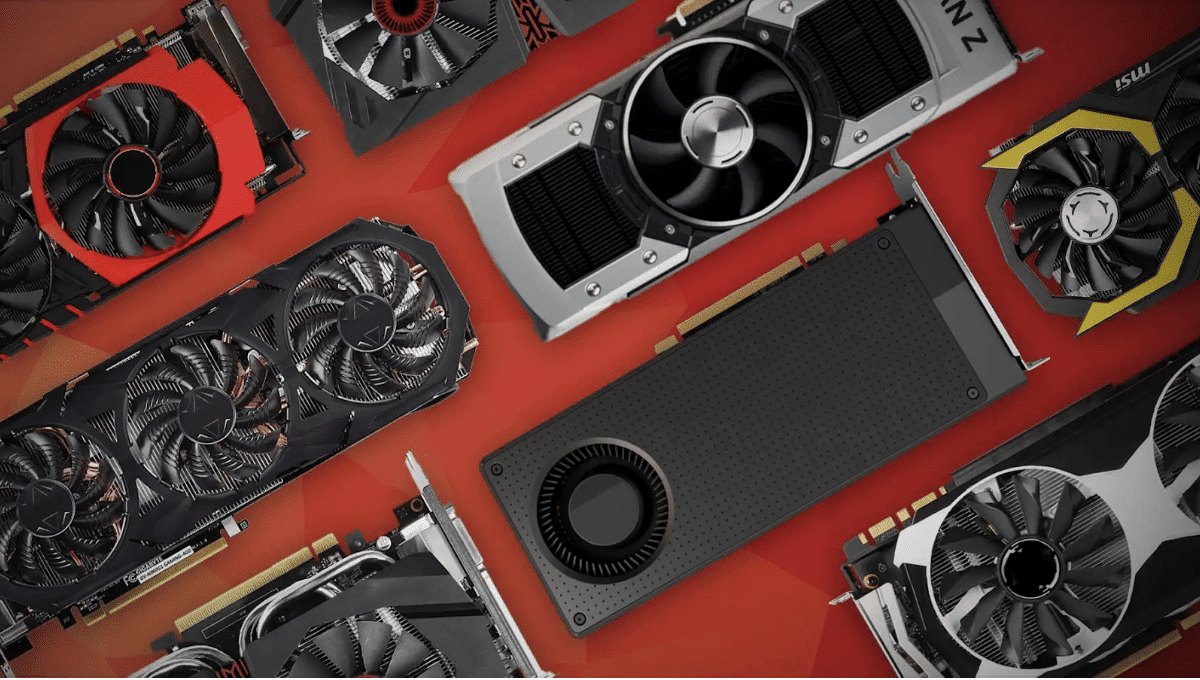

Selecting the ideal graphics card is pivotal for PC gamers, considering its central role in gaming performance. However, navigating the plethora of options and determining the best GPU that strikes a balance between cost and performance can be a daunting task. To simplify this process, this article has compiled a ranking of the top GPUs […]
Computer Hardware
Gadget Advisor presents the best in computer hardware news, including PCs, notebooks, ultra-portables, peripherals, processors, video cards, etc.
Posted inComputer Hardware
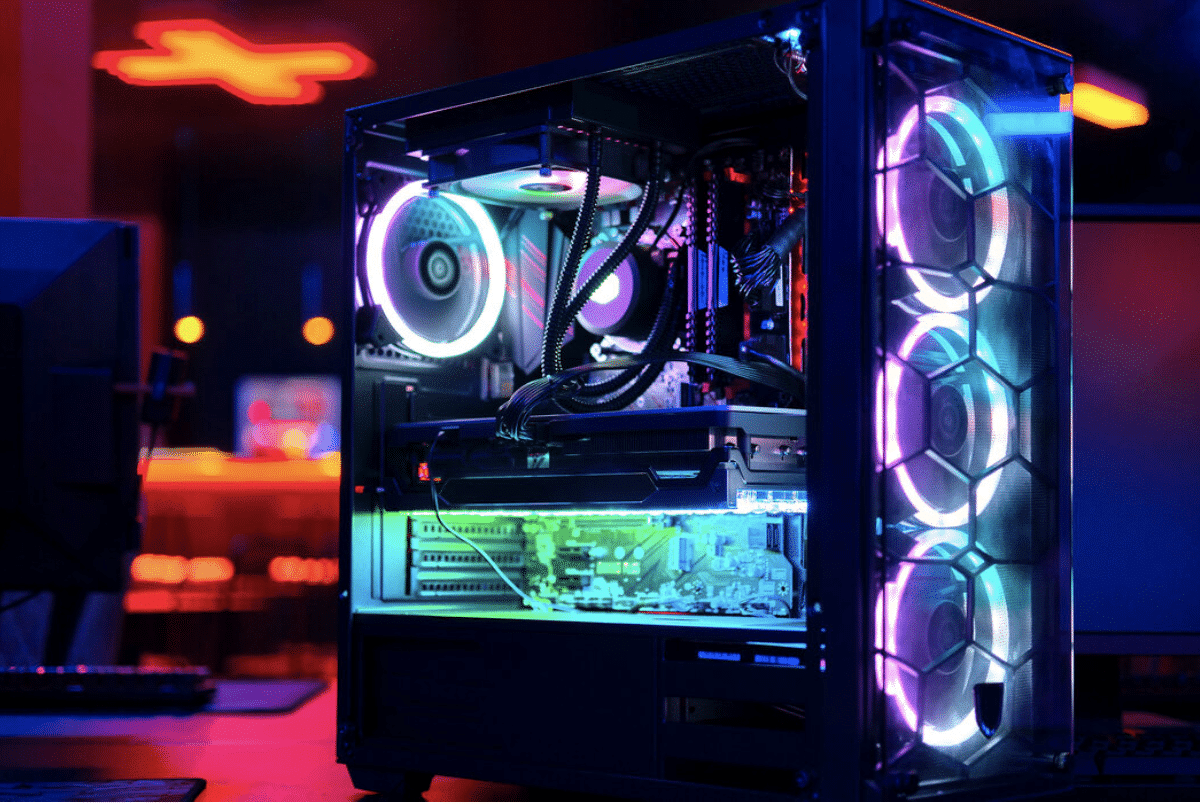
The Best Gaming PCs in 2024
Selecting the best gaming desktop can be a challenging task, considering the plethora of options available. So, to help you with your search a little bit this article has a list of some awesome gaming PCs from renowned brands like Lenovo, Alienware, Acer, and Origin. As of 2024, the Lenovo Legion Tower 7i continues to […]
Posted inComputer Hardware
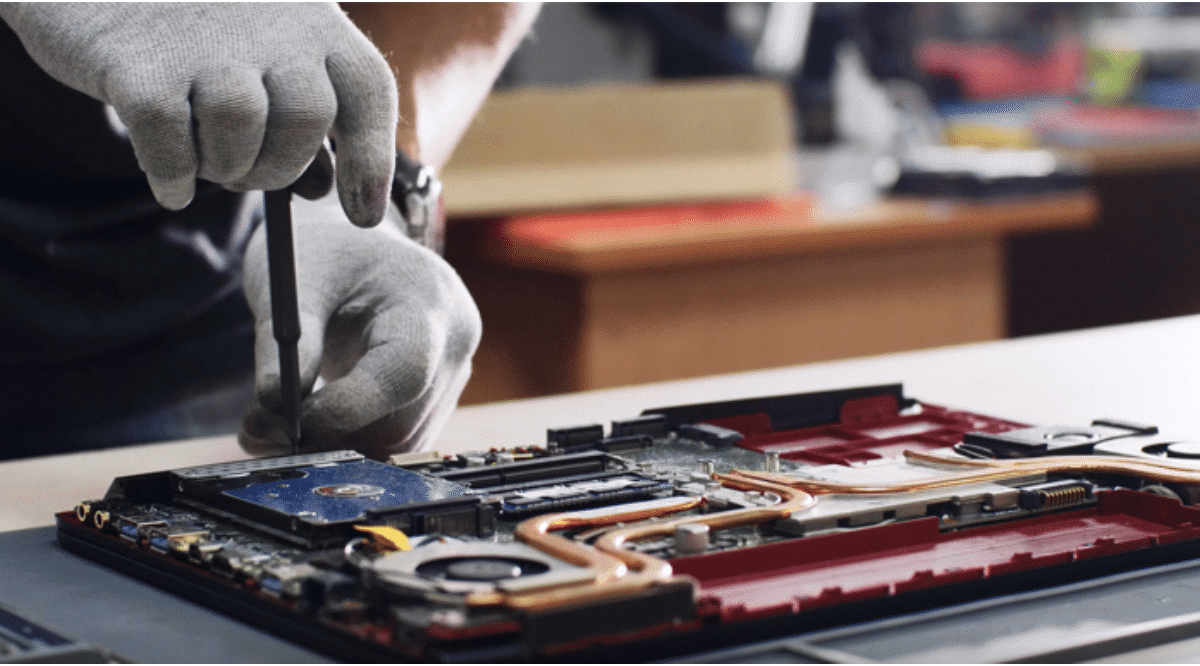
The Best SSDs in 2024
Upgrading your PC or device to run on a solid-state drive (SSD) has become essential, especially with the pricing of them being as affordable as ever and hard drives are now recommended only for long-term storage. The PlayStation 5 now supports additional SSDs, and Windows 11 introduces Direct Storage, enabling speedy loading times similar to […]

Posted inApple
Best Accessories For Your iMac in 2024
The Apple iMac stands as a favoured all-in-one solution for creatives and professionals, yet there’s always room for enhancement. Leveraging some of the finest iMac accessories can enhance its capabilities, providing additional ports, superior sound quality, expanded storage, or even optimising desk space utilisation. Explore this list of top-notch iMac accessories currently available to elevate […]
Posted inComputer Hardware
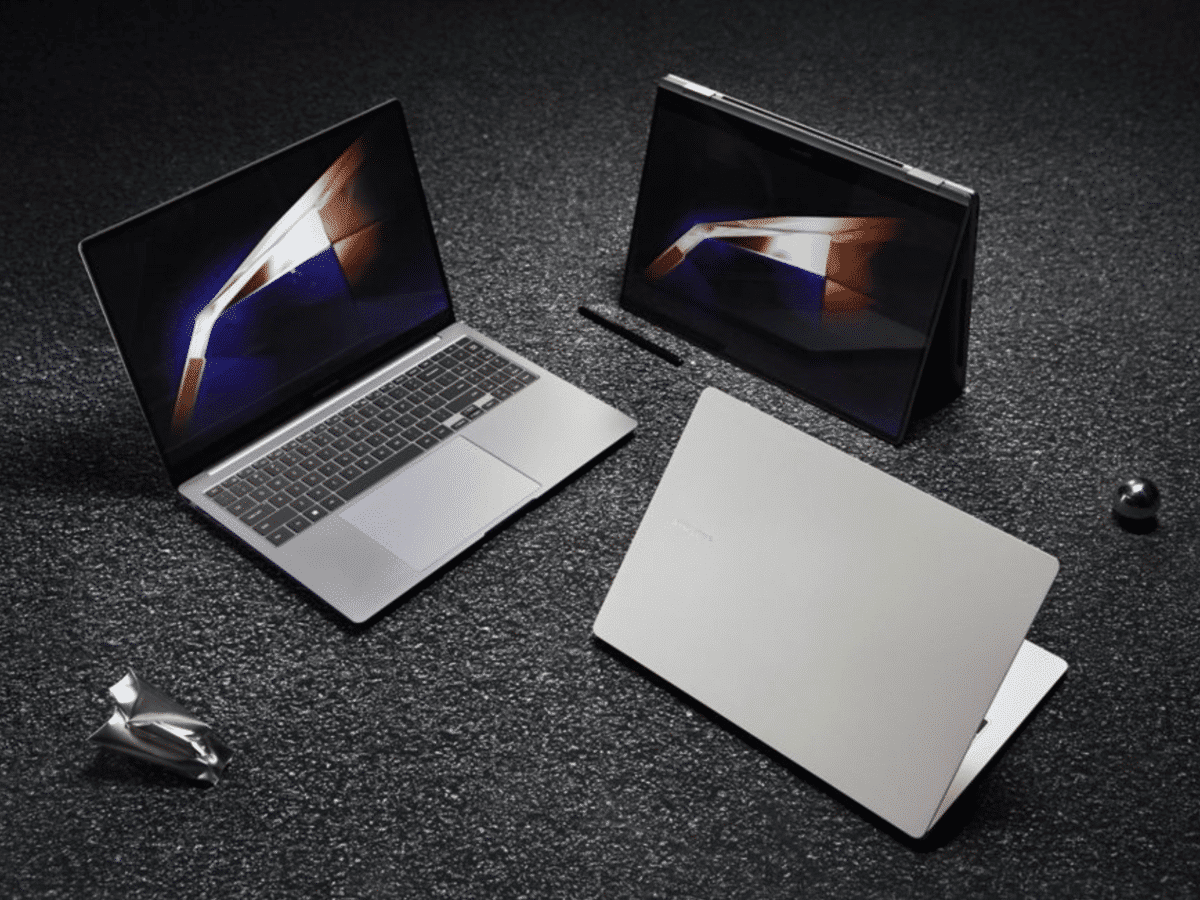
Samsung releases the Galaxy Book 4 series

Samsung has now introduced its new PC series consisting of the Galaxy Book4 Ultra, Book4 Pro, and Book4 Pro 360, which they describe as their most intelligent to date. These computers are equipped with new chips like the new Intel Core Ultra 9 and Nvidia GeForce RTX 4070 series. All models have AMOLED screens that […]

Posted inComputer Hardware
The PC CPU Battle Royale: Intel vs. Qualcomm vs. Nvidia vs. AMD

Intel has long ruled the desktop CPU market, commanding consistently dominating market shares over the last decades. With AMD as its only noteworthy challenger in the CPU market, Intel still holds an 80.6% share of the desktop CPU market. Intel is, beyond doubt, the champion of the x86 architecture. And no one can realistically hope […]
Posted inComputer Hardware
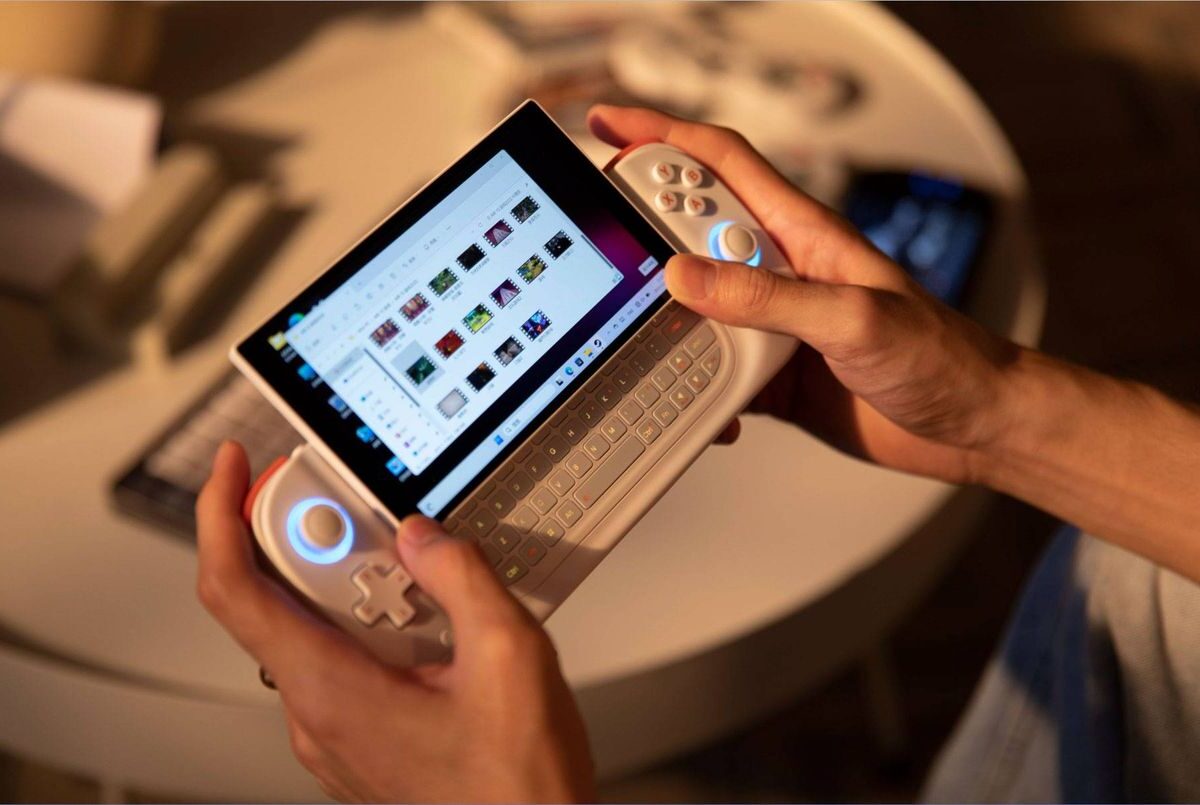
Ayaneo presents a handheld PC with a keyboard
In recent years, a number of handheld PC devices primarily intended for gaming have emerged, and Ayaneo is one of the companies behind some of them. Now, the company has unveiled a new model with a built-in small keyboard, which could potentially make this handheld device useful for more than just gaming. Ayaneo’s new model, […]
Posted inComputer Hardware
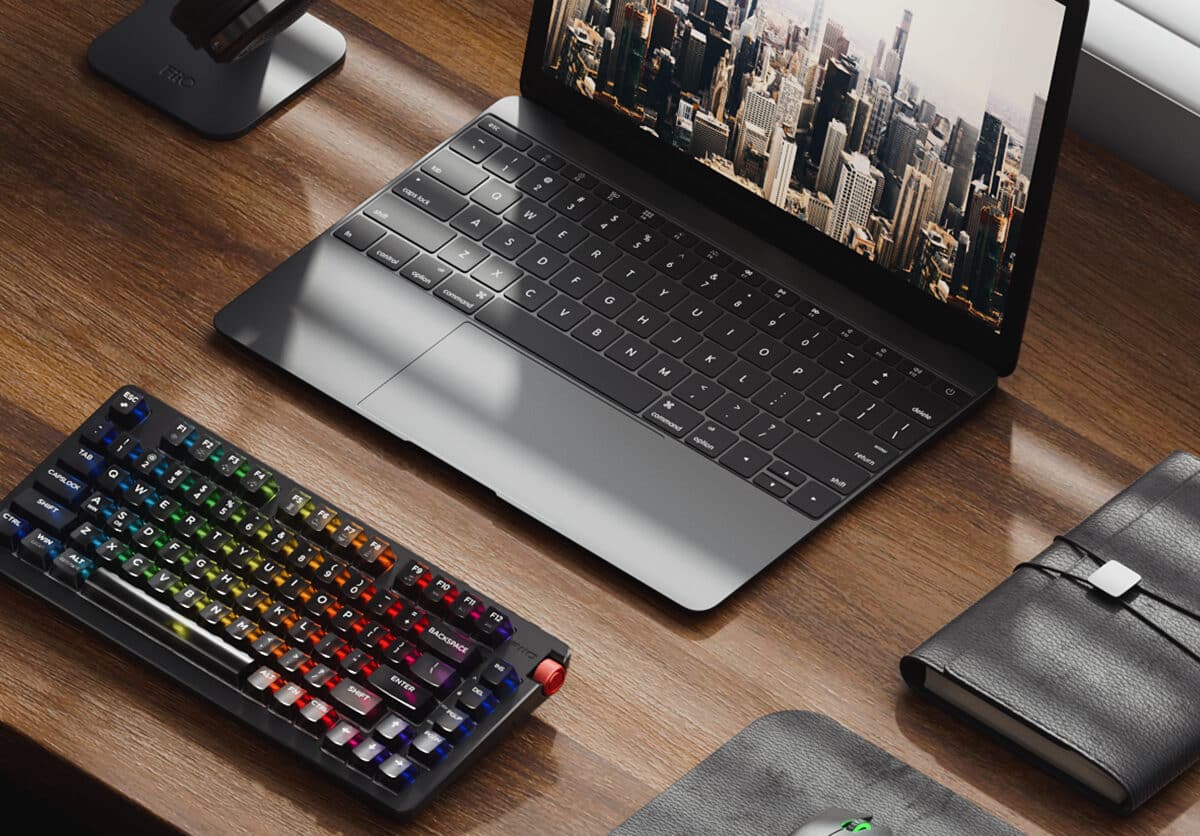
Fiio integrates headphone amplifier in hi-fi keyboard
Hi-fi company Fiio may just have revealed the perfect keyboard for audiophiles, or not. The new all-in-one keyboard, KB3, features things like a DAC, headphone amplifier, and headphone jack built-in. On one side, there is a 3.5-mm jack and on the other side, a 4.4 mm for balanced headphones. The built-in DAC supports 32-bit/384kHz and […]

Posted inComputer Hardware
Opal releases its second camera
Opal is now launching its second camera, called Tadpole. This portable 4K webcam is primarily intended for use with laptops, which often have subpar cameras. Tadpole is said to have improved image quality compared to its predecessor, the Opal C1 (which is larger), and uses a 48MP Sony IMX582 sensor. The camera weighs 45 grams […]
Posted inApple
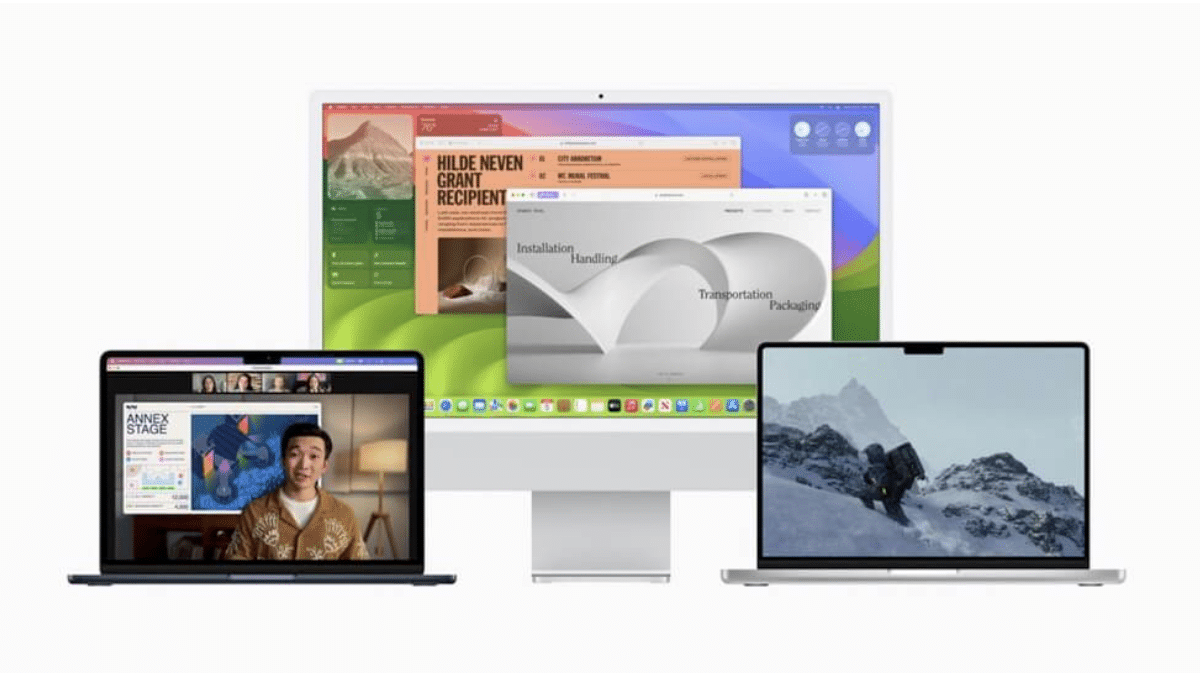
Apples 2023 Hardware Event – Everything You Need To Know
Even though the year is coming to its end, Apple has still decided to go ahead and unveil their new hardware. On the 30th of October 2023, the day before Halloween, Apple held a spooky-themed virtual event where they finally announced their next-generation M3 chipsets: the M3, M3 Pro and M3 Max. This is not […]

Posted inComputer Hardware
Troubleshooting Common Multi-Monitor Problems
There are a lot of advantages to be had from having more than one monitor with your setup, these benefits can range from improving your productivity to just giving you an overall more immersive gaming experience. However, this isn’t always perfect and sometimes as soon as you plug in the second monitor nothing seems to […]

Posted inComputer Hardware
How To Set Up Multiple Monitors
Having multiple monitors is something that will make a huge difference for both those who are looking to increase their productivity as well as better their gaming experience. Having two or three monitors really gives you a lot more display space for you to work with, so if you are looking to have a little […]
Posted inComputer Hardware
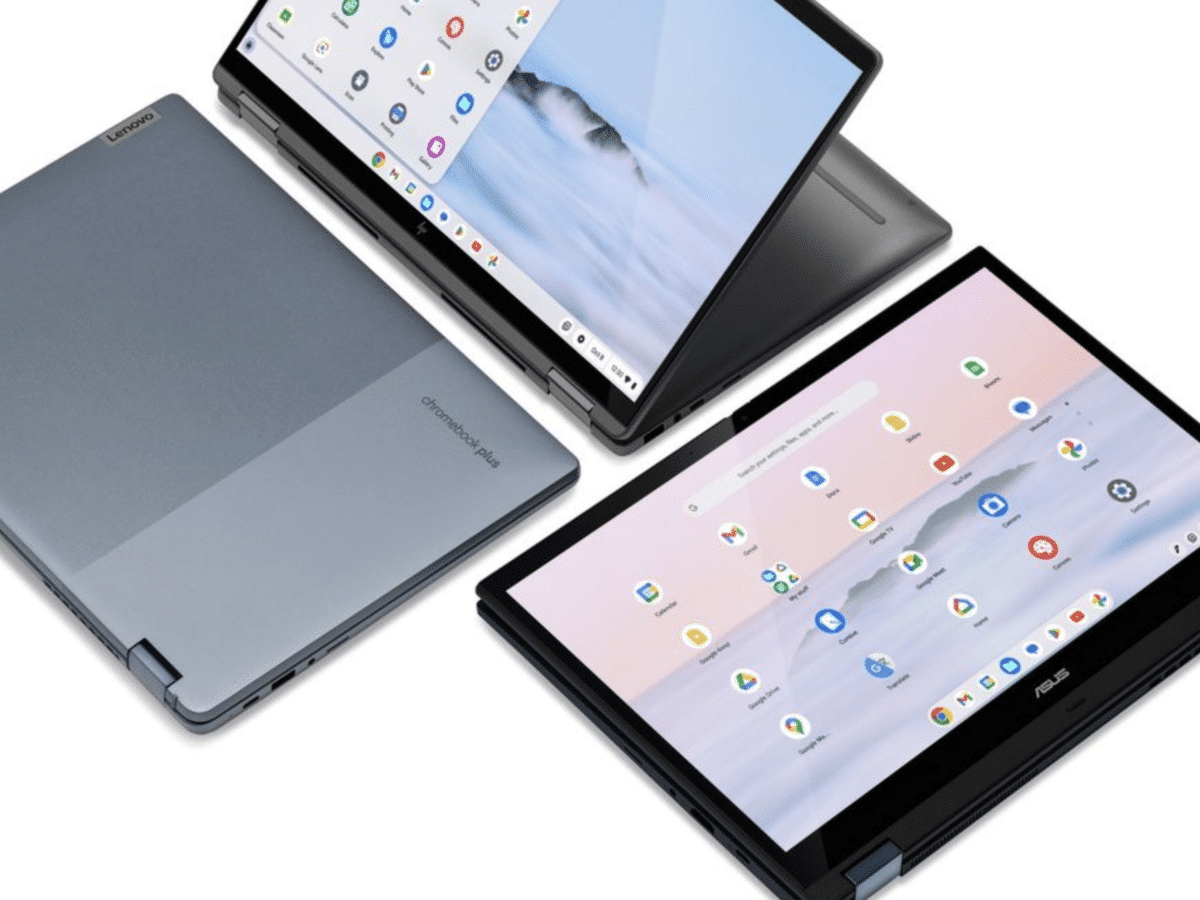
Google is launching the Chromebook Plus

Google is now introducing a new category of Chromebooks that promise, among other things, double the performance compared to regular Chromebooks. These new devices are called Chromebook Plus and come with features like Google Photos’ Magic Eraser for free and access to Photoshop online. All models in the series feature faster processors, with options including […]
Posted inComputer Hardware
Raspberry Pi 5 unveiled

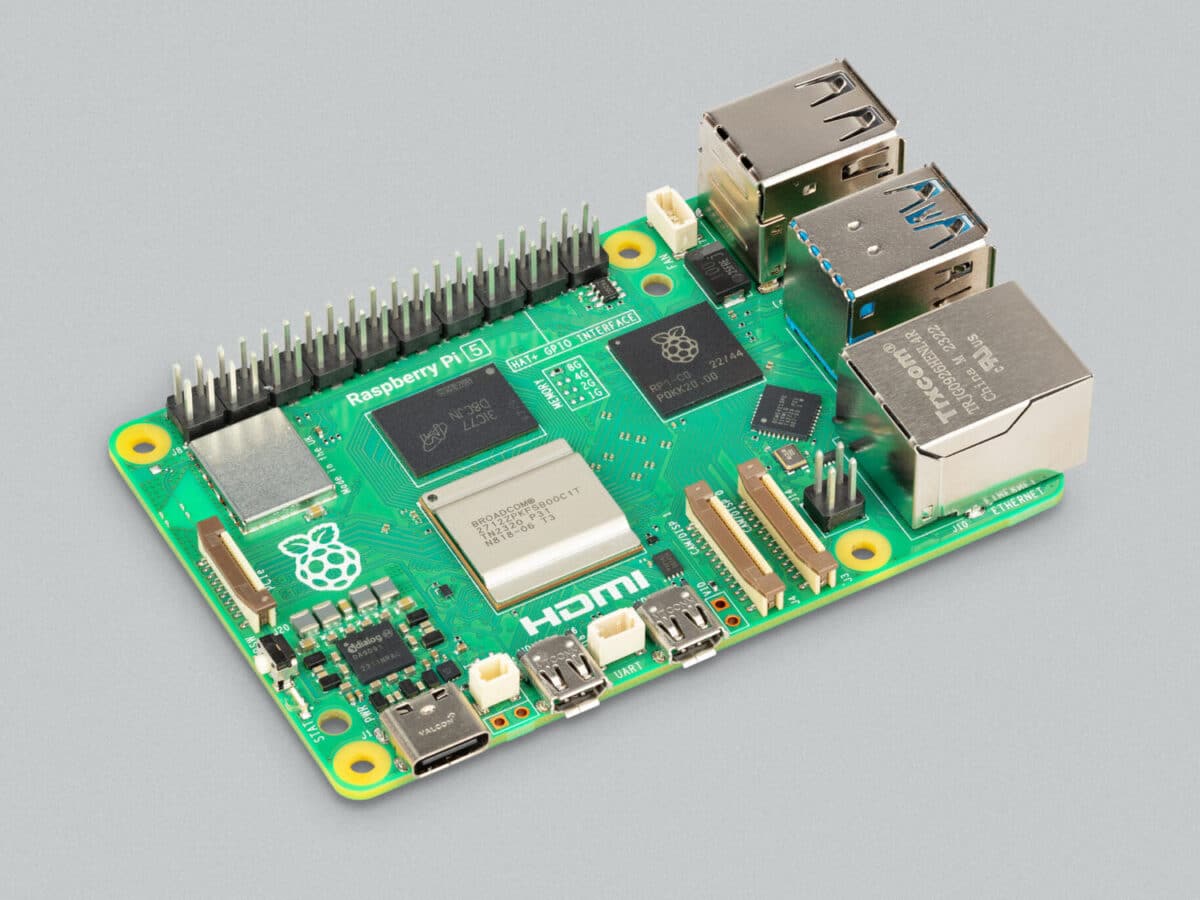
It’s been four years since the Raspberry Pi Foundation introduced the mini-computer Raspberry Pi 4, and today they unveiled a successor to it. Raspberry Pi 5 is equipped with a quad-core Arm Cortex-A76 processor with a speed of 2.4GHz, which means that the new Raspberry Pi computer is two to three times faster than Raspberry […]
Posted inComputer Hardware
How good are Rapid Triggers on SteelSeries keyboards?

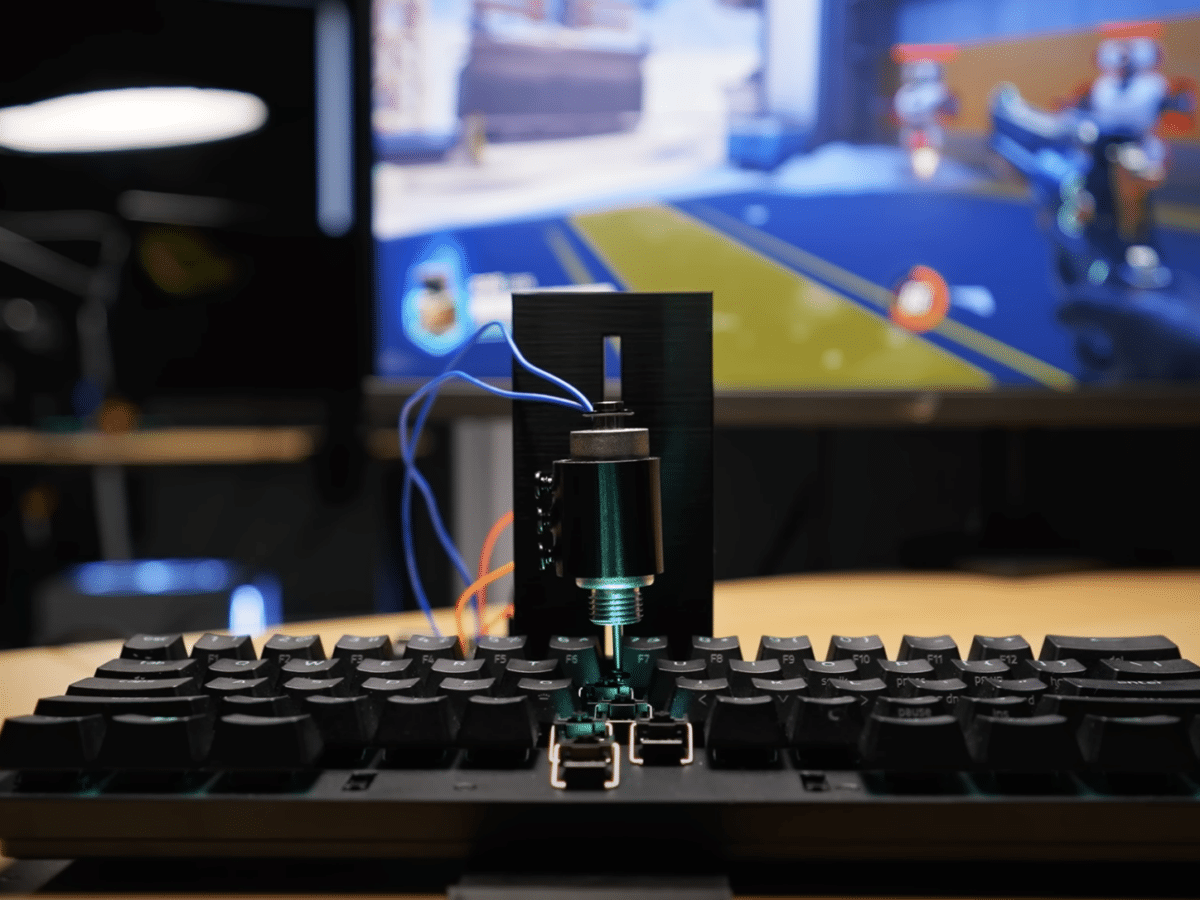
The SteelSeries Apex Pro Mini is a very nice keyboard that received a fine update a few weeks ago, adding Rapid Triggers support to its keys. This means that keypresses are registered as soon as you release the key. It might not be something that the majority of the population thinks about, but it can […]
Posted inComputer Hardware
Microsoft releases a new version of the Surface Laptop Studio
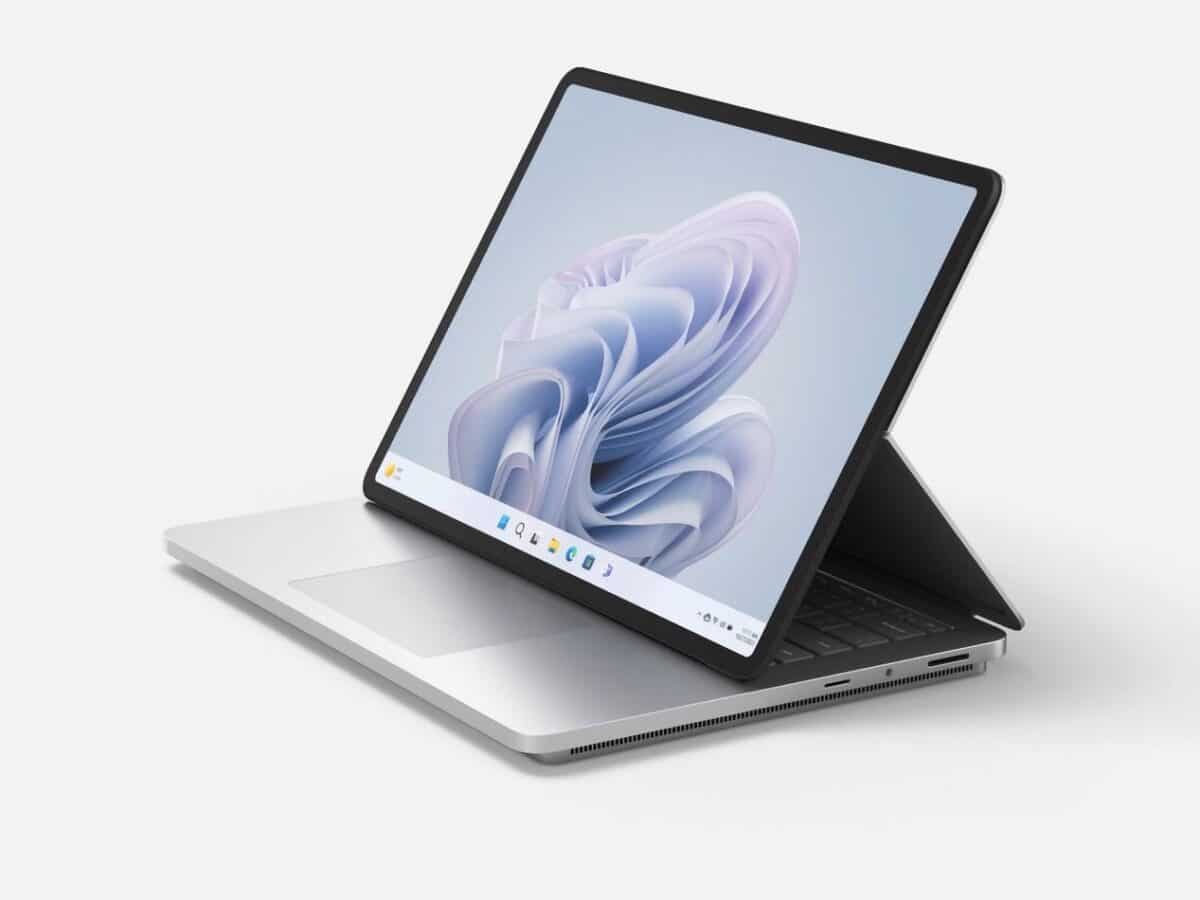
During Microsoft’s Surface event yesterday, they unveiled a new version of their powerful Surface Laptop Studio, a laptop that can also be used as a tablet. The new version of the Surface Laptop Studio has received some upgraded hardware, featuring a 13th-generation Intel Core i7 processor instead of the 11th generation seen in the previous […]
Posted inComputer Hardware
Microsoft unveils the Surface Laptop Go 3
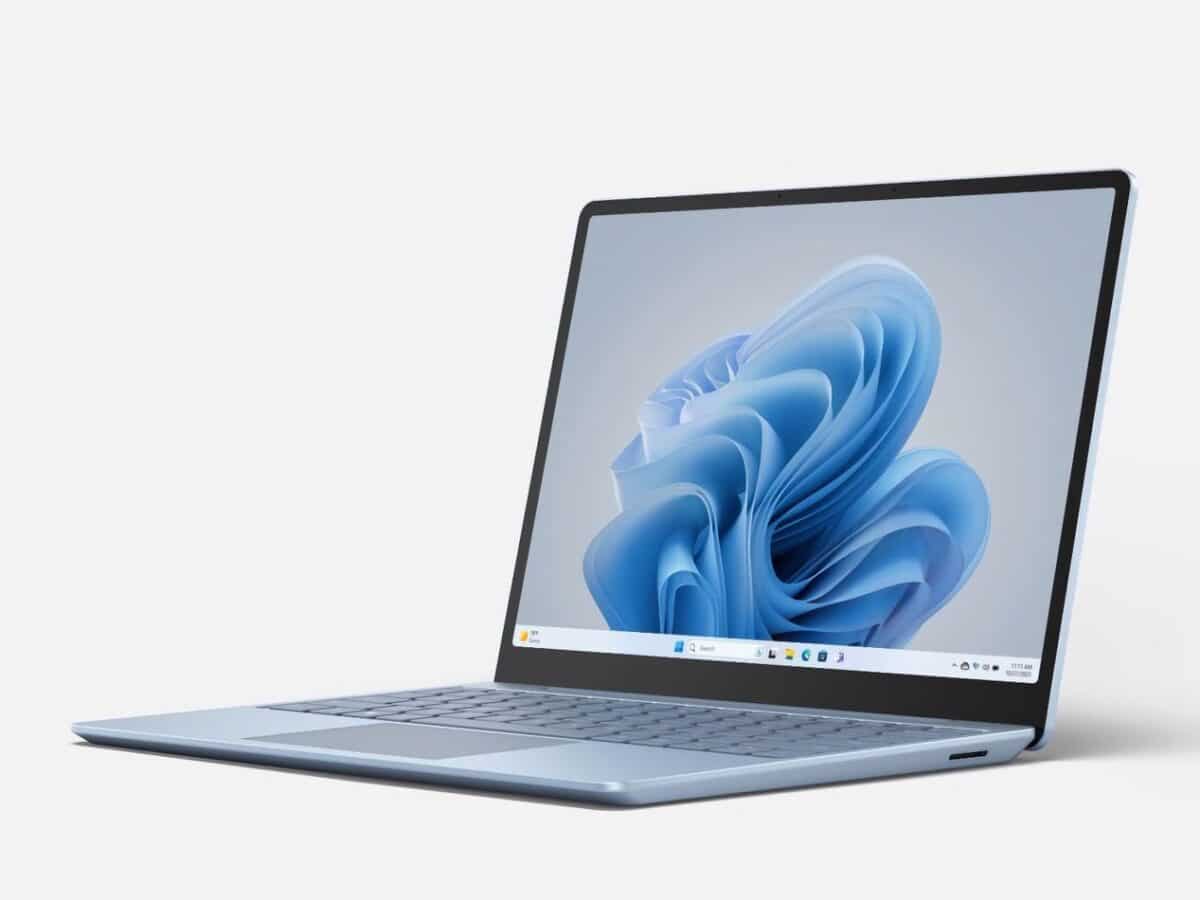
Microsoft has unveiled a new version of its ‘budget laptop,’ the Surface Laptop Go, which is more powerful and slightly more expensive than its predecessor. The new version of the Surface Laptop Go comes with a 12th-generation Intel Core i5 processor, 8GB or 16GB of RAM, and 512GB of storage. The screen measures 12.4 inches […]
Posted inComputer Hardware
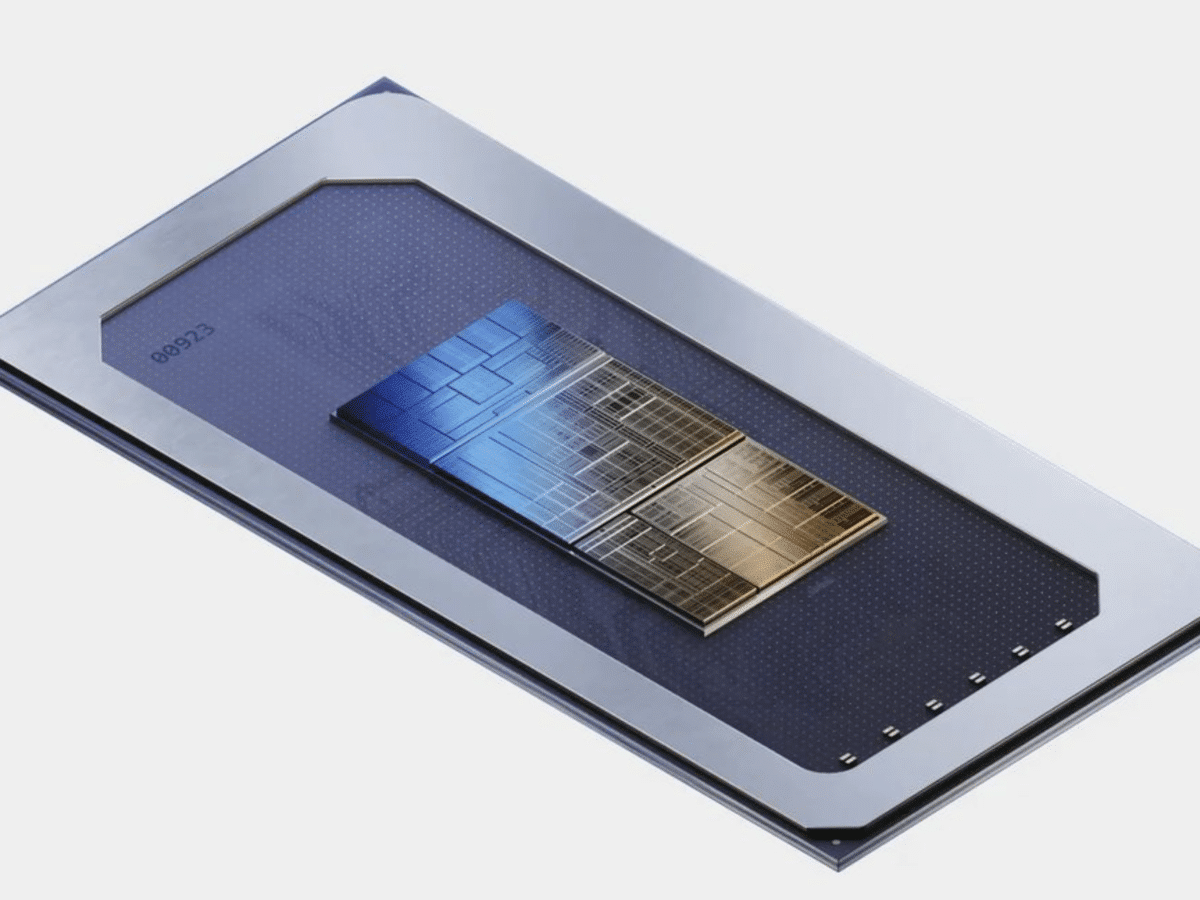
Intel launches Core 14000 Meteor Lake

Intel is introducing the Core 14000 “Meteor Lake” family for laptops, with a focus on energy efficiency, improved graphics, and dedicated hardware for artificial intelligence. Meteor Lake is the first consumer-oriented processor family with a chiplet design, consisting of five separate die. Intel employs the Foveros 3D technology to stack these die with high bandwidth […]
Posted inComputer Hardware
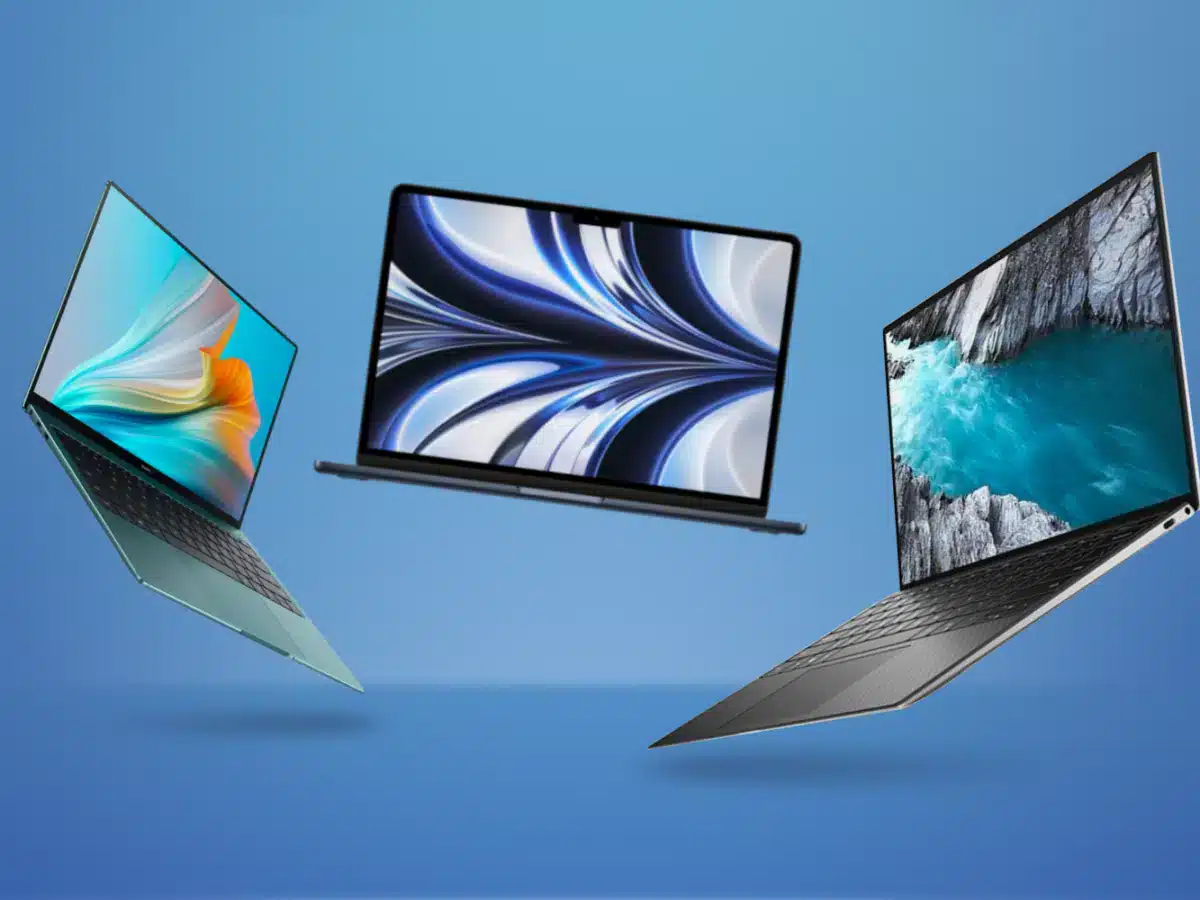
Laptop Market Share by Brand 2023

In 2015, the total number of PCs shipped in the world was 259.76 million units. Two years later, the PC global shipments reached 286.2 million units – a 10.18% increase from 2020. Interestingly, different varieties and brands of laptops account for these numbers – Apple, Dell, HP, Lenovo, among others. What to expect in this […]

Posted inComputer Hardware
OnePlus has a new budget tablet in the works
Digital Trends reports that OnePlus is planning to launch a new budget tablet called OnePlus Pad Go. This tablet is said to feature an 11.6-inch 2.4K display with a refresh rate of 144Hz and will be powered by OnePlus OxygenOS 13. According to Digital Trends, the tablet bears a strong resemblance to the previous OnePlus […]

Posted inComputer Hardware
AOC releases a portable gaming monitor
AOC Gaming has today released the new 16G3 monitor, which is a gaming monitor with a 15.6-inch Full HD IPS display. It has a refresh rate of 144 Hz and a 4 ms response time. It boasts a brightness of 250 cd/m², a contrast ratio of 1000:1, and Adaptive-Sync. The monitor features a relatively thin […]
Posted inComputer Hardware
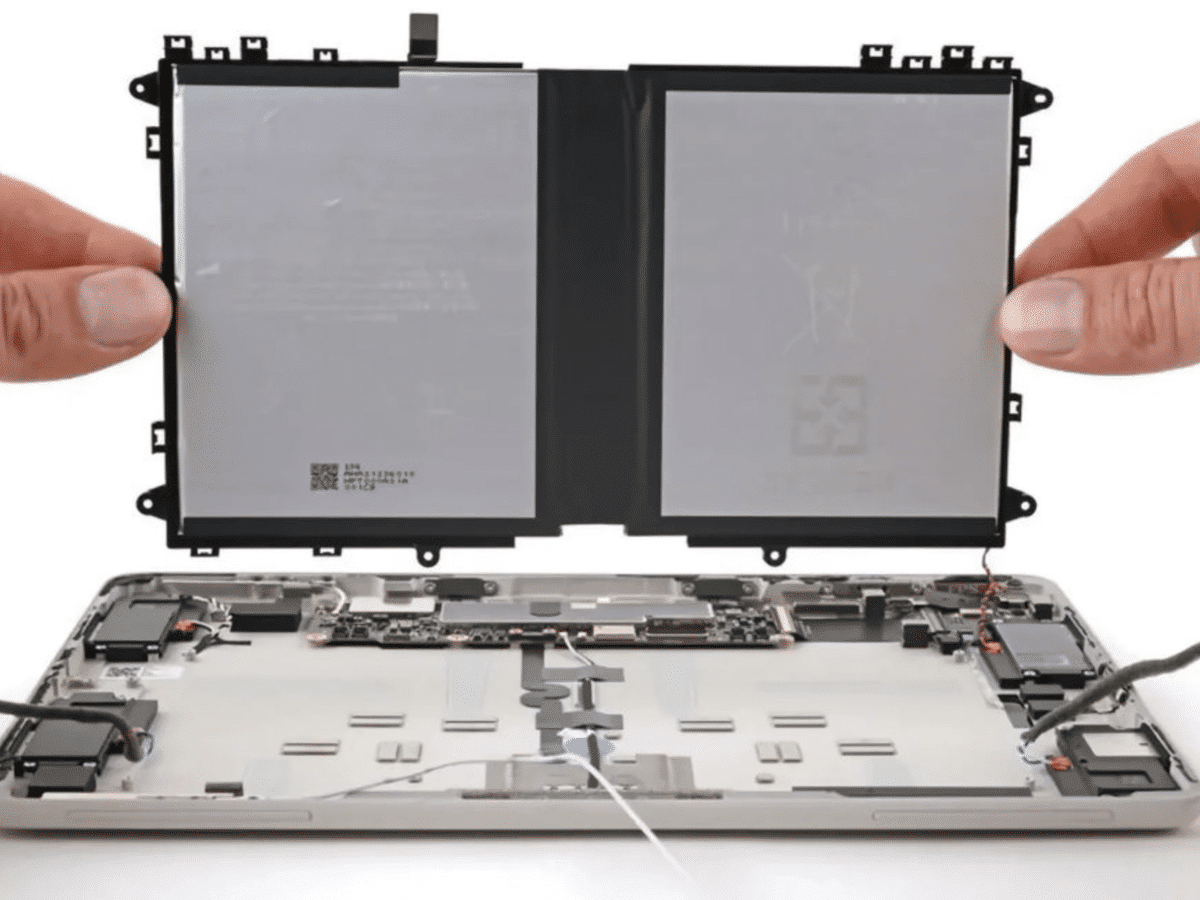
Now, original parts for the Pixel Tablet are available on iFixit

Google and iFixit continue their collaboration, making it easier for Google Pixel Tablet owners to repair their devices themselves. Genuine Pixel Tablet parts are now available for purchase on iFixit’s website, along with user repair guides that demonstrate how to install various components. You can buy the rear cover with volume controls, antennas, fingerprint reader, […]

Posted inComputer Hardware
HP unveils the Spectre Fold

Over the past year, we’ve seen a few laptops that utilize foldable screens, and now HP has also introduced one. HP calls its new laptop with a foldable screen the Spectre Fold, and it can be used in several different ways. As shown in the images here, you can choose to use the Spectre Fold […]
Posted inComputer Hardware
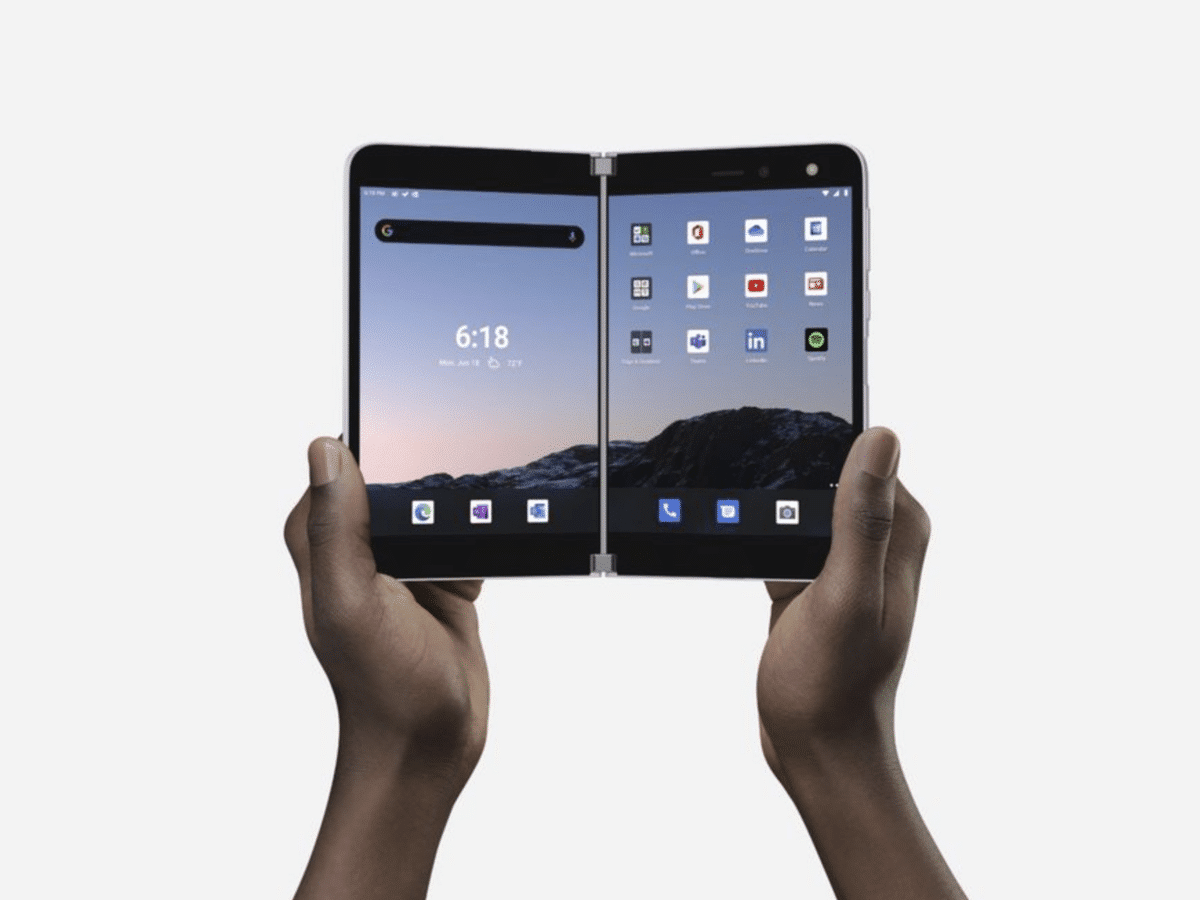
Microsoft Surface Duo has received its final update

Microsoft launched the foldable Android device, Surface Duo, at the end of 2019, and it started selling in September the following year. Despite this relatively short time since its release, Microsoft now announces that the device will not receive any more updates. Microsoft initially promised three years of support, but despite that, the Duo will […]
Posted inComputer Hardware
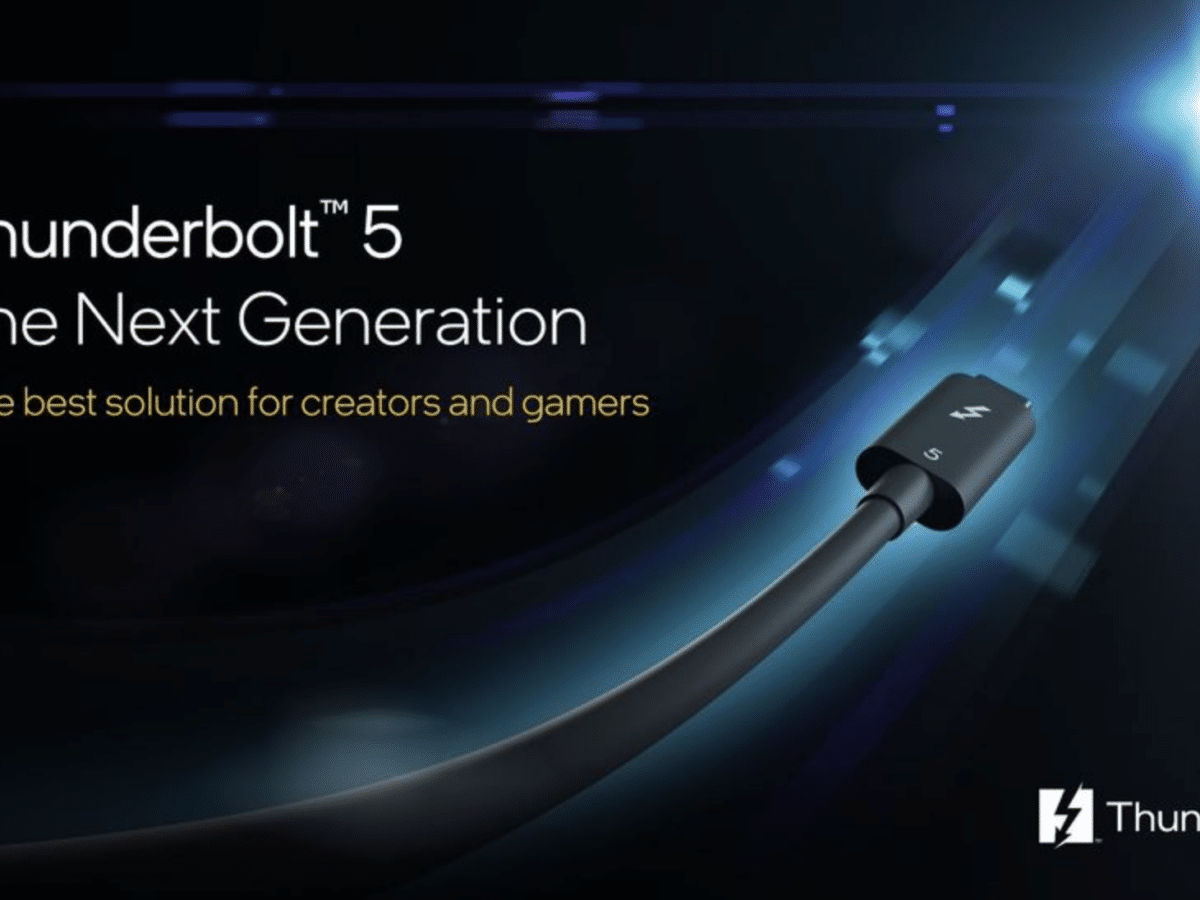
Intel unveils Thunderbolt 5
Intel has revealed the new standard for Thunderbolt 5.0 connectors, which will be available on laptops starting in early 2024. The new standard can transfer data at speeds of up to 120 Gbps, charge accessories with 240 W (100 W more than TB4), and power multiple 8K displays simultaneously. Thunderbolt 5 is backward compatible with […]

Posted inComputer Hardware
Lenovo unveils ThinkVision 27 3D

Lenovo has showcased a new monitor that can display 3D content without the need for special glasses. This has been achieved using a lens that shows different images to the user’s two eyes, creating a kind of 3D effect for the viewer. However, Lenovo’s own software is required for both creating and viewing 3D objects. […]
Posted inComputer Hardware
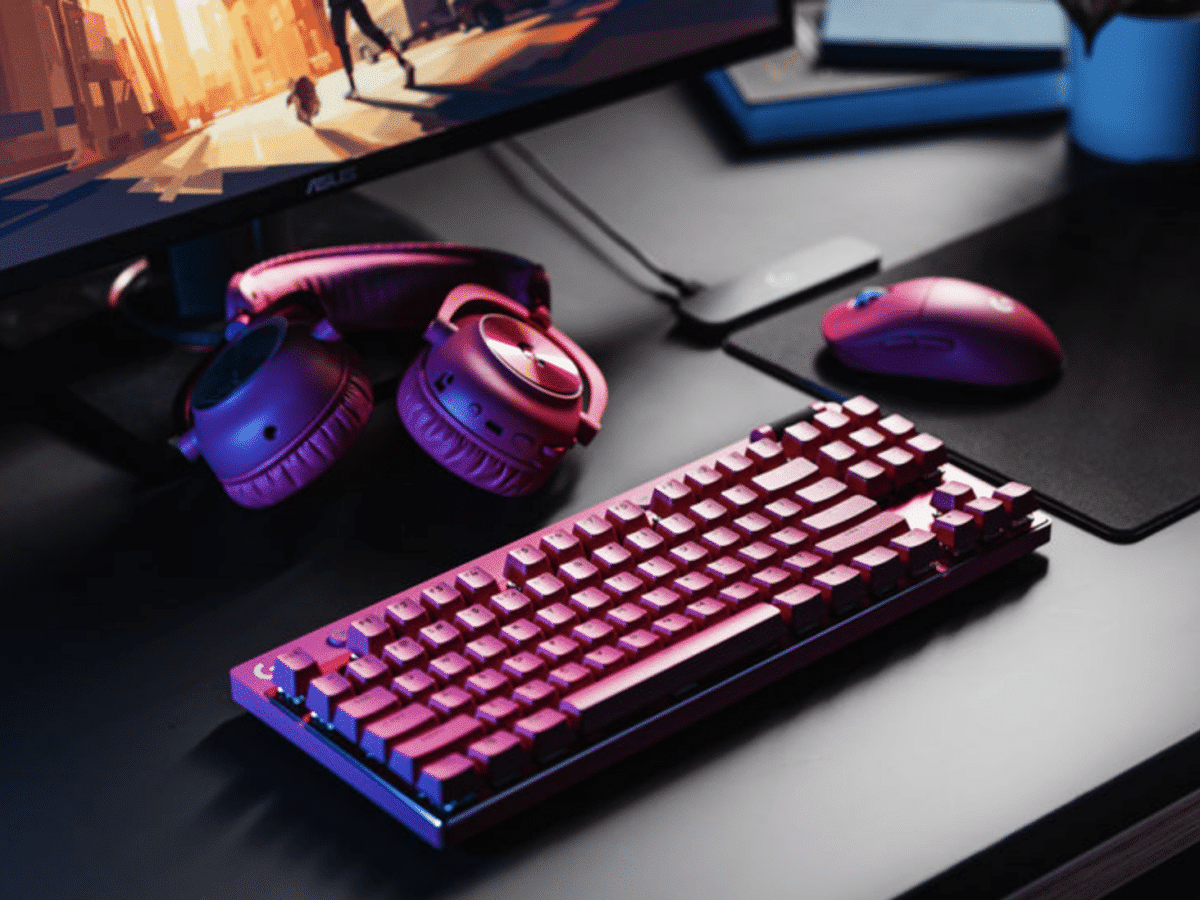
Logitech Expands its G PRO X Series
Logitech G has today launched two new products in its PRO series. The products are Logitech G PRO X Superlight 2 Gaming Mouse and Logitech G PRO X TKL Lightspeed Gaming Keyboard. As the names suggest, these products are aimed at people who play games on their computers and demand higher performance from their mice […]

Posted inComputer Hardware
Cherry showcases new mechanical switches for keyboards

Accessory manufacturer Cherry has introduced a new version of its popular mechanical switches for keyboards. The new MX switches (Mechanical X-Point), dubbed MX2A by Cherry, are said to be the new ‘gold standard’ for mechanical switches. Cherry states that the MX2A switches will result in quieter and more responsive key presses on keyboards utilizing mechanical […]

Posted inComputer Hardware
Huawei accused of building secret chip factories in China

The U.S. organization Semiconductor Industry Association states that Chinese company Huawei has found a way to circumvent the sanctions that prohibit Huawei from importing equipment to manufacture certain types of advanced microchips. According to the organization, Huawei has already established two factories and plans to build three more, all linked to companies with different names. […]
Posted inComputer Hardware
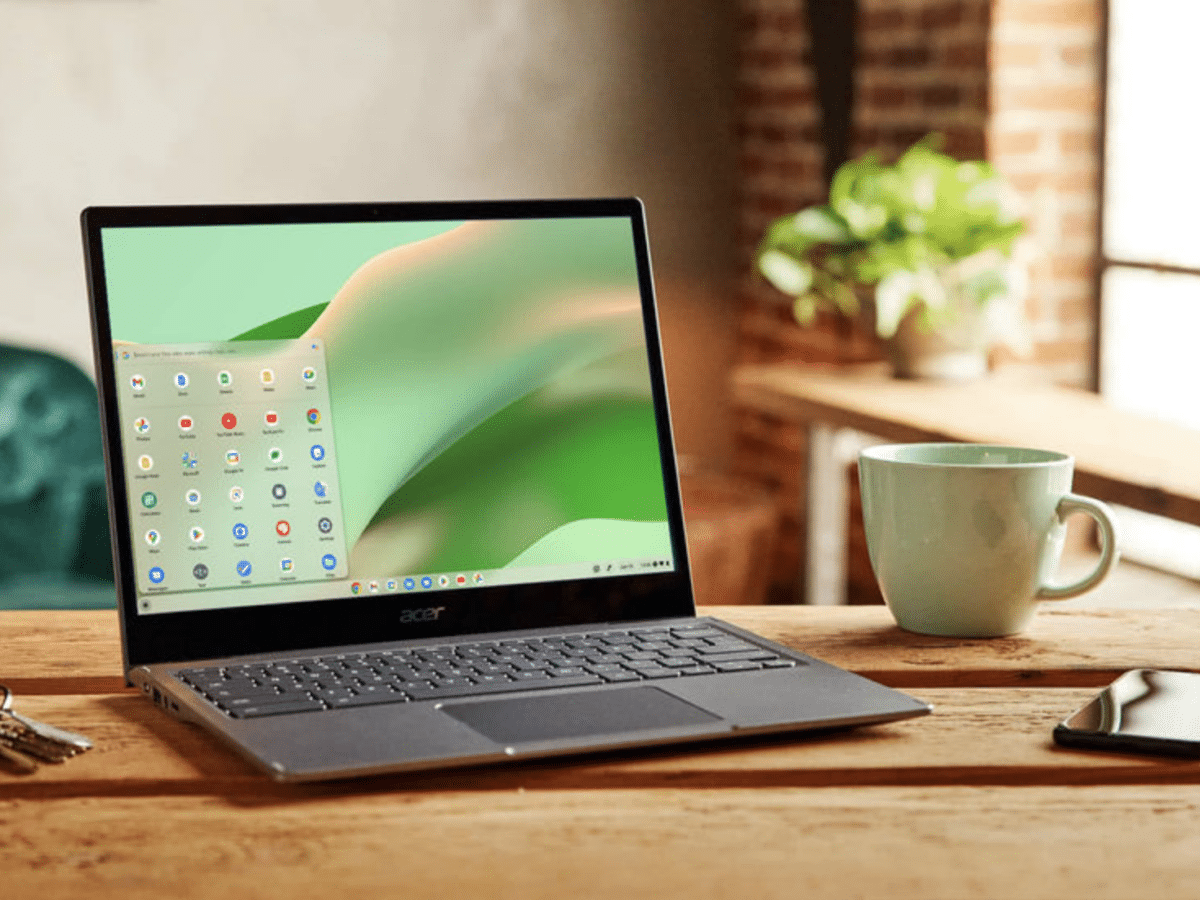
It doesn’t seem like there will be any Chromebooks with Nvidia graphics
Last year, there was much anticipation that 2023 would be an exciting year for gaming on ChromeOS. Among other things, several manufacturers were expected to release Chromebooks with integrated Nvidia graphics, as reported by 9to5Google. However, it now appears that these plans will not come to fruition. Google’s code suggests that more of the models […]