

By capturing videos from your screen on a Windows 10 PC, you could accomplish a lot of different things. Aside from creating guides or demonstrations, you could also save any content – including video calls, online streaming videos, or other content.
Of course if you want to do all that you’ll first need a screen recorder for Windows 10. While there are several options that you could choose from, if you’re looking for something that is easy to use and yet has powerful features then you should try out Movavi Screen Capture Studio.
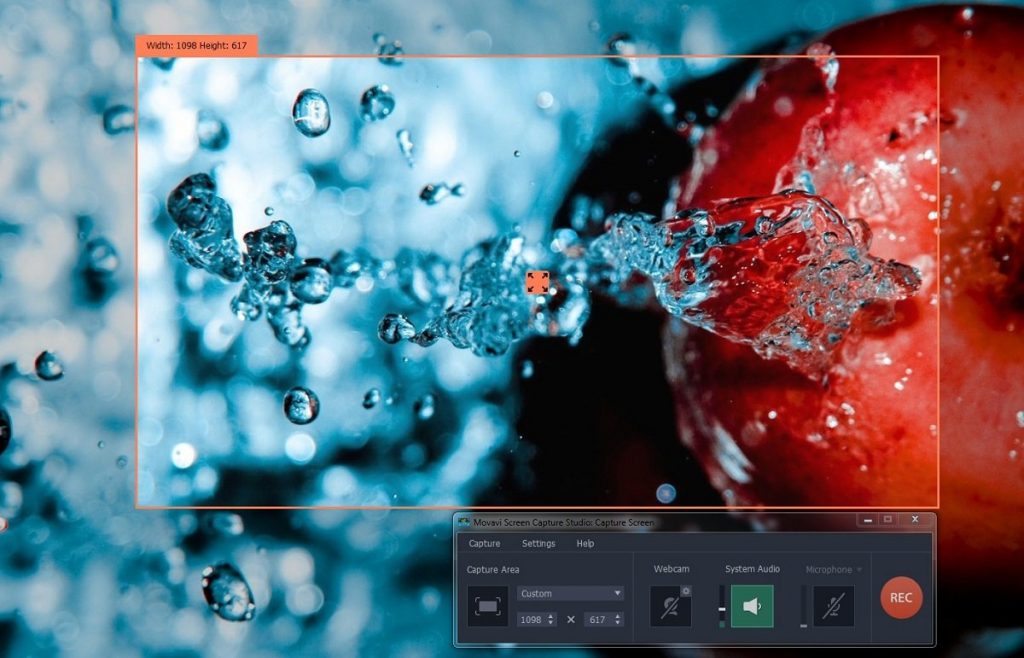
Actually capturing video footage from your Windows 10 PC screen will be a piece of cake with Movavi Screen Capture Studio. If you’d like to try, just launch it and select the ‘Record screen’ option in the menu that appears then draw a frame encompassing the area you want to record using your mouse cursor.
Aside from drawing a frame, you could select a program window to record by clicking on it, or choose one of the presets in the list under the ‘Capture Area’ section of the interface that will appear. Additionally Movavi Screen Capture Studio’s interface will make it easy for you to choose the audio sources that you want to record by clicking to highlight the appropriate icons, or adjust the volume levels using the sliders that are beside them.
Within Movavi Screen Capture Studio there are numerous other parameters that you could set up for your recording. Its features will let you record keyboard and mouse actions, set the frame rate, or automate the recording itself. If and when you’re satisfied with the parameters you’ve set up, you can click ‘REC’ to start recording then control it using the options on the interface too.
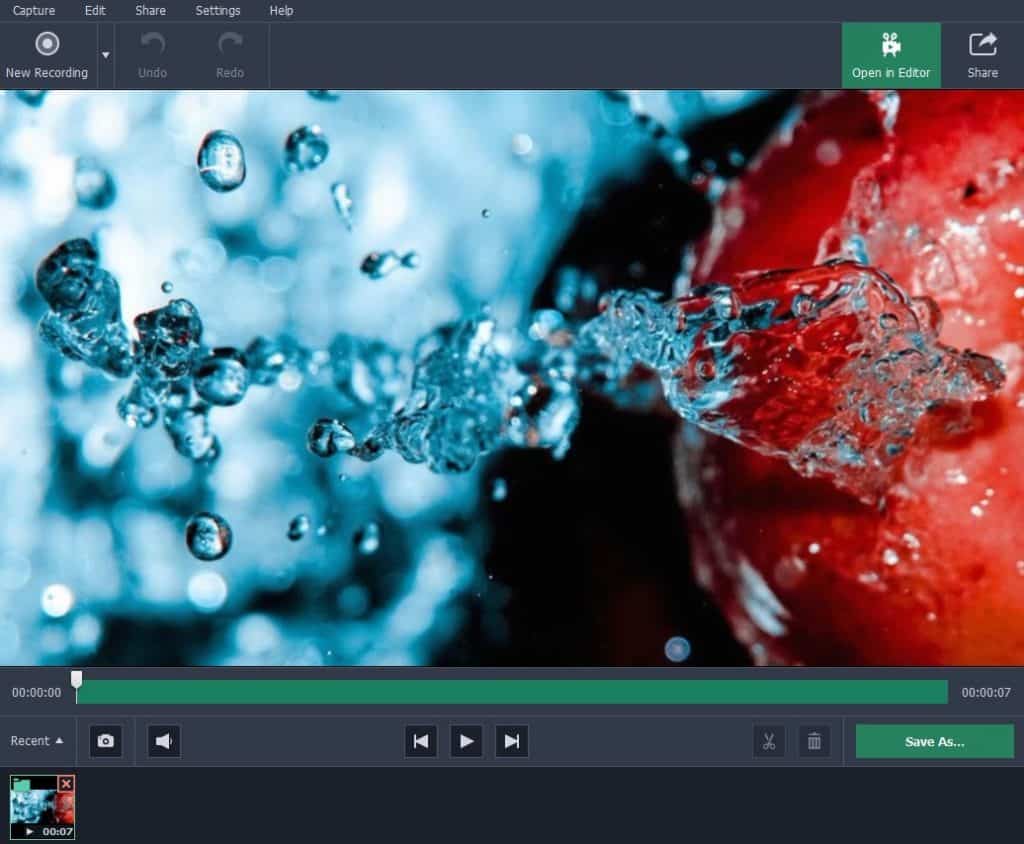
When you click ‘Stop’, Movavi Screen Capture Studio will save your video as an MKV file and open a ‘Preview’ window. In that window you can opt to save it in a different format, or open it in the built-in editor that is available if you want to make any alterations.
The built-in editor in Movavi Screen Capture Studio can help immensely if your goal is to create video content, or improve the footage that you’ve recorded. It has numerous features, some of which will allow you to cut and join video segments, apply special effects or filters, add customizable text, insert captions, include audio tracks, enhance the video quality, and more.
In a nutshell Movavi Screen Capture Studio will provide you with an all-in-one studio that will let you record, edit, and produce videos to your exact specifications. Regardless of whether you want to save online streaming videos, video calls, or even create your very own content – it has everything you need. More importantly as you should be able to clearly see, it is designed to be easy to use and will let you make the most of its features regardless of whether or not you have any prior experience.